# Sorting Data
Organize your data in ascending and descending order using the sorting function in FlexReport. See more demos, documentation, and samples here.
## Content
Sorting is another way to organize data in ascending or descending order. In FlexReport, sorting is achieved by using [DataSource.SortDefinitions](/componentone/docs/win/online-flexreport/).
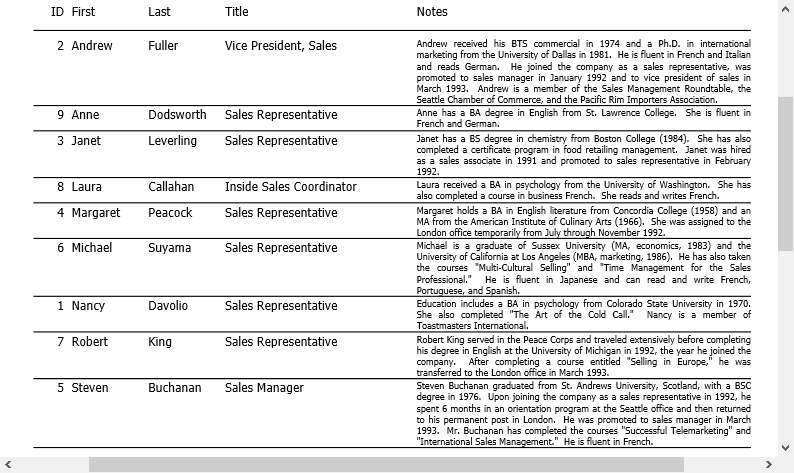
Lets say you want to view the list of employees with their names in ascending order. In this case the list should be sorted by First Name. The following steps illustrate how to Sort the names of the list of employees in alphabetical order. This example uses sample created in [FlexReport Quick Start](/componentone/docs/win/online-flexreport/flexreport-quickstart).
1. Add a **C1Button** to the form in the FlexReport Quick Start project.
2. Set the C1Button **Name** to 'sortC1Button' and **Text** to 'Sort Report by Employee First Name'.
3. Create **Click** event as sortC1Button\_Click.
4. Add the following code.
```VISUAL
Private asc As Boolean = True
Private Sub sortC1Button_Click(sender As Object, e As EventArgs) Handles Button2.Click
If asc Then
Dim sd As New SortDefinition("[FirstName]", SortDirection.Ascending)
C1FlexReport1.DataSource.SortDefinitions.Add(sd)
asc = False
Else
btnEmployees.PerformClick()
asc = True
End If
C1FlexReport1.Render()
End Sub
```
```csharp
bool asc = true;
private void sortC1Button_Click(object sender, EventArgs e)
{
if (asc)
{
SortDefinition sd = new SortDefinition("[FirstName]", SortDirection.Ascending);
c1FlexReport1.DataSource.SortDefinitions.Add(sd);
asc = false;
}
else
{
btnEmployees.PerformClick();
asc = true;
}
c1FlexReport1.Render();
}
```
5. Preview the report. Click Employees button to render the report.
6. Click 'Sort Report by Employee First Name' button to view sorting in the report.
## Sorting Data using FlexReportDesigner
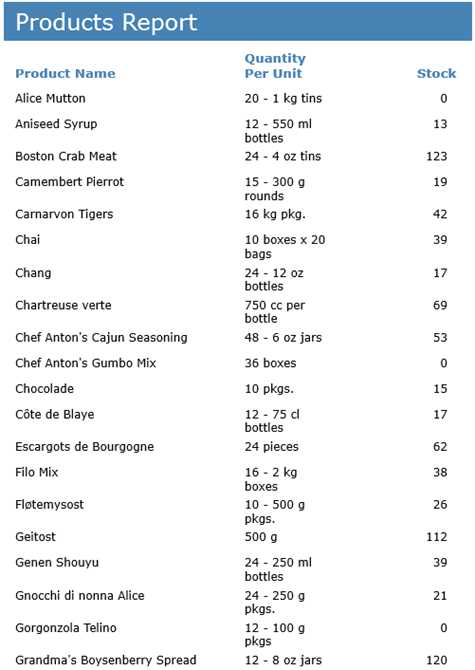
The data in a report can be easily sorted using FlexReportDesigner. The steps to sort data in a report are as follows:
1. Create a new report - Products Report - bound to Main data source through C1NWind.mdb. Select Product Name, Quantity Per Unit, and Stock as the text and calculated fields, so that the report appears as shown:
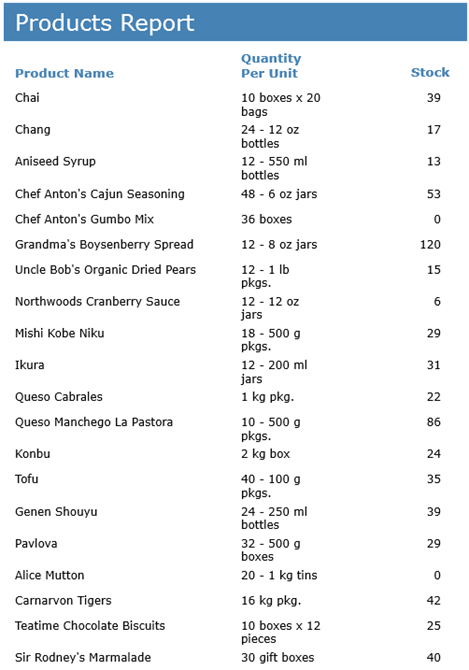
2. To view the report where data is sorted by Product Name, go to **Design** mode.
3. Click **Data** tab.
4. Expand **Data Sources** node.
5. Expand the Main data source to which the report is bound.
6. Right-click **Sort Definitions**.
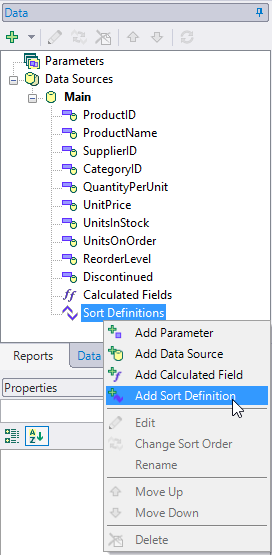
7. Select **Add Sort Definition**. **Sort Definition** dialog box appears.
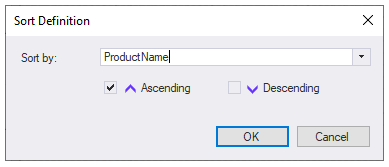
8. Select **ProductName**, check the **Ascending** checkbox, and click **OK**.
9. Preview the report.