# DiagramChart Field
## Content
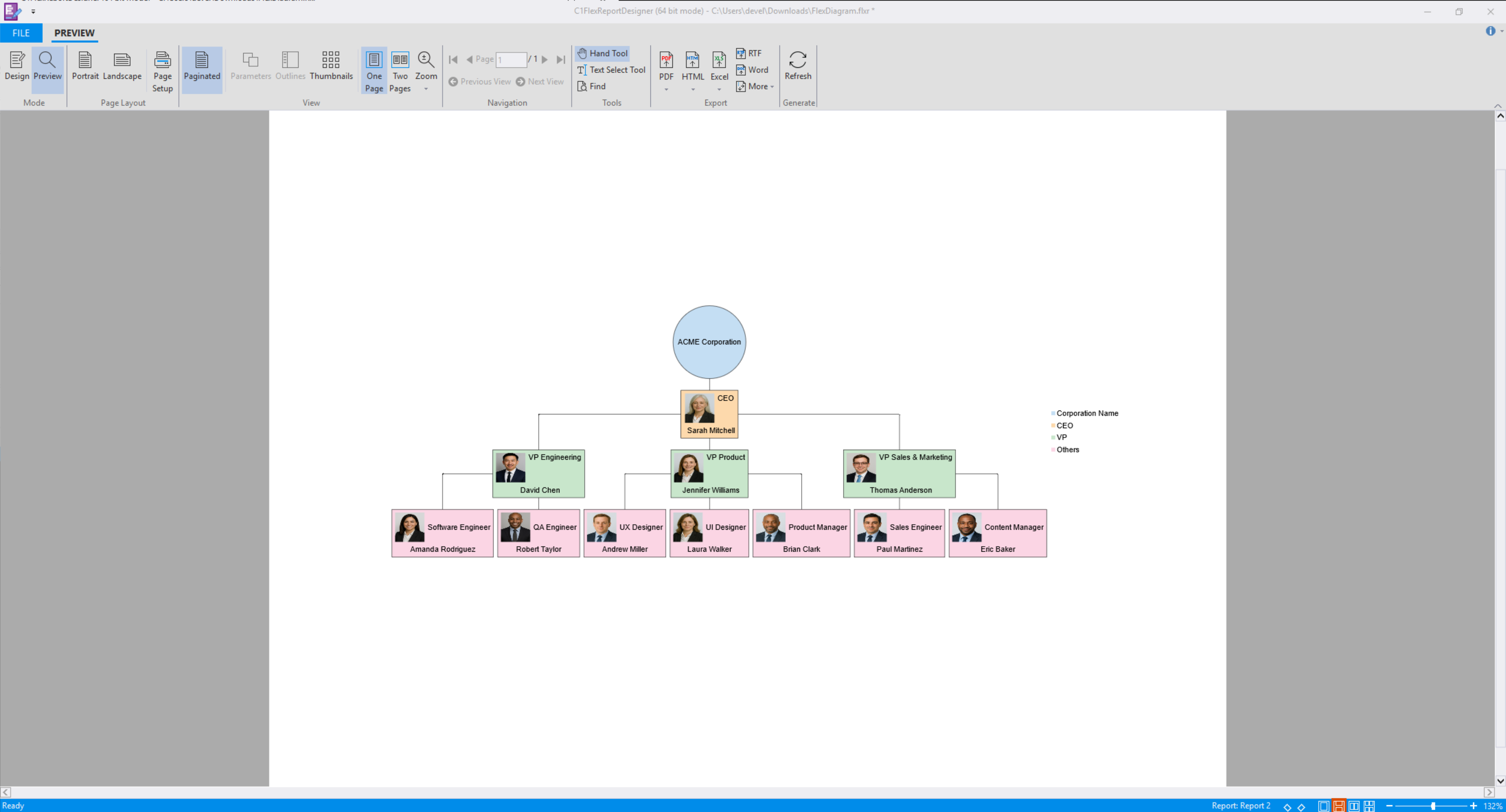
The DiagramChart field is a specialized report field used to visualize graph-based structures such as organizational charts and relationship diagrams. It supports both bound and unbound configurations, enabling flexible diagram creation based on a data source or manually defined elements.
The DiagramChart field supports the following scenarios:
* Rendering hierarchical or relational data from a data source (Bound Mode)
* Defining nodes and edges manually (Unbound Mode)
# Bind a DiagramChart Field to Data (Bound Mode)
After adding a DiagramChart field to a report, the field can be bound to a data source to render structured data.
To bind a DiagramChart field to data:
1\. Create a new Microsoft Excel worksheet named *OrgChart\_Data*.
2\. Add the following columns and populate them with data:
| Company | Department | Manager | Employee | JobTitle |
| ------- | ---------- | ------- | -------- | -------- |
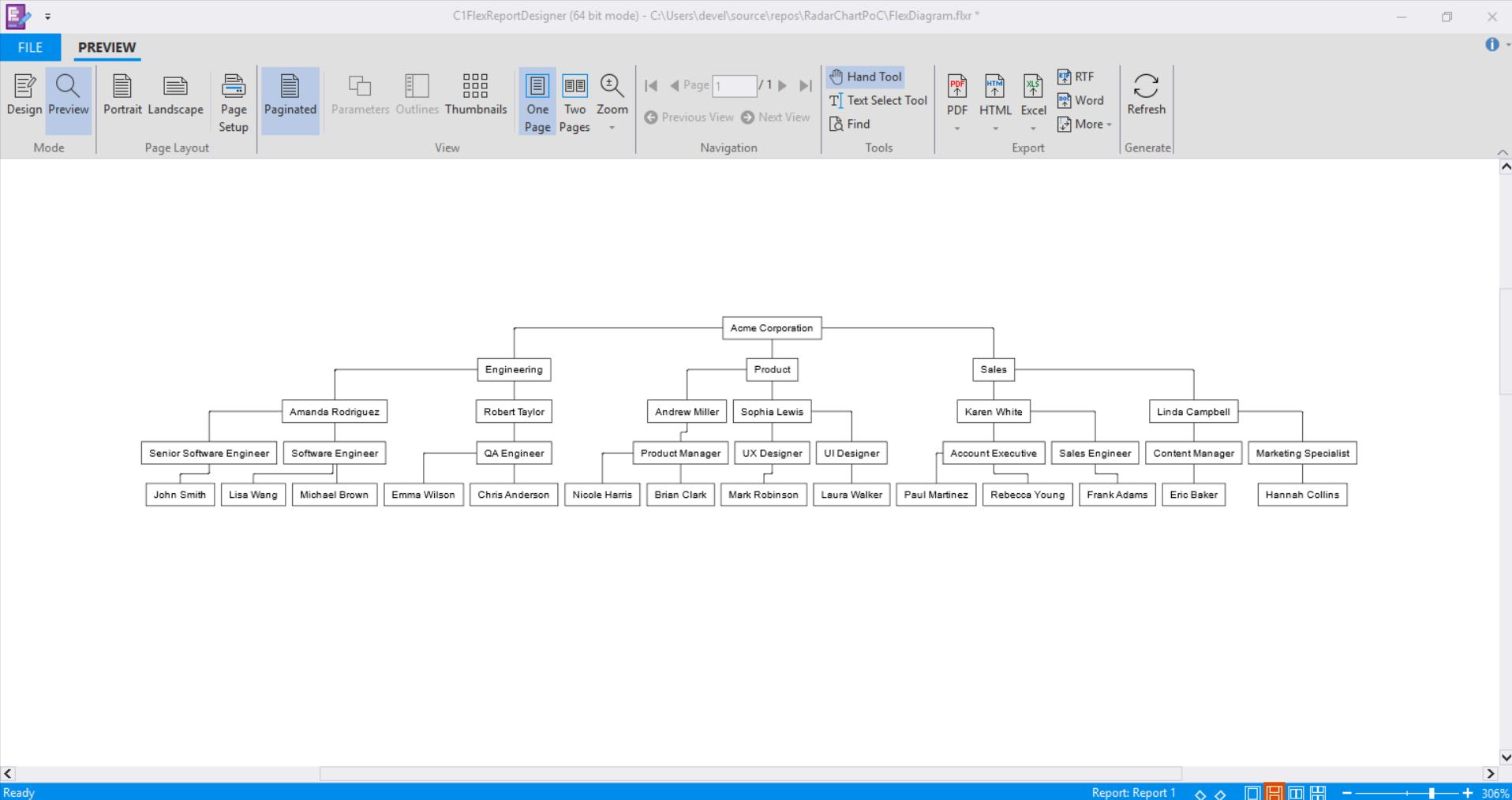
| Acme Corporation | Engineering | Amanda Rodriguez | John Smith | Senior Software Engineer |
| Acme Corporation | Engineering | Amanda Rodriguez | Lisa Wang | Software Engineer |
| Acme Corporation | Engineering | Amanda Rodriguez | Michael Brown | Software Engineer |
| Acme Corporation | Engineering | Robert Taylor | Emma Wilson | QA Engineer |
| Acme Corporation | Engineering | Robert Taylor | Chris Anderson | QA Engineer |
| Acme Corporation | Product | Andrew Miller | Nicole Harris | Product Manager |
| Acme Corporation | Product | Andrew Miller | Brian Clark | Product Manager |
| Acme Corporation | Product | Sophia Lewis | Mark Robinson | UX Designer |
| Acme Corporation | Product | Sophia Lewis | Laura Walker | UI Designer |
| Acme Corporation | Sales | Karen White | Paul Martinez | Account Executive |
| Acme Corporation | Sales | Karen White | Rebecca Young | Account Executive |
| Acme Corporation | Sales | Karen White | Frank Adams | Sales Engineer |
| Acme Corporation | Sales | Linda Campbell | Eric Baker | Content Manager |
| Acme Corporation | Sales | Linda Campbell | Hannah Collins | Marketing Specialist |
3\. Save the Excel file\.
4\. Create a new report in FlexReportDesigner\.
5\. In the **Data** tab, bind the main data source to the *OrgChart\_Data* table.
For detailed data-binding instructions, refer to the FlexReport QuickStart documentation.
6\. Configure the data link properties:
a. Open the **All** tab.
b. Locate **Extended Properties**.
c. Set the value to:
```auto
Excel 12.0 Xml;HDR=YES;IMEX=1
```
This setting specifies that the data source is an Excel file with column headers in the first row.
7\. On the **Insert** tab, add the DiagramChart field to the report header section.
8\. Select the DiagramChart field on the design surface\.
9\. In the **Properties** window:
a. Set `DataSourceName` to:
```auto
Main
```
b. Set `Binding` to:
```auto
Company, Department, Manager, JobTitle, Employee
```
10\. Preview the report to render the diagram\.
# Define Nodes and Edges (Unbound Mode)
Unbound Mode enables manual construction of diagram structures without using a data source.
To define nodes and edges manually:
1\. Create a new report in FlexReportDesigner\.
2\. On the **Insert** tab, add the DiagramChart field to the report header section.
3\. Select the DiagramChart field on the design surface\.
4\. In the **Properties** window, navigate to:
```auto
Misc > Diagram > Nodes
```
Then open the editor
5\. Add nodes and configure properties such as:
* `Shape`
* `Style`
* `Content`
* `LegendItem`
* `Title`
* `TitleImage`
Then open the editor.
6\. In the Properties window, navigate to:
```auto
Misc > Diagram > Edges
```
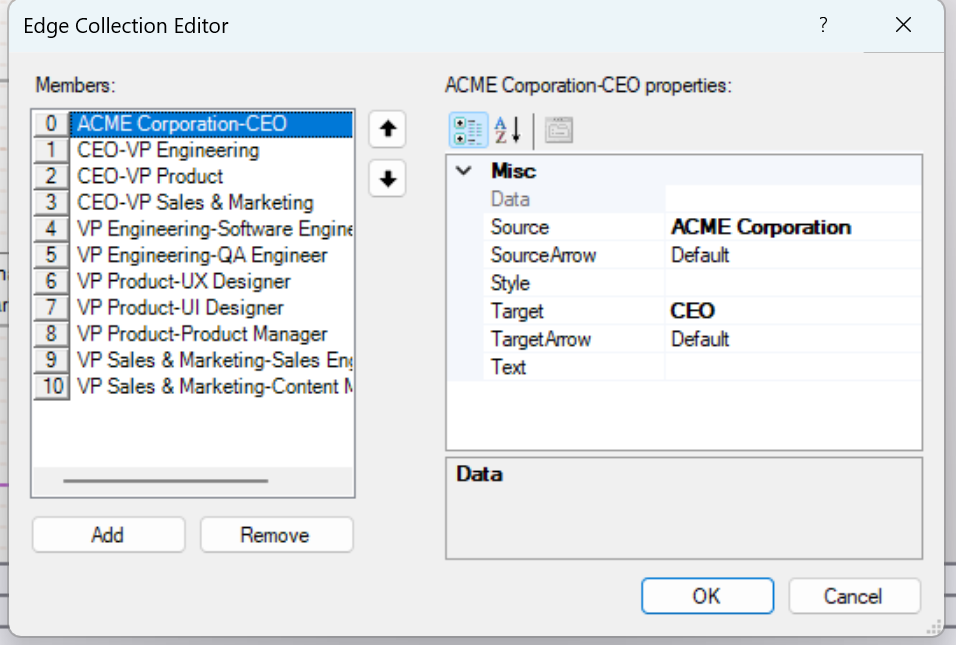
Then open the editor.
7\. Define edges by specifying:
* `Source`
* `Target`
8\. Preview the report to render the diagram\.