# Text Field
FlexReport for WinForms allows you to include different type of text in your report with the help of TextField. See more demos, documentation, and samples here.
## Content
The **Text** field is the most commonly-used report field to display data. It is used to insert:
* a data-bound text field
* an unbound (static) text label
To add a data-bound text field using FlexReportDesigner application:
1. Create a new report in FlexReportDesigner.
2. Bind the report with the Products Table.
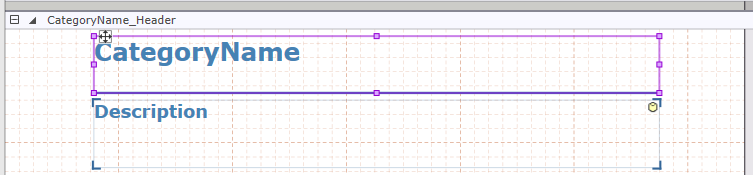
3. Create a Group Header in which text field 'CategoryName' for the products will be displayed.
4. Go to the **Insert** tab and click the **Text** field icon . All the **Data Fields** (bound to the data source) will be listed upon clicking dropdown.
5. Add the 'CategoryName' data field to the group header section of the report.
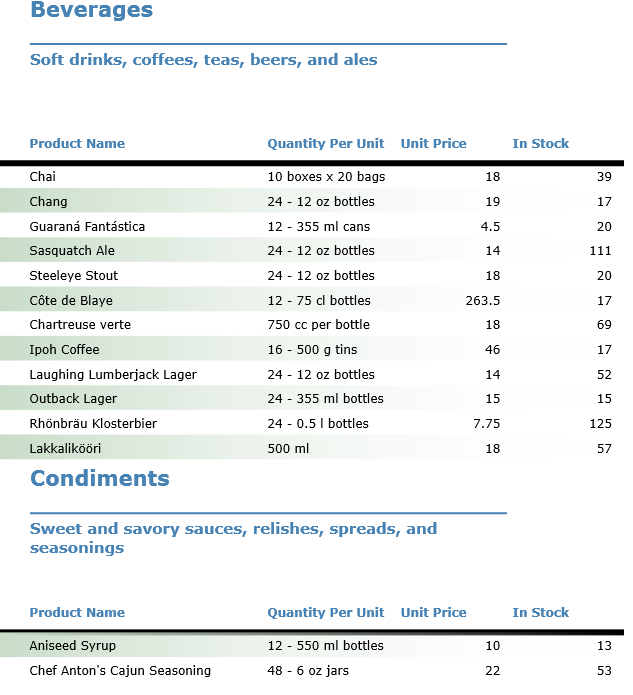
6. Preview the report.
To add an unbound (static) text label using FlexReportDesigner:
1. Go to the **Insert** tab and click the **Text** field icon.
2. Drag the crosshair on the design area of the report and draw the field in the section in which you want the field to appear.
3. Click the field and enter the text you want to be displayed as a label.