# Subreport Field
Easily display detailed information by adding sub reports in a report with the help of Subreport field in FlexReport. See more demos, documentation, and samples here.
## Content
**Subreport** fields are used to insert subreports in a report. Subreports are regular reports contained in a field in another report (the main report). It is usually designed to display detail information based on a current value in the main report, in a master-detail scenario.
In the following example, the main report contains categories and the subreport in the Detail section contains product details for the current category:
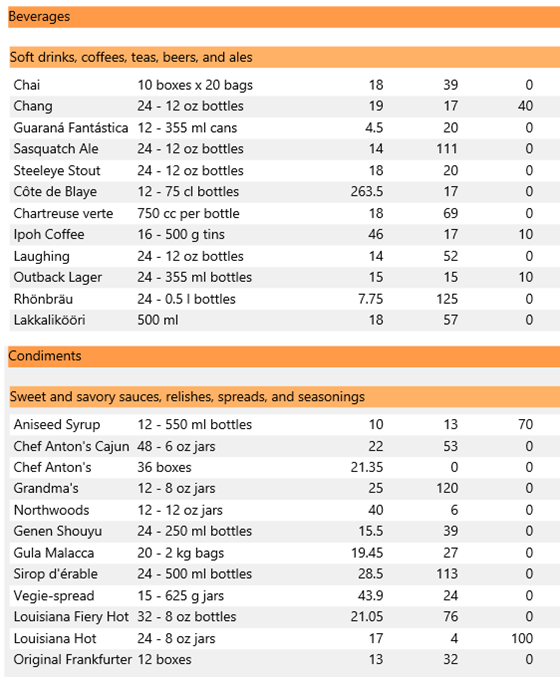
To create a master-detail report based on the **Categories** and **Products** tables, you need to create a Categories report (master view) and a Products report (details view).
### Step 1: Create the master report
1. Create a basic report definition using the **FlexReport Wizard**.
1. Select the **Categories** table from the Northwind database (**C1NWind.mdb** located in the ComponentOne Samples\\Common folder).
2. Include the **CategoryName** and **Description** fields in the report.
2. In the **FlexReportDesigner** application, click the **Design** button to begin editing the report.
3. Set the Page Header and Header section's **Visible** property to **False**.
4. In the Detail section, select the **DescriptionCtl** and move it directly below the **CategoryNameCtl**.
5. Use the Properties window to change the Appearance settings (Background).
6. Select the **Preview** button, the Categories report should now look similar to the following image: 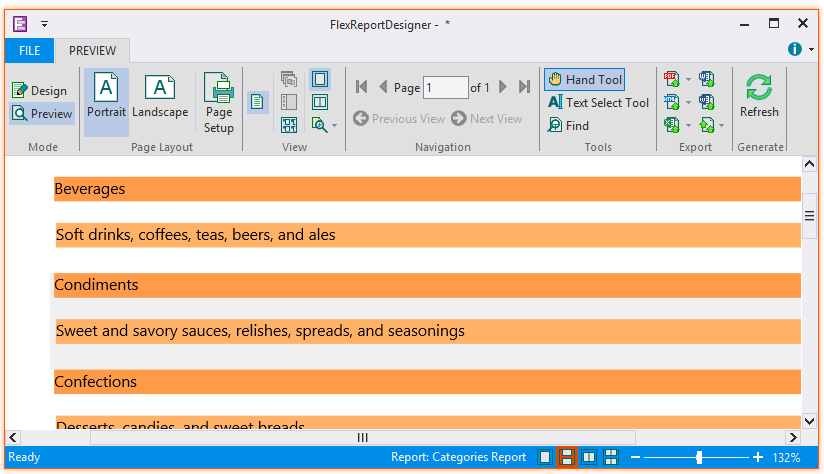
### Step 2: Create the detail report
1. In the **FlexReportDesigner** application, click the **New Report** button to create a basic report definition using the **FlexReport Wizard**.
1. Select the **Products** table from the C1NWind database.
2. Include the following fields in the report: **ProductName**, **QuantityPerUnit**, **UnitPrice**, **UnitsInStock**, and **UnitsOnOrder**.
2. In the Report Designer, click the **Design** button to begin editing the report.
1. Set the Page Header and Header section's **Visible** property to **False**.
2. In the Detail section, arrange the controls so that they are aligned with the heading labels. Use the Properties window to change the Appearance settings.
### Step 3: Create the Subreport field
The **FlexReportDesigner** application now has two separate reports, **Categories Report** and **Products Report**. The next step is to create a subreport:
1. From the Reports list in the Designer, select **Categories Report** (master report).
2. In design mode, from **Fields** group in **Insert** tab, click the **Subreport** icon  and select **Products Report** from the drop-down menu.
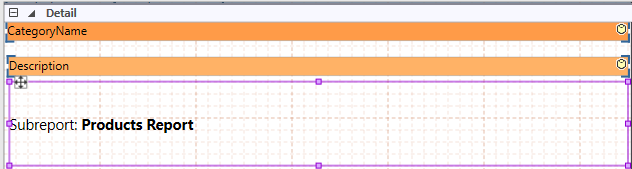
3. In the Detail section of your report, click and drag the mouse pointer to make the field for the subreport:
### Step 4: Link the Subreport to the master report
The master-detail relationship is controlled by the **SubreportFilter** property of the subreport field. This property should contain an expression that evaluates into a filter condition that can be applied to the subreport data source.
The Report Designer can build this expression automatically for you. Complete the following steps:
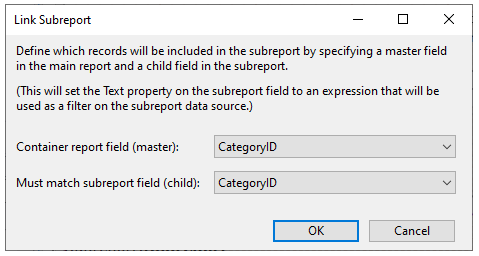
1. Right-click the subreport field and select **Link Subreport** from the menu.
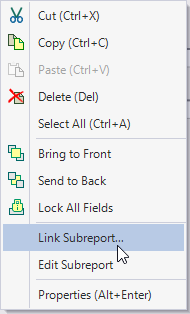
**Link Subreport** dialog box appears that allows you to select which fields should be linked.
The Subreport field in design area now appears as follows:
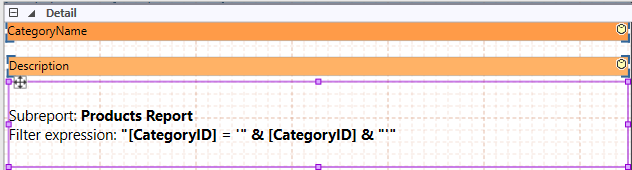
2. Once you make a selection and click **OK**, the Report Designer builds the link expression and assigns it to the **SubreportFilter** property of the subreport field. In this case, the expression is:
`"[CategoryID] = '" & [CategoryID] & "'"`