# Calculated Field
FlexReport allows you to add field that contains an expression that are evaluated at run-time. See more demos, documentation, and samples here.
## Content
In order to create fields that do not use raw data, **Calculated** fields are the best option. Calculated fields contain expressions that are evaluated at run-time. They are used to generate those data values that are not stored in the data base.
## Add Predefined Calculated Field
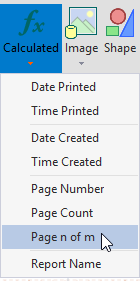
Some predefined expressions are available in the dropdown of Calculated Fields. To add such fields, follow the steps below:
1. Create a new FlexReport in FlexReportDesigner.
2. From **Insert** tab, add two **Calculated** fields  - 'Date Created' and 'Page n of m', in the PageFooter section:
3. Note the expressions in these calculated fields in the design area.

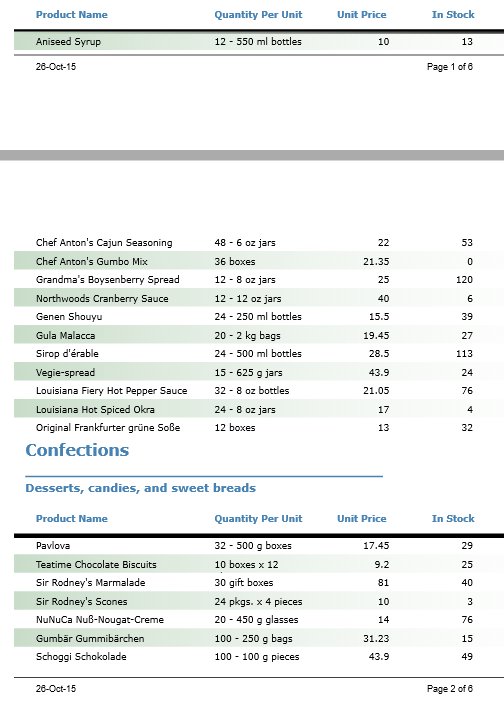
4. Preview the report.
## Add Custom Calculated Field
To define a Calculated field and add the field in the FlexReport Designer application:
1. Create a new report.
2. Bind the report with '**Orders Details**'Table.
3. In Group Header, add a **Text** field 'Total' to display label for the total price.
4. In **Data** group under **Home** tab, select **Main | Edit...** from the **Data Sources** drop-down. The Data Sources dialog opens.
5. In the **Data Sources dialog**, select **Calculated Fields** tab, click **Add** button to add a calculated field and set the **Name** and **Expression** for the field.
Observe that selecting **Expression** field opens the **VBScript Editor**.
6. In the **VBScript Editor**, write the following expression and select **Done** to close the editor.
`Quantity*UnitPrice`
7. Click **OK** to close the **Data Sources dialog.**
8. Go to the **Insert** tab, expand the **Text** dropdown from the **Fields** group.
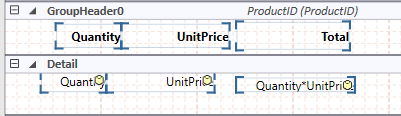
9. Select the recently created calculated field from the **Calculated Fields** category and drop it in the **Details** section of the report as shown in the following image.
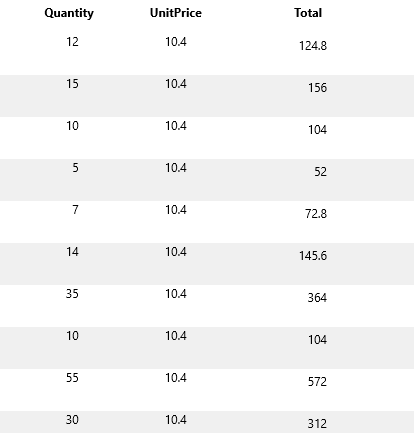
10. Preview the report.