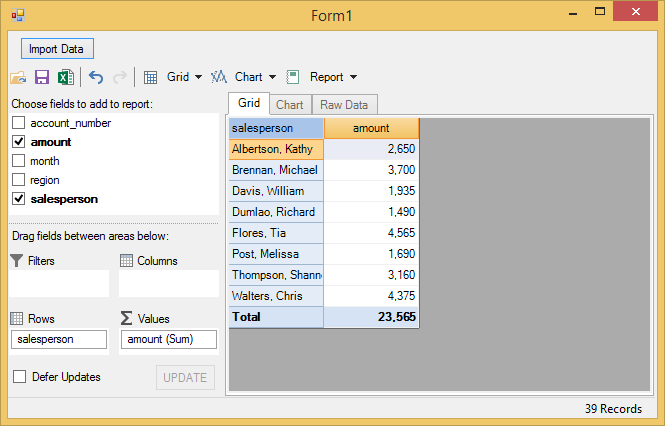
# Importing Data from Excel
This topic covers information about importing data from excel.
## Content
You can import data from Excel files (.xls, .xlsx) to your FlexPivot application. The code sample given below illustrates importing Excel files in [FlexPivotPage](/componentone/api/win/online-flexpivot/dotnet-api/C1.Win.FlexPivot.10/C1.Win.FlexPivot.FlexPivotPage.html).
Complete the following steps to import data from an Excel file to FlexPivotPage control. This example uses a sample Excel file named **Sales.xlsx** for importing data.
1. Create a Windows Forms Application project in Visual Studio.
2. Add FlexPivotPage control to the form through Toolbox.
3. Click once on the smart tag icon (  ) to open the FlexPivotPage Tasks smart tag panel.
4. Select **Undock in Parent Container** option to undock the FlexPivotPage control in the parent container i.e. Form.
5. Navigate to the Toolbox again and add a general button control to the Form.
6. Place the button control above the FlexPivotPage control.
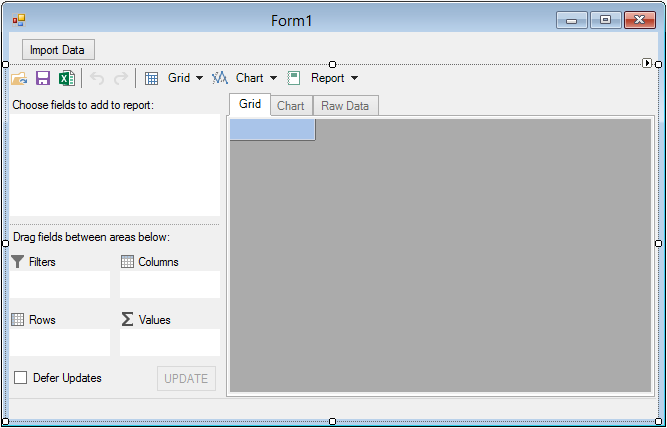
7. Set the Text property for the button control as **Import Data** from the Properties window. The designer appears similar to the image given below.
8. Switch to the code view and add the following code to set up a connection string with the **Sales.xlsx** file.
```vbnet
'get sample Excel file connection string
Private Function GetConnectionString(Optional firstRowHasNames As Boolean = True, Optional mixedTypesAsText As Boolean = True) As String
Dim conn As String = "Provider=Microsoft.ACE.OLEDB.12.0;Data Source={0};Extended Properties=""Excel 12.0;HDR={1};IMEX={2};ReadOnly=true"""
Return String.Format(conn, samplePath, firstRowHasNames, mixedTypesAsText)
End Function
```
```csharp
//get sample Excel file connection string
private string GetConnectionString(bool firstRowHasNames = true, bool mixedTypesAsText = true)
{
string conn = "Provider=Microsoft.ACE.OLEDB.12.0;Data Source={0};Extended Properties=\"Excel 12.0;HDR={1};IMEX={2};ReadOnly=true\"";
return string.Format(conn, samplePath, firstRowHasNames, mixedTypesAsText);
}
```
You can store this file at Documents\\ComponentOne Samples\\Common\\Sales.xlsx location on your system. In case you want to store the file at a different location then make changes in the path defined in the GetConnectionString method.
9. Switch to the code view and add the following import statements.
```vbnet
Imports C1.DataEngine
Imports System.Data.OleDb
```
```csharp
using C1.DataEngine;
using System.Data.OleDb;
```
10. Initialize data path and sample path as illustrated in the following code.
```vbnet
Dim dataPath As String = Path.Combine(System.Windows.Forms.Application.StartupPath, "Data")
Dim samplePath As String = Environment.GetFolderPath(Environment.SpecialFolder.Personal) + "\ComponentOne Samples\Common\Sales.xlsx"
```
```csharp
string dataPath = Path.Combine(System.Windows.Forms.Application.StartupPath, "Data");
string samplePath = Environment.GetFolderPath(Environment.SpecialFolder.Personal) + @"\ComponentOne Samples\Common\Sales.xlsx";
```
11. Create a class named **Sales** in the code view to read the data from Excel file.
```vbnet
Public Class Sales
Public Property salesperson() As String
Get
Return m_salesperson
End Get
Set(value As String)
m_salesperson = Value
End Set
End Property
Private m_salesperson As String
Public Property region() As String
Get
Return m_region
End Get
Set(value As String)
m_region = Value
End Set
End Property
Private m_region As String
Public Property account_number() As Double
Get
Return m_account_number
End Get
Set(value As Double)
m_account_number = Value
End Set
End Property
Private m_account_number As Double
Public Property amount() As Decimal
Get
Return m_amount
End Get
Set(value As Decimal)
m_amount = Value
End Set
End Property
Private m_amount As Decimal
Public Property month() As String
Get
Return m_month
End Get
Set(value As String)
m_month = Value
End Set
End Property
Private m_month As String
Public Sub New(reader As IDataReader)
Dim nv = New NullValue()
salesperson = If(reader.IsDBNull(0), nv.NullString, reader.GetString(0))
region = If(reader.IsDBNull(1), nv.NullString, reader.GetString(1))
account_number = If(reader.IsDBNull(2), nv.NullDouble, reader.GetDouble(2))
amount = If(reader.IsDBNull(3), nv.NullDecimal, reader.GetDecimal(3))
month = If(reader.IsDBNull(4), nv.NullString, reader.GetString(4))
End Sub
Public Shared Iterator Function GetSalesInfo(reader As IDataReader) As IEnumerable(Of Sales)
While reader.Read()
Yield New Sales(reader)
End While
End Function
End Class
```
```csharp
public class Sales
{
public string salesperson { get; set; }
public string region { get; set; }
public double account_number { get; set; }
public decimal amount { get; set; }
public string month { get; set; }
public Sales(IDataReader reader)
{
var nv = new NullValue();
salesperson = reader.IsDBNull(0) ? nv.NullString : reader.GetString(0);
region = reader.IsDBNull(1) ? nv.NullString : reader.GetString(1);
account_number = reader.IsDBNull(2) ? nv.NullDouble : reader.GetDouble(2);
amount = reader.IsDBNull(3) ? nv.NullDecimal : reader.GetDecimal(3);
month = reader.IsDBNull(4) ? nv.NullString : reader.GetString(4);
}
public static IEnumerable GetSalesInfo(IDataReader reader)
{
while (reader.Read())
yield return new Sales(reader);
}
}
```
```auto
12. Initialize workspace in the Form's constructor.
```auto
```vbnet
Public Sub New()
InitializeComponent()
FlexPivotPage1.FlexPivotPanel.Workspace.Init(dataPath)
End Sub
```
```csharp
public Form1()
{
InitializeComponent();
FlexPivotPage1.FlexPivotPanel.Workspace.Init(dataPath);
}
```
13. Add the following code to fetch data from the Excel file.
```vbnet
Private Function GetFirstSalesData() As String
Using conn As New OleDbConnection(GetConnectionString())
conn.Open()
' get workbook table list
Dim tables = conn.GetOleDbSchemaTable(OleDbSchemaGuid.Tables, New Object() {Nothing, Nothing, Nothing, "TABLE"})
Dim name As String = tables.Rows(0)("TABLE_NAME").ToString()
Dim command = New OleDbCommand((Convert.ToString("select * from [") & name) + "]", conn)
Using reader = command.ExecuteReader()
Dim connector = New ObjectConnector(Of Sales)(Sales.GetSalesInfo(reader))
connector.GetData(name)
End Using
Return name
End Using
End Function
```
```csharp
private string GetFirstSalesData()
{
using (OleDbConnection conn = new OleDbConnection(GetConnectionString()))
{
conn.Open();
// get workbook table list
var tables = conn.GetOleDbSchemaTable(OleDbSchemaGuid.Tables, new object[] { null, null, null, "TABLE" });
string name = tables.Rows[0]["TABLE_NAME"].ToString();
var command = new OleDbCommand("select * from [" + name + "]", conn);
using (var reader = command.ExecuteReader())
{
var connector = new ObjectConnector(Sales.GetSalesInfo(reader));
connector.GetData(name);
}
return name;
}
}
```
14. Subscribe button1\_click event from the Properties window.
15. Add the following code to the event handler created in the above step.
```auto
```vbnet
Private Sub Button1_Click(sender As Object, e As EventArgs) Handles Button1.Click
Dim tableName As String = GetFirstSalesData()
FlexPivotPage1.FlexPivotPanel.ConnectDataEngine(tableName)
'build a default view
Dim engine = FlexPivotPage1.FlexPivotPanel.FlexPivotEngine
engine.BeginUpdate()
engine.RowFields.Add("salesperson")
engine.ValueFields.Add("amount")
engine.EndUpdate()
End Sub
```
```csharp
private void button1_Click(object sender, EventArgs e)
{
string tableName = GetFirstSalesData();
flexPivotPage1.FlexPivotPanel.ConnectDataEngine(tableName);
//build a default view
var engine = flexPivotPage1.FlexPivotPanel.FlexPivotEngine;
engine.BeginUpdate();
engine.RowFields.Add("salesperson");
engine.ValueFields.Add("amount");
engine.EndUpdate();
}
```
This code connects the Data Engine to the sample table and builds a default view to be displayed on running the application.
16. Press **F5** to run the application and click the button control appearing on the form to import data from the sample file.