# Grouping
This topic covers information about grouping.
## Content
Grouping is a unique feature in the **FlexPivotGrid** control that enables users to organize data in groups based on a specific set of criteria. The FlexPivotGrid control allows a user to group the data by any field value. Further, grouping also allows you to summarize and analyze large chunks of data.
The user can perform data range grouping in **C1FlexPivotGrid** at runtime using the **Format** tab in the **Field Settings** Dialog. The options in the Format tab will vary depending upon the type of data field. The Format tab will show different options for strings, numbers and date fields.
You can also perform range grouping via code. For this, FlexPivotGrid provides [Range](/componentone/api/win/online-flexpivot/dotnet-standard-api/C1.PivotEngine/C1.PivotEngine.PivotField.Range.html) property of the [PivotField](/componentone/api/win/online-flexpivot/dotnet-standard-api/C1.PivotEngine/C1.PivotEngine.PivotField.html) class, which defines the type of grouping used. The [RangeType](/componentone/api/win/online-flexpivot/dotnet-standard-api/C1.PivotEngine/C1.PivotEngine.RangeType.html) enum provides the same set of values for different grouping criteria just like the Format tab.
Refer the following table for different types of options provided by the **RangeType** enum:
| **Options** | **Description** |
| ------- | ----------- |
| Custom | Allows the user to combine the field's data into custom intervals via the CustomRange event of IRangeInfo interface. |
| Numeric | Allows the user to combine the numeric field values into ranges via the NumericStep property of IRangeInfo interface. |
| Format | Allows the user to get or set the format while displaying the field values. |
| AlphabeticalIgnoreCase | Allows the user to group by the first letter ignoring case. |
| AlphabeticalCaseSensitive | Allows the user to group by by the first letter. |
| Quarter | Allows the user to group by number of quarter in a year. |
| Week | Allows the user to group by number of week in a year. |
| FiscalYear | Allows the user to group by fiscal year. |
| FiscalMonth | Allows the user to group by number of month in fiscal year. |
| FiscalQuarter | Allows the user to group by number of quarter in fiscal year. |
| FiscalWeek | Allows the user to group by number of week in fiscal year. |
| None | Specifies that the ranges aren't active. |
The data range grouping feature by string, number, format and fiscal year at run-time and by code is elaborated in the following sections.
### String Grouping
You can perform range grouping by string fields at run-time as well as through code.
### Range Grouping by String at Run-Time
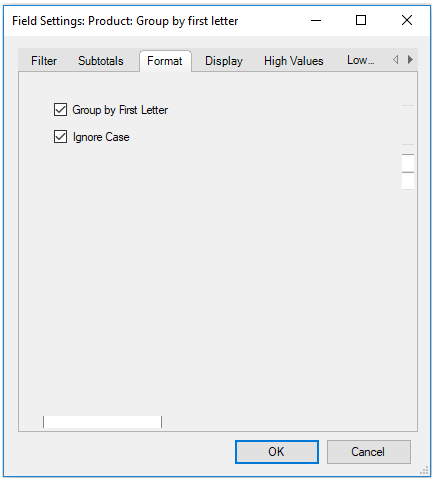
For string fields, the **Format** tab of the **Field Settings** dialog shows two options, **Group by First Letter** and **Ignore Case**. The first option allows the user to group the data by the first alphabet/letter of the string, while the second option lets the user group by first alphabet/letter of the string but ignoring the case. You can select any option based on your requirement.
Complete the following steps to implement grouping by string fields in FlexPivotcontrol.
1. Drag-and-drop two ProductName fields in the **Rows** list, **OrderDate** fields in **Columns** list and **UnitPrice** in the **Values** list.
2. Rename the ProductName fields in **Caption** from the **Display** tab of **Field Settings** Dialog, one as 'Product' and the other as 'Product: Group by first letter' and click **OK**.
3. Right-click the '**Product: Group by first letter**' field from the **Rows** list and select **Field Settings** option from the context menu.
4. Select the box against **Group by First Letter** and **Ignore Case** in the **Format** tab.
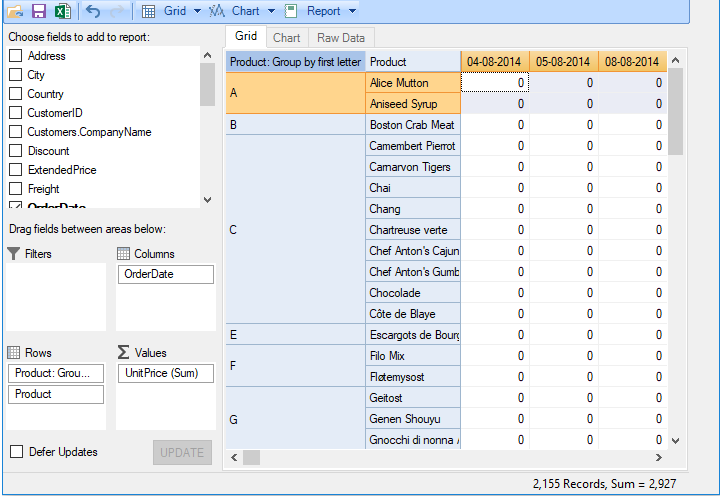
The data after grouping by string fields appears similar to the image given below.
### Range Grouping by String with Code
The code given below shows how you can group string values in FlexPivotGrid using the **AlphabeticalIgnoreCase** grouping of [RangeType](/componentone/api/win/online-flexpivot/dotnet-standard-api/C1.PivotEngine/C1.PivotEngine.RangeType.html) enum.
```vbnet
'Nested groups: By Alphabet, then by Product
flexPivotPage.PivotEngine.RowFields.Add("ProductName")
flexPivotPage.PivotEngine.RowFields.Add("ProductName")
flexPivotPage.PivotEngine.ColumnFields.Add("OrderDate")
flexPivotPage.PivotEngine.ValueFields.Add("UnitPrice")
flexPivotPage.PivotEngine.RowFields(0).Caption = "Product: Group by first letter"
flexPivotPage.PivotEngine.RowFields(0).Range.RangeType = RangeType.AlphabeticalIgnoreCase
flexPivotPage.PivotEngine.RowFields(1).Caption = "Product"
```
```csharp
//Nested groups: By Alphabet, then by Product
flexPivotPage.PivotEngine.RowFields.Add("ProductName");
flexPivotPage.PivotEngine.RowFields.Add("ProductName");
flexPivotPage.PivotEngine.ColumnFields.Add("OrderDate");
flexPivotPage.PivotEngine.ValueFields.Add("UnitPrice");
flexPivotPage.PivotEngine.RowFields[0].Caption = "Product: Group by first letter";
flexPivotPage.PivotEngine.RowFields[0].Range.RangeType = RangeType.AlphabeticalIgnoreCase;
flexPivotPage.PivotEngine.RowFields[1].Caption = "Product";
```
### Numeric Grouping
You can perform range grouping by numeric fields at run-time as well as through code.
### Range Grouping by Numbers at Run-Time
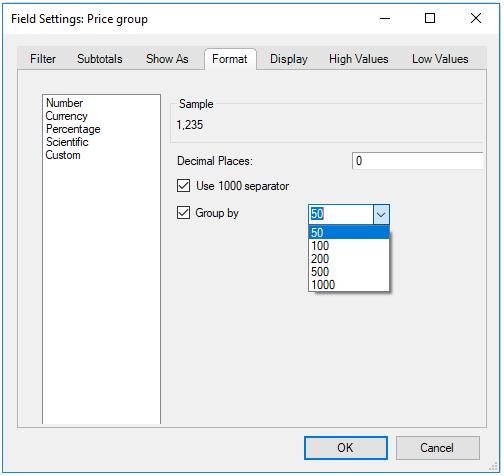
For numeric fields, the **Format** tab of the **Field Settings** dialog shows five options, **Number**, **Currency**, **Percentage**, **Scientific** and **Custom**. You can select an option based on your requirement.
Complete the following steps to implement grouping by numeric fields in C1FlexPivotGrid control.
1. Drag-and-drop two **UnitPrice** fields, one in the **Rows** list, and the other in the **Values** list. Drag and drop the Country field into the **Columns** list.
2. Rename the **UnitPrice** field in **Caption** from the **Display** tab of Field Settings Dialog as **'Price Group'** and click **OK**.
3. Right-click the **'Price Group'** field from the Rows list and select **Field Settings** option from the context menu.
4. Select **Number** option from the **Format** tab.
5. Select the box against **Group by** and click the dropdown arrow to choose a specific range value.
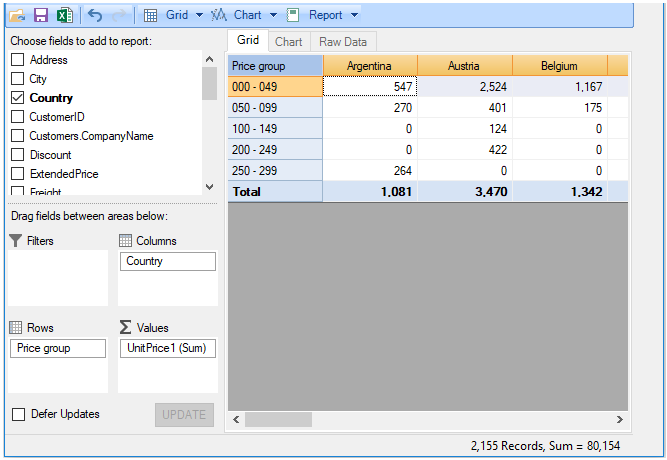
The data after grouping by numeric range appears similar to the image given below.
### Range Grouping by Numbers with Code
The code given below shows how you can group string values in FlexPivotGrid using the **Numeric** grouping of [RangeType](/componentone/api/win/online-flexpivot/dotnet-standard-api/C1.PivotEngine/C1.PivotEngine.RangeType.html) enum. You can also specify ranges in small numbers with the [NumericStep](/componentone/api/win/online-flexpivot/dotnet-standard-api/C1.PivotEngine/C1.PivotEngine.RangeInfo.NumericStep.html) property of the [RangeInfo](/componentone/api/win/online-flexpivot/dotnet-standard-api/C1.PivotEngine/C1.PivotEngine.RangeInfo.html) class.
```vbnet
'Grouping by numeric range
flexPivotPage.PivotEngine.RowFields.Add("UnitPrice")
flexPivotPage.PivotEngine.ValueFields.Add("UnitPrice")
flexPivotPage.PivotEngine.RowFields(0).Caption = "Price group"
flexPivotPage.PivotEngine.RowFields(0).Range.RangeType = RangeType.Numeric
flexPivotPage.PivotEngine.RowFields(0).Range.NumericStep = 50
flexPivotPage.PivotEngine.ColumnFields.Add("Country")
```
```csharp
//Grouping by numeric range
flexPivotPage.PivotEngine.RowFields.Add("UnitPrice");
flexPivotPage.PivotEngine.ValueFields.Add("UnitPrice");
flexPivotPage.PivotEngine.RowFields[0].Caption = "Price group";
flexPivotPage.PivotEngine.RowFields[0].Range.RangeType = RangeType.Numeric;
flexPivotPage.PivotEngine.RowFields[0].Range.NumericStep = 50;
flexPivotPage.PivotEngine.ColumnFields.Add("Country");
```
### Date Grouping
You can perform range grouping by date fields at run-time as well as through code.
### Range Grouping by Date at Run-Time
For date fields, the **Format** tab of the **Field Settings** dialog box shows many options. They are basically different date formats for days, months, years, quarter, week, Fiscal year, Fiscal week, Fiscal Quarter, Fiscal month and Custom date. You can select a suitable option based on your requirement.
Complete the following steps to implement grouping by date fields in the C1FlexPivotGrid control.
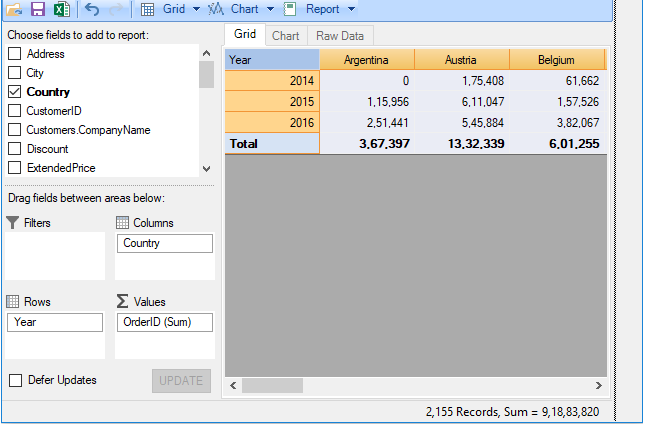
1. Drag and drop **OrderDate** field in the **Rows** list, the **Country** field into the **Columns** list and **OrderID** in the **Values** list.
2. Right-click the **'OrderDate'** field from the **Rows** list and select **Field Settings** option from the context menu.
3. Rename the **OrderDate** field in **Caption** from the **Display** tab of Field Settings Dialog as 'Year' and click **OK**.
4. Select a date format for **Year** field from the **Format** tab. Here we have selected **yyyy**.
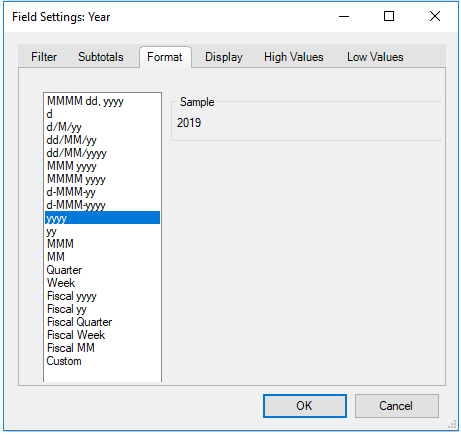
The data after grouping by date range appears similar to the image given below.
### Range Grouping by Date with Code
The code given below shows how you can group date values in FlexPivotGrid using the **Format** grouping of [RangeType](/componentone/api/win/online-flexpivot/dotnet-standard-api/C1.PivotEngine/C1.PivotEngine.RangeType.html) enum. You can specify the specific format of the year using the [Format](/componentone/api/win/online-flexpivot/dotnet-standard-api/C1.PivotEngine/C1.PivotEngine.PivotField.Format.html) property of [PivotField](/componentone/api/win/online-flexpivot/dotnet-standard-api/C1.PivotEngine/C1.PivotEngine.PivotField.html) class.
```vbnet
'By format: group by year, month or day
flexPivotPage.PivotEngine.RowFields.Add("OrderDate")
flexPivotPage.PivotEngine.RowFields(0).Caption = "Year"
flexPivotPage.PivotEngine.RowFields(0).Range.RangeType = RangeType.Format
flexPivotPage.PivotEngine.RowFields(0).Format = "yyyy"
flexPivotPage.PivotEngine.ColumnFields.Add("Country")
flexPivotPage.PivotEngine.ValueFields.Add("OrderID")
```
```csharp
//By format: group by year, month or day
flexPivotPage.PivotEngine.RowFields.Add("OrderDate");
flexPivotPage.PivotEngine.RowFields[0].Caption = "Year";
flexPivotPage.PivotEngine.RowFields[0].Range.RangeType = RangeType.Format;
flexPivotPage.PivotEngine.RowFields[0].Format = "yyyy";
flexPivotPage.PivotEngine.ColumnFields.Add("Country");
flexPivotPage.PivotEngine.ValueFields.Add("OrderID");
```
### Fiscal Year Grouping
You can perform range grouping by Fiscal Year at run-time as well as through code.
### Range Grouping by Fiscal Year at Run-Time
Grouping by Fiscal Year at run-time can be done only with date fields, For this, you can use the **Custom** option in the **Format** tab and enter a suitable custom format for the Fiscal Year.
Complete the following steps to implement grouping by **Fiscal Year** in C1FlexPivotGrid control.
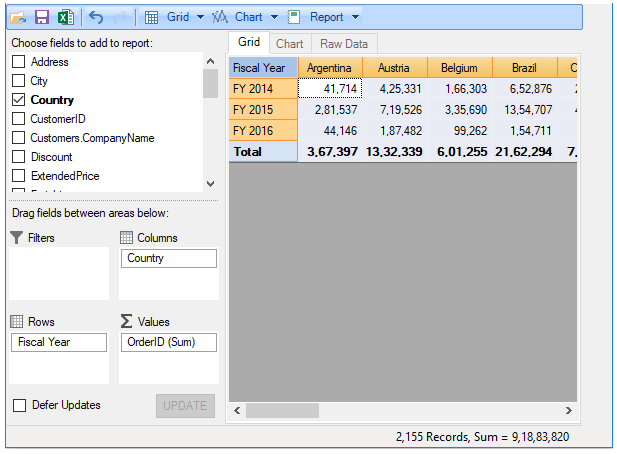
1. Drag and drop **OrderDate** field in the **Rows** list, the **Country** field into the **Columns** list and **OrderID** in the **Values** list.
2. Rename the **OrderDate** field in **Caption** from the **Display** tab of Field Settings Dialog as 'Fiscal Year' and click **OK**.
3. Right-click the **'Fiscal Year'** field from the **Rows** list and select **Field Settings** option from the context menu.
4. Add a **Custom Format** for Fiscal Year from the **Format** tab. For instance, here the custom format is '**FY' yyyy**.
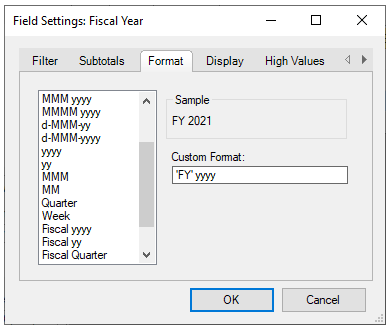
The data after grouping by Fiscal Year range appears similar to the image given below.
### Range Grouping by Fiscal Year with Code
The code given below shows how you can group date values in FlexPivotGrid using the **FiscalYear** grouping of [RangeType](/componentone/api/win/online-flexpivot/dotnet-standard-api/C1.PivotEngine/C1.PivotEngine.RangeType.html) enum. You can set the number of first month of the fiscal year using the [FiscalYearFirstMonth](/componentone/api/win/online-flexpivot/dotnet-standard-api/C1.PivotEngine/C1.PivotEngine.RangeInfo.FiscalYearFirstMonth.html) property of [RangeInfo](/componentone/api/win/online-flexpivot/dotnet-standard-api/C1.PivotEngine/C1.PivotEngine.RangeInfo.html) class.
```vbnet
'Range Grouping by Fiscal year
flexPivotPage.PivotEngine.RowFields.Add("OrderDate")
flexPivotPage.PivotEngine.ColumnFields.Add("Country")
flexPivotPage.PivotEngine.ValueFields.Add("OrderID")
flexPivotPage.PivotEngine.RowFields(0).Range.RangeType = RangeType.FiscalYear
flexPivotPage.PivotEngine.RowFields(0).Range.FiscalYearFirstMonth = 4
flexPivotPage.PivotEngine.RowFields(0).Format = "FY {yyyy}"
flexPivotPage.PivotEngine.RowFields(0).Caption = "Fiscal Year"
```
```csharp
//Range Grouping by Fiscal year
flexPivotPage.PivotEngine.RowFields.Add("OrderDate");
flexPivotPage.PivotEngine.ColumnFields.Add("Country");
flexPivotPage.PivotEngine.ValueFields.Add("OrderID");
flexPivotPage.PivotEngine.RowFields[0].Range.RangeType = RangeType.FiscalYear;
flexPivotPage.PivotEngine.RowFields[0].Range.FiscalYearFirstMonth = 4;
flexPivotPage.PivotEngine.RowFields[0].Format = "'FY' yyyy";
flexPivotPage.PivotEngine.RowFields[0].Caption = "Fiscal Year";
```