# Customize Grid
FlexGrid for WinForms lets you customize look of grid by setting its background image or the alternate row style. Learn more about customization of grid here.
## Content
FlexGrid also lets you customize overall look of the grid, not to just increase its aesthetic value but also increases its readability. You can add the alternate rows which make the grid more readable. Also, you can set image, for instance a watermark or a company logo, in background of the grid.
## Set Alternate Row
To set the alternate row color and styles in the grid, you can use the built-in style "Alternate" either at design time or at runtime. To apply style at design time, you need to access the [FlexGrid Style Editor](/componentone/docs/win/online-flexgrid/quick-start/design-time-support/editors#c1flexgrid-style-editor) and set properties for Alternate style.
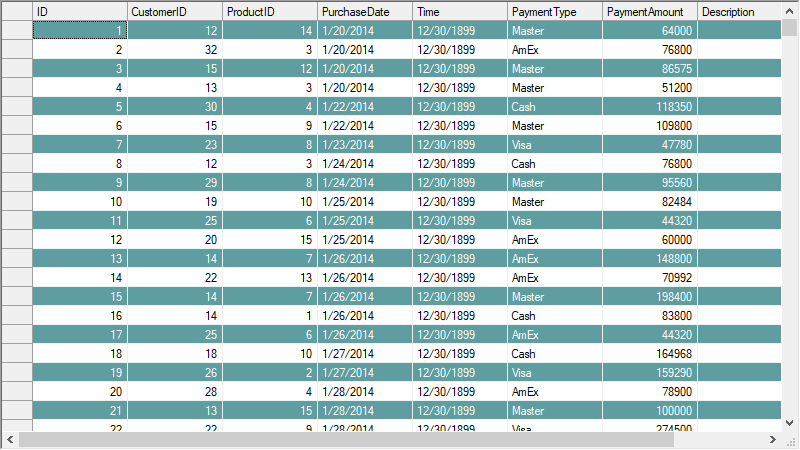
To apply alternate row style in the WinForms FlexGrid through code, you need to use the CellStyle item "Alternate" of the CellStyleCollection class and set various properties for setting the alternate style.
```csharp
// Set forecolor for the alternate row
c1FlexGrid1.Styles["Alternate"].ForeColor = Color.White;
// Set backcolor for the alternate row
c1FlexGrid1.Styles["Alternate"].BackColor = Color.CadetBlue;
```
```vbnet
' Set forecolor for the alternate row
c1FlexGrid1.Styles("Alternate").ForeColor = Color.White
' Set backcolor for the alternate row
c1FlexGrid1.Styles("Alternate").BackColor = Color.CadetBlue
```
## Set Background Image in Grid
To set the background image on a grid, you can use the BackgroundImage property and assign the path of the image file to it. Another property called **BackgroundImageLayout** property lets you choose whether and how to render image on the grid.
Use the code below to set the background image on the WinForms FlexGrid.
```csharp
// Set the background image in grid
c1FlexGrid1.BackgroundImage = Image.FromFile("C:\\IMG-20190524-WA0037.png");
c1FlexGrid1.BackgroundImageLayout = ImageLayout.Stretch;
```
```vbnet
' Set the background image in grid
c1FlexGrid1.BackgroundImage = Image.FromFile("C:\IMG-20190524-WA0037.png")
c1FlexGrid1.BackgroundImageLayout = ImageLayout.Stretch
```