# Custom Glyphs
FlexGrid for WinForms lets you customize glyphs of various grid states and operations such as filtered or sorted column. Know more about custom glyphs here.
## Content
FlexGrid lets you change the default glyph images used in the grid to indicate various actions such as column filtering and sorting. This behavior of grid is exposed through GridGlyphs class which is a collection of images used by the grid to represent filtered state, sorting order, checkbox states, and so on. These images can be accessed through Glyphs property of the C1FlexGrid class which accepts values from GlyphEnum enumeration.
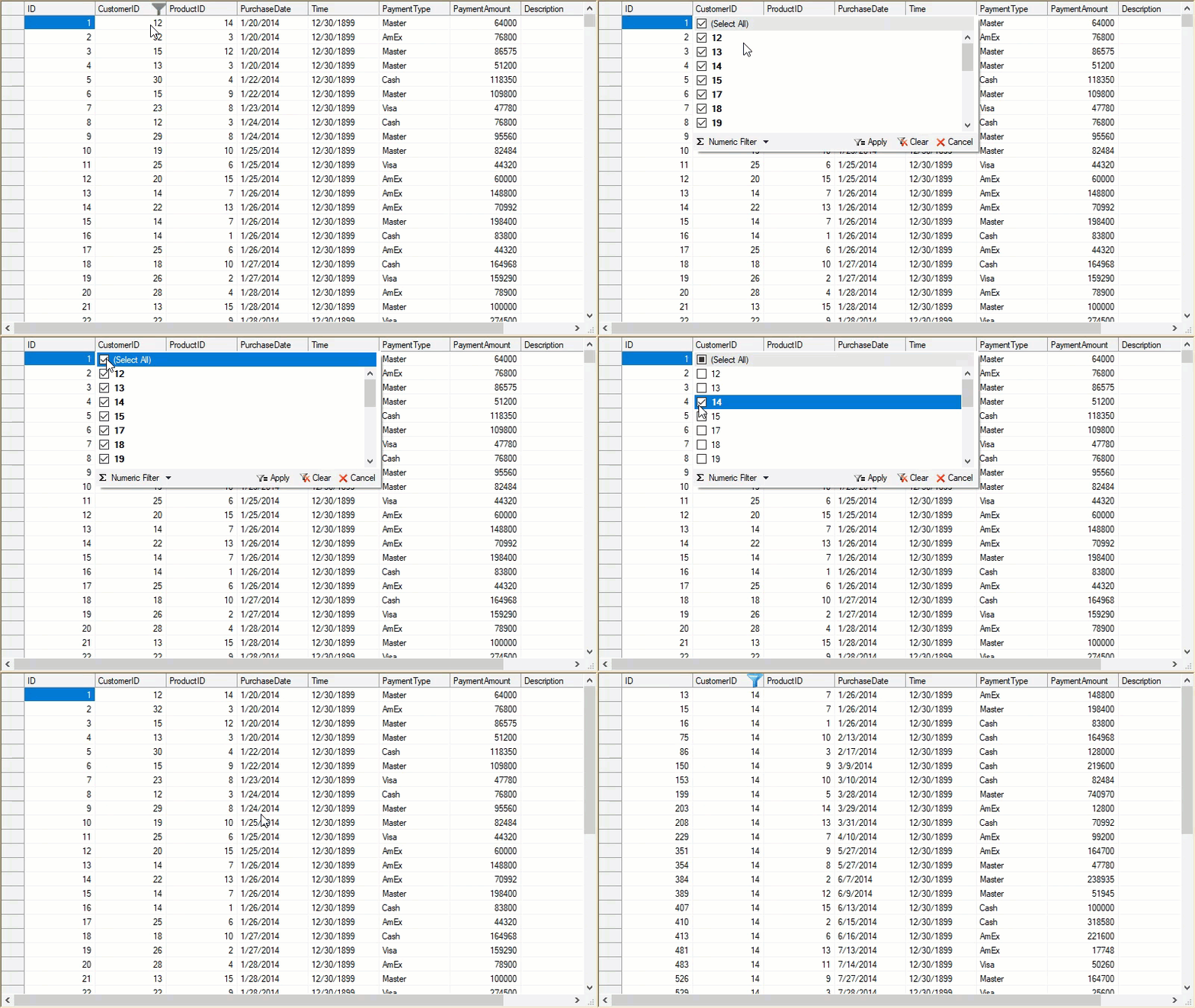
To change the default glyphs used for filter editor and filtered column in FlexGrid, use the following code for .NET and .NET Framework, respectively.
### .NET
In this example we create an object of Bitmap class to be used as a source for C1BitmapIcon object and then set it as a glyph for FilterEditor and FilteredColumn using the Glyphs property.
```csharp
//Create BitmapIcon object
C1.Framework.C1BitmapIcon icon1 = new C1.Framework.C1BitmapIcon();
//Create a Bitmap object set to the custom image you want for the glyph
Bitmap bitmap = new Bitmap("icon.png");
//Set the source for C1BitmapIcon object to the Bitmap object
icon1.Source = bitmap;
//Set the FilterEditor glyph to the C1BitmapIcon
c1FlexGrid1.Glyphs[GlyphEnum.FilterEditor] = icon1;
c1FlexGrid1.Glyphs[GlyphEnum.FilteredColumn] = icon1;
```
```vbnet
'Create BitmapIcon object
C1.Framework.C1BitmapIcon icon1 = new C1.Framework.C1BitmapIcon()
' Create a Bitmap object set to the custom image you want for the glyph
Bitmap bitmap = new Bitmap("icon.png")
' Set the source for C1BitmapIcon object to the Bitmap object
icon1.Source = bitmap
' Set the FilterEditor glyph to the C1BitmapIcon
c1FlexGrid1.Glyphs[GlyphEnum.FilterEditor] = icon1
c1FlexGrid1.Glyphs[GlyphEnum.FilteredColumn] = icon1
```
### .NET Framework
In this example, we use the Glyphs property to set the custom glyph for FilterEditor and FilteredColumn, as specified by the GlyphEnum enumeration. This example uses the sample created in [Quick Start](/componentone/docs/win/online-flexgrid/quick-start).
```csharp
// Set custom glyph for filter editor
c1FlexGrid1.Glyphs[GlyphEnum.FilterEditor] = Image.FromFile("icon.png");
// Set custom glyph for filtered column
c1FlexGrid1.Glyphs[GlyphEnum.FilteredColumn] = Image.FromFile("icon.png");
```
```vbnet
' Set custom glyph for filter editor
c1FlexGrid1.Glyphs(GlyphEnum.FilterEditor) = Image.FromFile("icon.png")
' Set custom glyph for filtered column
c1FlexGrid1.Glyphs(GlyphEnum.FilteredColumn) = Image.FromFile("icon.png")
```
Please note that setting Glyph property to null restores the default glyph. In order to hide a glyph, you can set the **Glyph** property to a blank image.