# Sort Operations
FlexGrid for WinForms allows you to sort through code and even allows to disable or revert the sorting. Know more about sorting and related implementation.
## Content
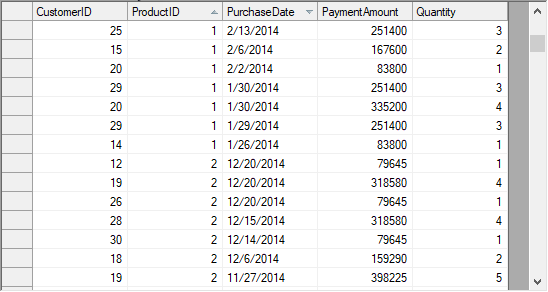
FlexGrid, by default, allows end-users to apply sorting on a single column by clicking the column header in ascending or descending order. However, the grid also provides you flexibility, so that you can sort your data according to your requirement. Below sections take you through the ways to perform various operations related to sorting
## Sorting through Code
You can apply sorting through code by calling Sort method of the C1FlexGrid class. The method takes SortFlags enumeration as its parameter which lets you provide the various sort options such as setting the sort order and ignore casing. The method has various overloads which gives you flexibility to apply sorting either on a column, or a range of cells, rows or columns.
Use the code below to sort columns and apply sorting options through code in the WinForms FlexGrid.
```csharp
//Approach 1:
//Sort the second column in descending order
c1FlexGrid1.Sort(C1.Win.C1FlexGrid.SortFlags.Descending, 2);
//Approach 2:
//Specify multiple sorting options using SortFlag
C1.Win.C1FlexGrid.SortFlags order = C1.Win.C1FlexGrid.SortFlags.Ascending | C1.Win.C1FlexGrid.SortFlags.IgnoreCase;
//Call the Sort method
c1FlexGrid1.Sort(order, 2);
```
```vbnet
' Approach 1:
' Sort the second column in descending order
c1FlexGrid1.Sort(C1.Win.C1FlexGrid.SortFlags.Descending, 2)
' Approach 2:
' Specify multiple sorting options using SortFlag
Dim order As C1.Win.C1FlexGrid.SortFlags = C1.Win.C1FlexGrid.SortFlags.Ascending Or C1.Win.C1FlexGrid.SortFlags.IgnoreCase
' Call the Sort method
c1FlexGrid1.Sort(order, 2)
```
## Sort Multiple Columns
To apply sorting on multiple columns through code, you can use the **Sort** property of Column class and then call the **Sort()** method with **SortFlags** set to **UseColSort**. The **Sort** property accepts values from **SortFlags** enumeration.
Following code shows how to sort multiple columns of the WinForms FlexGrid through code.
```csharp
//Apply sorting on multiple columns
c1FlexGrid1.Cols[2].Sort = SortFlags.Ascending;
c1FlexGrid1.Cols[3].Sort = SortFlags.Descending;
//Call the Sort method
c1FlexGrid1.Sort(SortFlags.UseColSort, 2, 3);
```
```vbnet
'Apply sorting on multiple columns
c1FlexGrid1.Cols(2).Sort = SortFlags.Ascending
c1FlexGrid1.Cols(3).Sort = SortFlags.Descending
'Call the Sort method
c1FlexGrid1.Sort(SortFlags.UseColSort, 2, 3)
```
To allow user to sort multiple columns at runtime, set AllowSorting property of the C1FlexGrid class to **MultiColumn**. The property accepts values from the AllowSortingEnum enumeration.
Following code shows how to let user sort multiple columns of the WinForms FlexGrid at run-time.
```csharp
// Allow sorting in multiple columns of the grid
c1FlexGrid1.AllowSorting = AllowSortingEnum.MultiColumn;
```
```vbnet
' Allow sorting in multiple columns of the grid
c1FlexGrid1.AllowSorting = AllowSortingEnum.MultiColumn
```
## Revert/Undo Sorting
To remove sorting from the grid, you can set **SortDefinition** property of the **C1FlexGrid** class to an empty string.
Below code how to remove sorting from the WinForms FlexGrid.
```csharp
// Remove sorting
c1FlexGrid1.SortDefinition = string.Empty;
```
```vbnet
' Remove sorting
c1FlexGrid1.SortDefinition = String.Empty
```
## Disable Sort on a Particular Column
To disable sorting on a particular column, you need to set the **AllowSorting** property of that Column object to **false**.
Use the code below to disable sorting on a particular column of the WinForms FlexGrid.
```csharp
// Disable sorting on a particular column of the grid
c1FlexGrid1.Cols[2].AllowSorting = false;
```
```vbnet
' Disable sorting on a particular column of the grid
c1FlexGrid1.Cols(2).AllowSorting = False
```
## Sort Order
Order of sorting usually varies in case of bound and unbound mode. When a column header is clicked in case of bound mode, sorting is done same as **DefaultView.Sort** property of the data table. However, in case of unbound mode, column is sorted either according to [String.Compare](https://docs.microsoft.com/en-us/dotnet/api/system.string.compare?view=netframework-4.5.2) method or by differentiating the lower and upper case according to the culture.
Refer to the code below to specify sorting order of a WinForms FlexGrid column.
```csharp
C1.Win.C1FlexGrid.SortFlags order = C1.Win.C1FlexGrid.SortFlags.Ascending | C1.Win.C1FlexGrid.SortFlags.IgnoreCase;
c1FlexGrid1.Sort(order, 2);
```
```vbnet
Dim order As C1.Win.C1FlexGrid.SortFlags = C1.Win.C1FlexGrid.SortFlags.Ascending Or C1.Win.C1FlexGrid.SortFlags.IgnoreCase
c1FlexGrid1.Sort(order, 2)
```
## Custom Sorting
FlexGrid provides several sorting options which are required for most commonly used scenarios such as ignore case, use the display value etc. However, if you need to have more flexibility and control over sort operation, you can even write your own custom logic using the [IComparer](https://docs.microsoft.com/en-us/dotnet/api/system.collections.icomparer?view=netframework-4.5.2) class. For instance, the example below sorts the Name column by file extensions. In the sample code, custom logic to sort by file extension is implemented in the FileNameComparer class which is then passed as parameter to **Sort()** method of the **C1FlexGrid** class.
The code below demonstrates how to apply custom sorting on the WinForms FlexGrid columns.
```csharp
c1FlexGrid1.Sort(new FileNameComparer(c1FlexGrid1, e.Order));
class FileNameComparer : IComparer
{
C1FlexGrid c1FlexGrid1;
bool _desc;
// ctor
public FileNameComparer(C1FlexGrid flex, SortFlags order)
{
c1FlexGrid1 = flex;
_desc = ((order & SortFlags.Descending) != 0);
}
// IComparer
public int Compare(object r1, object r2)
{
// get file names
string s1 = (string)c1FlexGrid1[((Row)r1).Index, "Name"];
string s2 = (string)c1FlexGrid1[((Row)r2).Index, "Name"];
// compare extensions
int icmp = string.Compare(Path.GetExtension(s1), Path.GetExtension(s2), true);
// return sort order (ascending or descending)
return (_desc)? -icmp: icmp;
}
}
```
```vbnet
C1FlexGrid1.Sort(New FileNameComparer(C1FlexGrid1, SortFlags.Ascending))
Public Class FileNameComparer
Implements IComparer
Private c1FlexGrid1 As C1FlexGrid
Private _desc As Boolean
Public Sub New(ByVal flex As C1FlexGrid, ByVal order As SortFlags)
c1FlexGrid1 = flex
_desc = ((order And SortFlags.Descending) <> 0)
End Sub
Public Function Compare(r1 As Object, r2 As Object) As Integer Implements IComparer.Compare
Dim s1 As String = CStr(c1FlexGrid1((CType(r1, Row)).Index, "Name"))
Dim s2 As String = CStr(c1FlexGrid1((CType(r2, Row)).Index, "Name"))
Dim icmp As Integer = String.Compare(Path.GetExtension(s1), Path.GetExtension(s2), True)
Return If((_desc), -icmp, icmp)
End Function
```
For detailed implementation of custom sorting, see the product sample named **Custom Sort**.
>type=note
> **Note**: The abovementioned product sample is located at \\Documents\\ComponentOne Samples\\WinForms\\vx.x.x\\C1FlexGrid\\CS on your system, if you have installed the samples while installing WinForms Edition using **ComponentOneControlPanel.exe**.