# Search
FlexGrid for WinForms lets you easily perform search on the entire grid as well as on a specific column. Learn more about search and related options here.
## Content
With FlexGrid, you can easily perform search either on the entire grid or just a specific column. This topic discusses how you can enable search in FlexGrid.
## Search in Entire Grid
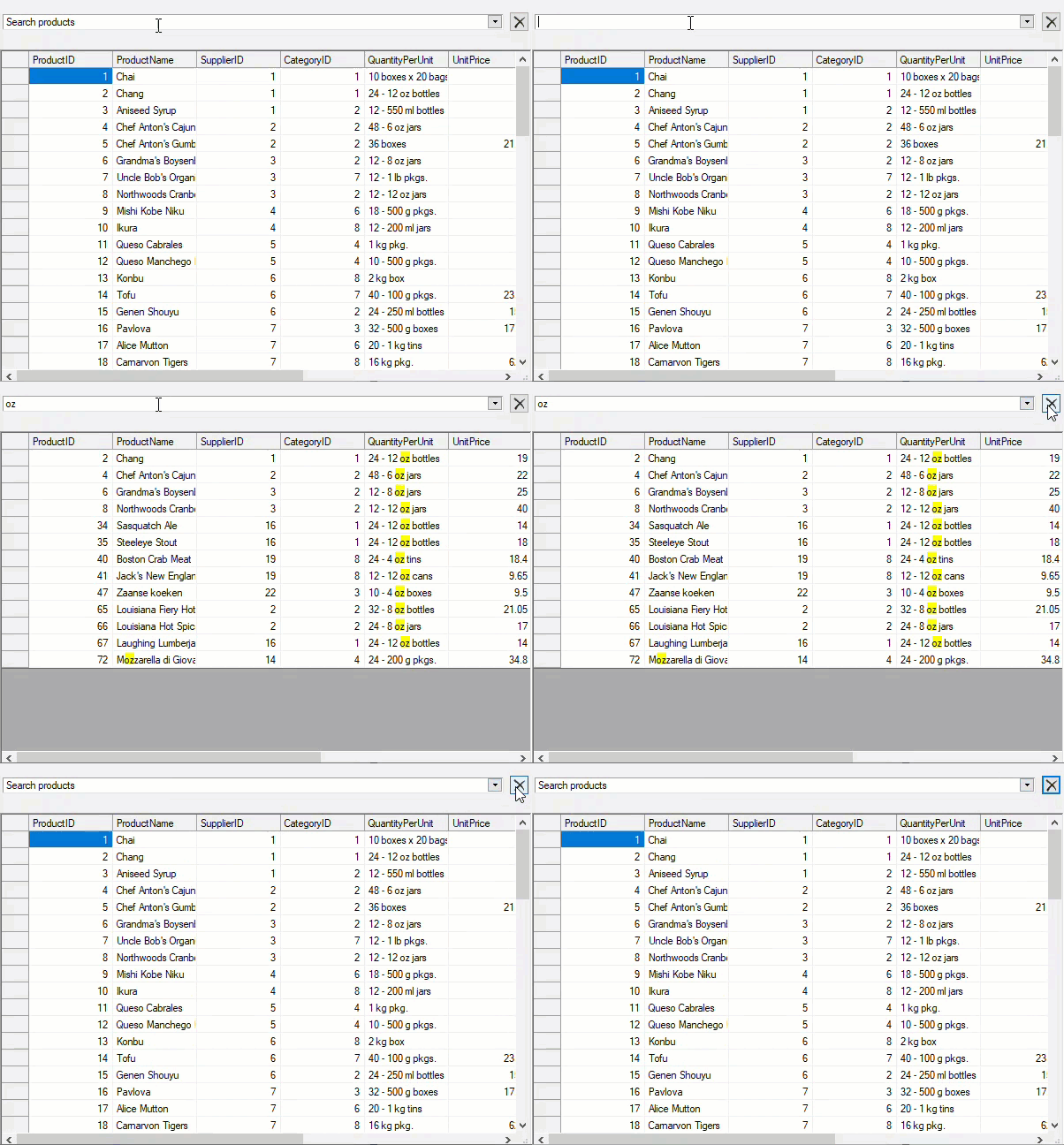
To search the entire FlexGrid, you need to add the C1FlexGridSearchPanel control to the form and associate it with the grid to be searched using [SetC1FlexGridSearchPanel](/componentone/docs/win/online-flexgrid/) method. The C1FlexGridSearchPanel control highlights the search results and filters the records having search results automatically. However, you can choose not to highlight the results by setting the [HighlightSearchResults](/componentone/docs/win/online-flexgrid/) to **false**. It also provides a [SearchMode](/componentone/docs/win/online-flexgrid/) property to set whether to start the search automatically or on hitting the Search button or Enter key. You can also set the [watermark](/componentone/docs/win/online-flexgrid/) in search box as well as a time [delay in search](/componentone/docs/win/online-flexgrid/).
>type=note
> **Note** : The C1FlexGridSearchPanel control is specific to the .NET Framework, making this feature available only within that framework.
Use the code below to search the entire WinForms FlexGrid using SearchPanel.
```csharp
// Associate the search panel with flexgrid to be searched
c1FlexGridSearchPanel1.SetC1FlexGridSearchPanel(c1FlexGrid1, c1FlexGridSearchPanel1);
// Configure the search
c1FlexGridSearchPanel1.HighlightSearchResults = true;
c1FlexGridSearchPanel1.SearchMode = C1.Win.C1FlexGrid.SearchMode.Always;
c1FlexGridSearchPanel1.Watermark = "Search products";
c1FlexGridSearchPanel1.SearchDelay = 2;
```
```vbnet
' Associate the search panel with flexgrid to be searched
c1FlexGridSearchPanel1.SetC1FlexGridSearchPanel(c1FlexGrid1, c1FlexGridSearchPanel1)
' Configure the search
c1FlexGridSearchPanel1.HighlightSearchResults = True
c1FlexGridSearchPanel1.SearchMode = C1.Win.C1FlexGrid.SearchMode.Always
c1FlexGridSearchPanel1.Watermark = "Search products"
c1FlexGridSearchPanel1.SearchDelay = 2
```
Besides an in-built search panel, you can use [ApplySearch](/componentone/docs/win/online-flexgrid/) method of the [C1FlexGrid](/componentone/docs/win/online-flexgrid/) class to search data in the entire grid. The ApplySearch() method provides various overloads to perform search in FlexGrid as listed below:
| Overload | Description |
| -------- | ----------- |
| ApplySearch(string search, SearchHighlightMode highlightMode) | Applies search to the data on the grid depending on how the highlight mode has defined search result to be highlighted. |
| ApplySearch(string search, SearchHighlightMode highlightMode, bool filter) | Applies search to the data on the grid depending on how the highlight mode has defined search result to be highlighted and also defines if search result is filtered or not. |
| ApplySearch(string search, SearchHighlightMode highlightMode, bool filter, bool onlyVisibleColumns) | Applies search to the data on the grid depending on how the highlight mode has defined search result to be highlightedand also defines if search result is filtered or not. Additionally, this overload lets you apply search on only visible columns in the grid. |
| ApplySearch(string search, SearchHighlightMode highlightMode, bool filter, bool onlyVisibleColumns, bool onlyVisibleRows) | Applies search to the data on the grid depending on how the highlight mode has defined search result to be highlightedand also defines if search result is filtered or not. Additionally, this overload lets you apply search on only visible rows and columns in the grid. |
To apply search in FlexGrid using the ApplySearch() method, use the following code. This code searches for the occurrence of the word "Car" and highlights only the first search result. This example uses the sample created in [Quick Start](/componentone/docs/win/online-flexgrid/quick-start).
```csharp
c1FlexGrid1.ApplySearch("Car", SearchHighlightMode.OnlyFirst);
```
## Search in Column
To enable column-wise search, FlexGrid provides **AutoSearch** property of the C1FlexGrid class which accepts values from AutoSearchEnum enumeration. The enumeration lets you start downward column search from the first scrollable row or from the current cursor position. To search a value in a particular column, you need to keep the cursor in that column and type the value to be searched, and grid automatically jumps to the search result in that column. You can also set delay in search by setting the **AutoSearchDelay** property.
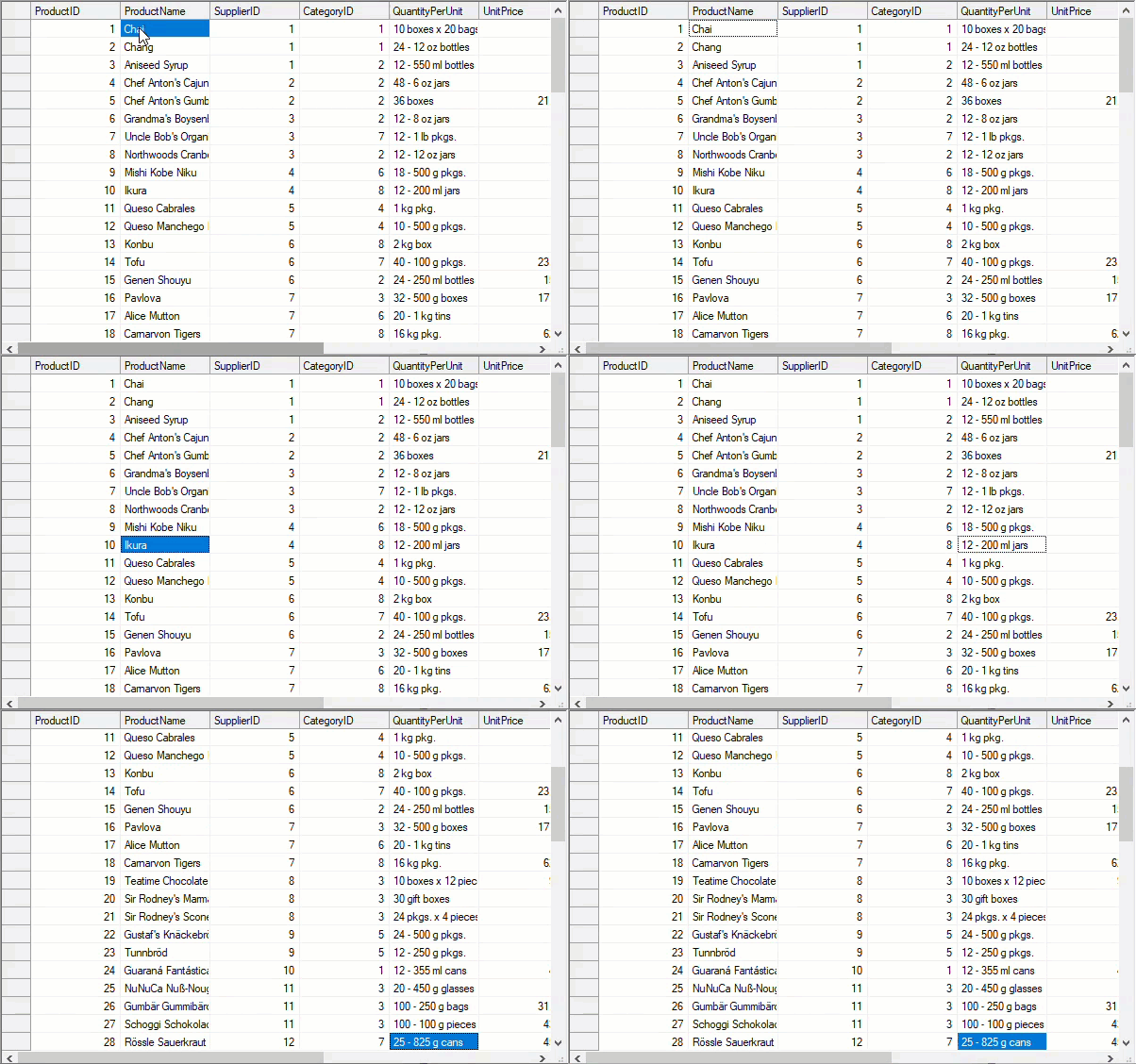
Following code enables column-wise search in the WinForms FlexGrid.
```csharp
//Enable column-wise search from top row
c1FlexGrid1.AutoSearch = C1.Win.C1FlexGrid.AutoSearchEnum.FromTop;
c1FlexGrid1.AutoSearchDelay = 2;
```
```vbnet
'Enable column-wise search from top row
c1FlexGrid1.AutoSearch = C1.Win.C1FlexGrid.AutoSearchEnum.FromTop
c1FlexGrid1.AutoSearchDelay = 2
```
## Retrieve Highlighted Match Count
The match count feature allows the retrieval of the total number of highlighted search results in FlexGrid. In scenarios where the customers have to deal with large datasets, match count delivers a flexible and efficient search mechanism that not only finds matches but also supports filtering and visual highlighting.
## How to Get Count of the Highlighted Matches
Use the following code
```csharp
// Execute search with filtering and highlighting
int matches;
flexGrid.ApplySearch(
search: "invoice",
highlightMode: SearchHighlightMode.HighlightAll,
filter: true,
onlyVisibleColumns: true,
onlyVisibleRows: false,
out matches
);
Console.WriteLine($"Matches found: {matches}");
```
The **ApplySearch** method performs a search on the grid and it returns the number of matching cells through an **out** parameter named **matches**.
## See Also
**Documentation**
[Sort](/componentone/docs/win/online-flexgrid/features/sort)
[Filter](/componentone/docs/win/online-flexgrid/features/filter)
[Group](/componentone/docs/win/online-flexgrid/features/group)
[Merge](/componentone/docs/win/online-flexgrid/features/merge)
**Blog**
[Add a Data Grid Search Panel Control in FlexGrid for WinForms](https://www.grapecity.com/blogs/add-a-data-grid-search-panel-in-flexgrid-for-winforms)