# Filter Operations
FlexGrid for WinForms lets you enable, disable, remove and customize grid filtering process through code. Know how to implement filtering operations here.
## Content
Data filtering in a grid can be performed in two ways:
### Header-based Filter
In header-based filtering, an icon is displayed in the header cell of column which gives you options to specify the filter in a drop-down and also indicates if the filter is applied on a particular column. In FlexGrid, this behavior can be achieved by simply using AllowFiltering property of the grid. In this case, filter does not require any extra real estate on the screen. This approach also gives you flexibility to customize and create better filter editors. More details about same is given in the sections below.
### Filter Row
Filter row is a row dedicated for displaying the filtering criteria and appears just below the column header. So, in this case, user can always see the filtered columns and their current filtering criteria. But, this added advantage comes at the cost of extra screen real estate that a filter row needs. In FlexGrid, you can easily achieve filter row using the custom implementation. For implementation, see the product sample named **Filter Row**.
>type=note
> **Note**: The **Filter Row** sample is located at \\Documents\\ComponentOne Samples\\WinForms\\v4.5.2\\C1FlexGrid\\CS on your system, if you have installed the samples while installing WinForms Edition using **ComponentOneControlPanel.exe**.
## Allow Filtering
In FlexGrid, filtering can be enabled by setting the **C1FlexGrid.AllowFiltering** property to **true**. This enables the default ColumnFilter on all columns of the grid. The ColumnFilter lets the users choose from ValueFilter and ConditionFilter at runtime.
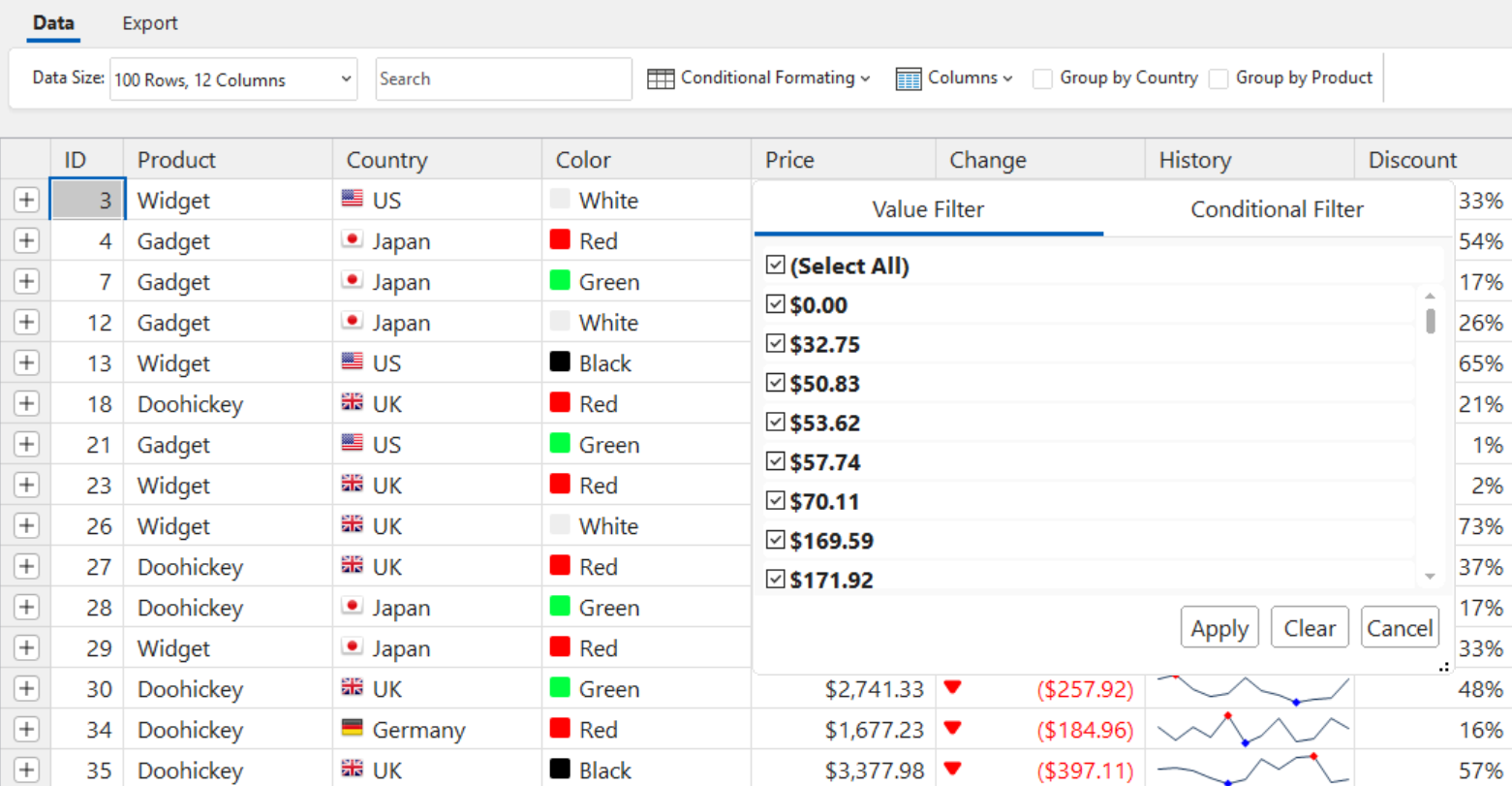
You can also specify the filter types for each column by setting the [AllowFiltering](/componentone/docs/win/online-flexgrid/) property of each [Column](/componentone/docs/win/online-flexgrid/) object. AllowFiltering property of column lets you choose from any of the following values:
| Value | Description |
| ----- | ----------- |
| Default | Enables the ColumnFilter which is a combination of ValueFilter and ConditionFilter and gives user a runtime option to choose either of them. |
| ByValue | Enables ValueFilter which contains a checkbox list of values present in that column. User can check off the values that should not be displayed in the filtered output. |
| ByCondition | Enables ConditionFilter which lets you specify combination of two conditions such as "equals", "greater than", "contains" etc. You can combine the specified conditions using "And" and "Or" operator. |
| Custom | Lets you instantiate a custom filter and explicitly assign it to [Filter](/componentone/docs/win/online-flexgrid/) property of the column. |
| None | Disables filtering for that column. |
Use the following code snippet to enable a condition filter on first column of the WinForms FlexGrid.
```csharp
// Allow filtering in the grid
c1FlexGrid1.AllowFiltering = true;
// Specify filter for column 1
c1FlexGrid1.Cols[1].AllowFiltering = C1.Win.C1FlexGrid.AllowFiltering.ByCondition;
```
```vbnet
' Allow filtering in the grid
c1FlexGrid1.AllowFiltering = True
' Specify filter for column 1
c1FlexGrid1.Cols(1).AllowFiltering = C1.Win.C1FlexGrid.AllowFiltering.ByCondition
```
For more details regarding abovementioned filter types, see [Types of Filters](/componentone/docs/win/online-flexgrid/features/filter/filter-operations/filter-types).
## Filtering through Code
Although, AllowFiltering property of grid enables grid filtering and can be used in most common scenarios, there may be cases where you need to further fine tune the filter options. This can be achieved by modifying **AllowFiltering** and **Filter** properties of individual columns. For example, the code below enables filtering in the WinForms FlexGrid, but restricts the filtering to columns of type string.
```csharp
// Restrict filtering to columns of type 'string'
foreach (Column c in c1FlexGrid1.Cols)
{
c.AllowFiltering = c.DataType == typeof(string)
? AllowFiltering.Default
: AllowFiltering.None;
}
```
```vbnet
' Restrict filtering to columns of type 'string'
For Each c As Column In c1FlexGrid1.Cols
c.AllowFiltering = If(c.DataType Is GetType(String), AllowFiltering.Default, AllowFiltering.None)
Next
```
You can also customize the filtering process further by creating filters and assigning them to columns, or by retrieving existing filters and modifying their properties. For example, the code below creates a **ConditionFilter** in the WinForms FlexGrid, configures it to select all items that are equal to "Germany", and then assigns the new filter to the "ShipCountry" column:
```csharp
// Enable filtering in the grid
c1FlexGrid1.AllowFiltering = true;
// Create a new ConditionFilter
C1.Win.C1FlexGrid.ConditionFilter Filter;
Filter = new C1.Win.C1FlexGrid.ConditionFilter();
// Create a filter to narrow down items that have Germany
Filter.Conditions[0].Operator = C1.Win.C1FlexGrid.ConditionOperator.Equals; Filter.Conditions[0].Parameter = "Germany";
// Assign the new filter to "ShipCountry" column
c1FlexGrid1.Cols["ShipCountry"].Filter = Filter;
// Apply the filter
c1FlexGrid1.ApplyFilters();
```
```vbnet
' Enable filtering in the grid
c1FlexGrid1.AllowFiltering = True
' Create a new ConditionFilter
Dim Filter As C1.Win.C1FlexGrid.ConditionFilter
Filter = New C1.Win.C1FlexGrid.ConditionFilter()
' Create a filter to narrow down items that have GermanyFilter.Conditions(0).[Operator] = C1.Win.C1FlexGrid.ConditionOperator.EqualsFilter.Conditions(0).Parameter = "Germany"
' Assign the new filter to "ShipCountry" column
c1FlexGrid1.Cols("ShipCountry").Filter = Filter
' Apply the filter
c1FlexGrid1.ApplyFilters()
```
## Custom Filtering
When filtering is applied to FlexGrid, it hides the rows that do not qualify the filtering criteria by setting their Visible property to **false**. However, in some cases, you may want to customize this behavior. For such scenarios, you can use the **BeforeFilter** and **AfterFilter** events fired by FlexGrid. The below example customizes the filtering behavior of WinForms FlexGrid by applying a different style to non-qualifying rows instead of hiding them.
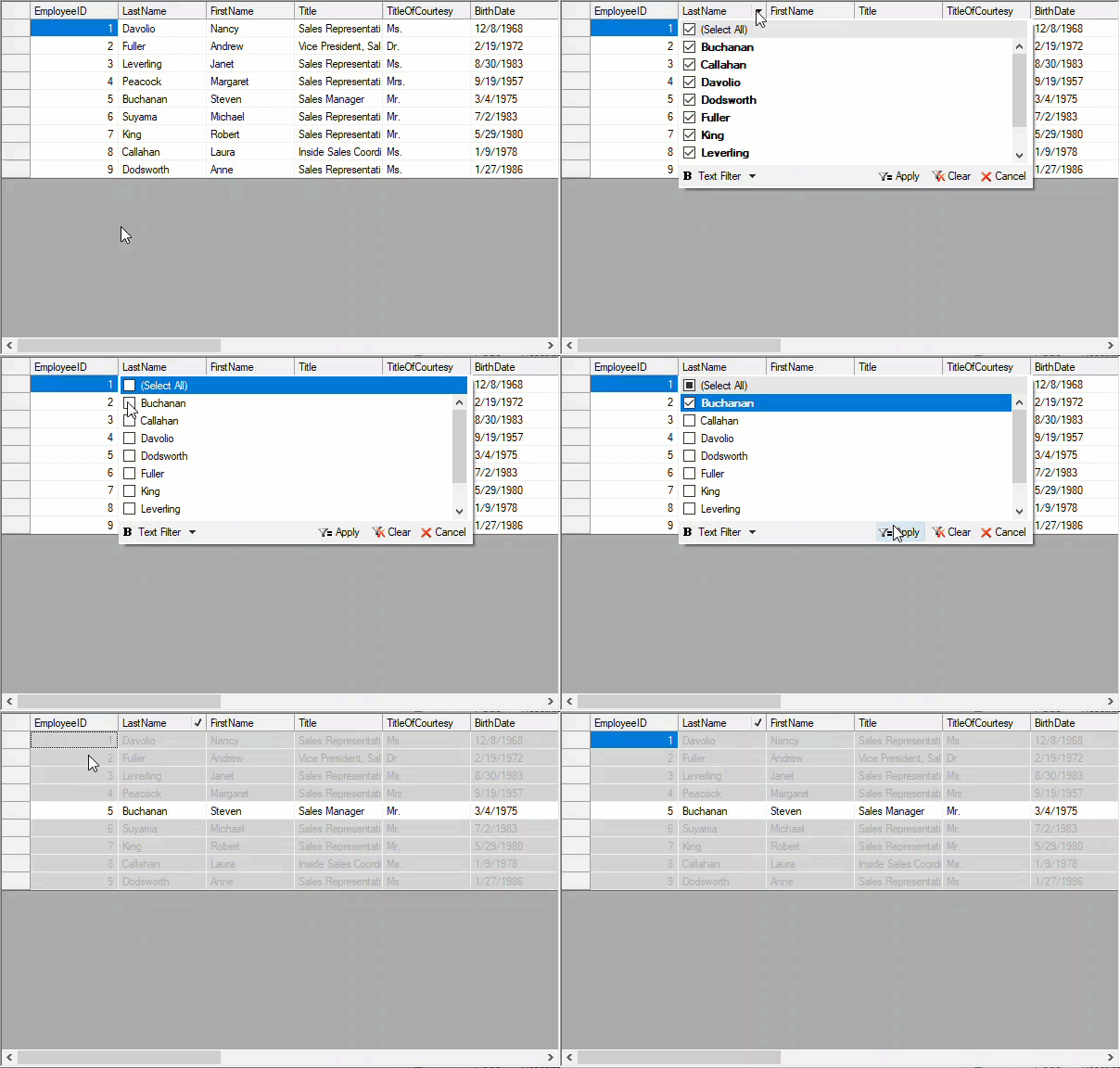
```csharp
private void c1FlexGrid1_BeforeFilter(object sender, CancelEventArgs e)
{
c1FlexGrid1.BeginUpdate();
}
private void c1FlexGrid1_AfterFilter(object sender, EventArgs e)
{
// get style used to show filtered out rows
var cs = c1FlexGrid1.Styles["filteredOut"];
// apply style to all rows
for (int r = c1FlexGrid1.Rows.Fixed; r < c1FlexGrid1.Rows.Count; r++)
{
var row = c1FlexGrid1.Rows[r];
if (row.Visible)
{
// normal row, reset style
row.Style = null;
}
else
{
// filtered row, make visible and apply style
row.Visible = true;
row.Style = cs;
}
}
// resume updates
c1FlexGrid1.EndUpdate();
}
```
```vbnet
Private Sub c1FlexGrid1_BeforeFilter(ByVal sender As Object, ByVal e As CancelEventArgs)
c1FlexGrid1.BeginUpdate()
End Sub
Private Sub c1FlexGrid1_AfterFilter(ByVal sender As Object, ByVal e As EventArgs)
' get style used to show filtered out rows
Dim cs = c1FlexGrid1.Styles("filteredOut")
' apply style to all rows
For r = c1FlexGrid1.Rows.Fixed To c1FlexGrid1.Rows.Count - 1
Dim row = c1FlexGrid1.Rows(r)
If row.Visible Then
' normal row, reset style
row.Style = Nothing
Else
' filtered row, make visible and apply style
row.Visible = True
row.Style = cs
End If
Next
' resume updates
c1FlexGrid1.EndUpdate()
End Sub
```
The above code uses a custom style named "filteredout" which can be defined as shown in the code below.
```csharp
// create style for rows excluded by the filter
var cs = c1FlexGrid1.Styles.Add("filteredOut");
cs.BackColor = Color.LightGray;
cs.ForeColor = Color.DarkGray;
```
```vbnet
' create style for rows excluded by the filter
Dim cs = c1FlexGrid1.Styles.Add("filteredOut")
cs.BackColor = Color.LightGray
cs.ForeColor = Color.DarkGray
```
## Remove Filtering
User can remove column filtering at runtime by using **Clear** option given in the filter UI of each column. You can also remove filtering of the whole grid programmatically by passing the empty string in **FilterDefinition** property of FlexGrid.
Below code demonstrates how to clear all the filters from the WinForms FlexGrid.
```csharp
// Remove filtering by setting the filter definition to empty string
c1FlexGrid1.FilterDefinition = string.Empty;
```
```vbnet
' Remove filtering by setting the filter definition to empty string
c1FlexGrid1.FilterDefinition = String.Empty
```