# Numeric
FlexGrid provides built-in numeric editor to display numeric types of data such as Int or Decimal. Learn more about implementing numeric editor in FlexGrid.
## Content
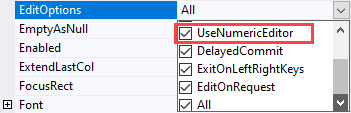
FlexGrid, by default, uses the numeric editor to edit the numeric data, that is, when the data type is set to any of the numeric types such as Int and Decimal. This behavior of FlexGrid is controlled by the EditOptions property which provides various editing options through the EditFlags enumeration. One of the flags provided is **UseNumericEditor**. As the default value of **EditOptions** property is **All**, **UseNumericEditor** flag is always ON and hence, grid automatically enables the numeric editor while editing the numeric data. You can access the EditOptions property at design time as well as through code.
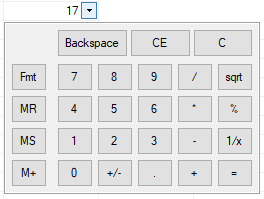
| Numeric Editor | Numeric Editor with Format = "C0" | Numeric Editor with Spin Button | Numeric Editor with Calculator |
| -------------- | --------------------------------- | ------------------------------- | ------------------------------ |
|  |  |  |  |
### At Design Time
To enable or disable the numeric editor at design time, you can access the EditOptions property from the **Properties** window.
### At Run Time
At run-time, you need to set the UseNumericEditor flag On in the EditOptions property. Use the code below to set EditOptions property in the WinForms FlexGrid.
```csharp
// Set all the flags ON
c1FlexGrid1.EditOptions = C1.Win.C1FlexGrid.EditFlags.All;
// Set UseNumericEditor flag only
c1FlexGrid1.EditOptions = C1.Win.C1FlexGrid.EditFlags.UseNumericEditor;
```
```vbnet
' Set all the flags ON
c1FlexGrid1.EditOptions = C1.Win.C1FlexGrid.EditFlags.All
' Set UseNumericEditor flag only
c1FlexGrid1.EditOptions = C1.Win.C1FlexGrid.EditFlags.UseNumericEditor
```
## Format Numeric Cell
To format the data in a numeric cell, FlexGrid provides the Format property of Column as well as Row object. In case of the formats that support decimal values such as numeric, currency and exponential, FlexGrid displays values up to two decimal places by default. However, you can specify the number of decimals to display by appending the value of **Format** property with that number. For instance, in order to display values up to three decimal places in a Number type cell, you specify value of Format property as "**N3**" or "**n3**".
>type=note
> **Note**: This property doesn't have any effect on the stored value but, only on how value is displayed at the run time. You can access the formatted value of a cell using **GetDataDisplay(Int32, Int32)** method of the C1FlexGrid class.
You can set the Format property at design time as well as through code. Following table lists the commonly used formats for numeric cells:
| Format | Value | Description |
| ------ | ----- | ----------- |
| Number | N or n | Specifies the formatting for simple numeric values. |
| Currency | C or c | Specifies the formatting for monetary values. |
| Exponential or Scientific | E or e | Specifies the formatting for values using scientific notations. |
| Percentage | P or p | Specifies the formatting for percentage values. |
| Custom | User-defined | Takes the value of format string from user. A custom string might require handling in the code. |
### At Design Time
1. In design view, click on the FlexGrid smart tag to open the **C1FlexGrid Tasks** menu.
2. Click the **Column Tasks** option and navigate to **Format String** property.
3. Click ellipsis button to open the Format String dialog.
4. Select the required format from the list box on left, say **Currency**.
5. Set the format specific properties on the right hand side of the dialog, **Decimal places** in this case.
### At Run Time
To specify the format of a particular numeric type column, set the **Format** property to any of the above mentioned values. In this example, we have set the format of column 3 as currency without decimals.
Following code shows how to set the format of a WinForms FlexGrid column.
```csharp
// Set the currency format without decimals
c1FlexGrid1.Cols[3].Format = "C0";
```
```vbnet
' Set the currency format without decimals
c1FlexGrid1.Cols(3).Format = "C0"
```
## Input using Spin Button
To create a numeric editor which uses a spin button for input, you need to assign instance of an external control such as **NumericUpDown** to the [Editor](/componentone/api/win/online-flexgrid/dotnet-api/C1.Win.FlexGrid.10/C1.Win.FlexGrid.RowCol.Editor.html) property.
Use the code below to create a numeric editor with spin button in the WinForms FlexGrid.
```csharp
// Assigns NumericUpDown control as editor for second column
c1flexGrid1.Cols[2].Editor = new NumericUpDown();
```
```vbnet
' Assigns NumericUpDown control as editor for second column
c1flexGrid1.Cols(2).Editor = New NumericUpDown()
```
## Input using Calculator
To allow user to give input using a calculator in a numeric editor, you can use the C1NumericEdit control of **C1Input** library as an editor. So, just add the reference to **C1.Win.C1Input** and assign an instance of **C1NumericEdit** control to the **Editor** property. For more information about using an external control as editor, see [Custom Editors](/componentone/docs/win/online-flexgrid/features/Edit/cell-editors#custom-editors).
To create a numeric editor with calculator, use the code below.
```csharp
// Assigns NumericUpDown control as editor for second column
c1flexGrid1.Cols[2].Editor = new C1NumericEdit(){ShowUpDownButtons=false};
```
```vbnet
' Assigns NumericUpDown control as editor for second column
c1flexGrid1.Cols(2).Editor = New C1NumericEdit() With
{
.ShowUpDownButtons = False
}
```
## See Also
**Documentation**
[Editors](/componentone/docs/win/online-flexgrid/features/Edit/cell-editors)