# Mask
FlexGrid provides built-in mask editor which lets you validate the user input automatically as it is typed. Know how to implement mask in FlexGrid cells.
## Content
Mask editor refers to pre-defined templates for getting input from users which also automatically validates the user input as it is typed. Mask strings have two types of characters; literal characters and template characters. While literal characters are the ones which become part of the input, the template characters serve as placeholders for characters belonging to specific categories (for example, digits or alphabets). For example, the code below assigns a "(999) 999-9999" editing mask to the first column, which holds phone numbers. Here, special characters such as braces ("()") and hyphen ("-") are the literals and the digit "9" is a placeholder that stands for any digit.

The FlexGrid control supports masked editing through the EditMask property, which can be used with regular text fields and with drop-down combo fields. To apply different masks within the same column, you can trap the BeforEdit event and set the **EditMask** property to appropriate value.
```csharp
// Set up a phone number edit mask
c1FlexGrid1.Cols[1].EditMask = "(999) 999-9999";
```
```vbnet
' Set up a phone number edit mask
c1FlexGrid1.Cols(1).EditMask = "(999) 999-9999"
```
You can also set the **EditMask** property at design time using the **Input Mask** dialog. You can access the dialog by clicking the ellipsis button against **Edit Mask** field in **Column Tasks** menu. It also means that the Edit Mask field is specific to the column selected at that time.
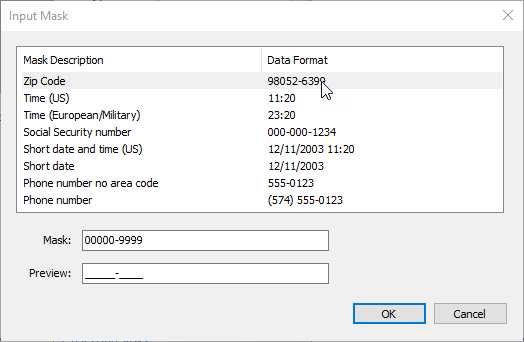
Note that when the **EditMask** property is set to a non-empty string, the grid uses the masked editor even if the column contains **DateTime** values. Usually, grid uses the built-in Date editor to edit DateTime type cells.
## See Also
**Documentation**
[Date](/componentone/docs/win/online-flexgrid/features/Edit/cell-editors/date)