# Date
FlexGrid provides built-in date editor to display all the Date and DateTime type of data. Learn more about implementing date editor and related operations.
## Content
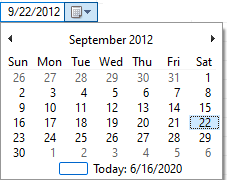
FlexGrid, by default, uses the Date editor for all the **Date** and **DateTime** type of data. The Date editor consists of a dropdown which opens a calendar when clicked and user can select the desired date by navigating through it. User can also change the date, month or year by simply selecting the corresponding part in the editor and pressing the up and down arrow keys.
| Default Date Editor | Date Editor Without Calendar | Date Editor with Spin Button |
| ------------------- | ---------------------------- | ---------------------------- |
|  |  |  |
Use the code below to create a Date editor in a WinForms FlexGrid column.
```csharp
// Set the data type property to DateTime
c1FlexGrid1.Cols[1].DataType = typeof(DateTime);
```
```vbnet
' Set the data type property to DateTime
c1FlexGrid1.Cols(1).DataType = GetType(Date)
```
## Input without Displaying Calendar
As mentioned earlier, in FlexGrid, a DateTime type cell automatically displays a dropdown calendar to receive the input from user. However, in order to get a date input from user without displaying a calendar, you can set a mask using the EditMask property and then validate the input value using the **ValidateEdit** event.
Following code demonstrates how to create a Date editor without calendar in WinForms FlexGrid
```csharp
// Set a mask on column
c1flexGrid1.Cols[3].EditMask = "00/00/0000";
```
```vbnet
' Set a mask on column
c1flexGrid1.Cols(3).EditMask = "00/00/0000"
```
For more information about cell masks and validation, see topics [Mask](/componentone/docs/win/online-flexgrid/features/Edit/cell-editors/mask) and [Validation](/componentone/docs/win/online-flexgrid/features/Edit/validation) respectively. Another way of hiding the calendar is to get user input using the spin buttons.
## Input using Spin Button
Below code shows how to create Date editor with spin button.
To display spin buttons in a **Date** editor, use the **SetupEditor** event to convert the editor into [DateTimePicker](https://docs.microsoft.com/en-us/dotnet/framework/winforms/controls/datetimepicker-control-windows-forms) and set its [ShowUpDown](https://docs.microsoft.com/en-us/dotnet/api/system.windows.forms.datetimepicker.showupdown?view=netcore-3.1) property to **true**.
```csharp
private void C1flexGrid1_SetupEditor(object sender, RowColEventArgs e)
{
if (c1flexGrid1.Cols[e.Col].Name == "DOB")
{
// Cast FlexGrid's current cell editor
var dateEditor = c1flexGrid1.Editor as DateTimePicker;
// Show UpDown button (replacing the drop-down button for calendar)
dateEditor.ShowUpDown = true;
}
}
```
```vbnet
Private Sub C1flexGrid1_SetupEditor(ByVal sender As Object, ByVal e As RowColEventArgs)
If c1flexGrid1.Cols(e.Col).Name Is "DOB" Then
' Cast FlexGrid's current cell editor
Dim dateEditor = TryCast(c1flexGrid1.Editor, DateTimePicker)
' Show UpDown button (replacing the drop-down button for calendar)
dateEditor.ShowUpDown = True
End If
End Sub
```
## Set Date Format
To set the format in a Date type column, you need to set the Format property of the Column object.
Following table lists the pre-defined formats:
| Format | Value | Example |
| ------ | ----- | ------- |
| Short Date | d | 11/19/2003 |
| Long Date | D | Friday, November 19, 2003 |
| Short Time | t | 12:15 AM |
| Long Time | T | 12:15:30 AM |
You can also create a custom format using the various custom format specifiers supported in the .Net framework. For details, see [Custom date and time format strings](https://docs.microsoft.com/en-us/dotnet/standard/base-types/custom-date-and-time-format-strings) on Microsoft website.
Use the following code to create a custom date format in WinForms FlexGrid column.
```csharp
// Set a pre-defined format
c1FlexGrid1.Cols[DOB].Format = "d";
// Set a custom format
c1FlexGrid1.Cols[OrderDate].Format = "dd/MM/yyyy";
```
```vbnet
' Set a pre-defined format
c1FlexGrid1.Cols(DOB).Format = "d"
' Set a custom format
c1FlexGrid1.Cols(OrderDate).Format = "dd/MM/yyyy"
```
## Display Country-specific Date Format
Although abovementioned formats are the most commonly used date formats, but there are cultures which prefer using their specific calendar and date formats in some cases such as Japan. You can display those specific calendars and date formats by using **OwnerDrawCell** event of the C1FlexGrid class and the [System.Globalization](https://docs.microsoft.com/en-us/dotnet/api/system.globalization?view=netcore-3.1) namespace. The namespace provides various classes to define culture related information including calendars and date formats. For instance, to display Japanese calendar and Japanese date format, you can leverage the [System.Globalization.JapaneseCalendar](https://docs.microsoft.com/en-us/dotnet/api/system.globalization.japanesecalendar?view=netcore-3.1) class. Similarly, you can also display other calendars such as Gregorian, Hebrew, Hijri, and Korean.
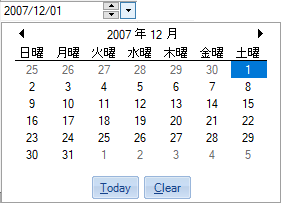
Set the country specific date format in WinForms FlexGrid using the code below.
```csharp
c1flexGrid1.Cols["DOB"].Format = "dd/MM/yyyy";
c1flexGrid1.DrawMode = DrawModeEnum.OwnerDraw;
c1flexGrid1.OwnerDrawCell += C1flexGrid1_OwnerDrawCell;
private void C1flexGrid1_OwnerDrawCell(object sender, OwnerDrawCellEventArgs e)
{
if (c1flexGrid1.Cols[e.Col].DataType == typeof(DateTime) && e.Row >= c1flexGrid1.Rows.Fixed)
{
e.Text = DateTime.Parse(e.Text).ToString("yyyy年MM月dd日(dddd)", c);
}
}
```
```vbnet
C1FlexGrid1.Cols("DOB").Format = "dd/MM/yyyy"
C1FlexGrid1.DrawMode = DrawModeEnum.OwnerDraw
AddHandler C1FlexGrid1.OwnerDrawCell, AddressOf C1flexGrid1_OwnerDrawCell
Private Sub C1flexGrid1_OwnerDrawCell(ByVal sender As Object, ByVal e As OwnerDrawCellEventArgs)
If C1FlexGrid1.Cols(e.Col).DataType = GetType(DateTime) AndAlso e.Row >= C1FlexGrid1.Rows.Fixed Then
e.Text = DateTime.Parse(e.Text).ToString("yyyy年MM月dd日(dddd)", c)
End If
End Sub
```
## Set Min/Max Date
To set a range of valid values, you can use the [DateTimePicker](https://docs.microsoft.com/en-us/dotnet/framework/winforms/controls/datetimepicker-control-windows-forms) control as editor and set its [MinDate](https://docs.microsoft.com/en-us/dotnet/api/system.windows.forms.datetimepicker.mindate?view=netcore-3.1) and [MaxDate](https://docs.microsoft.com/en-us/dotnet/api/system.windows.forms.datetimepicker.maxdate?view=netcore-3.1) property.
Use the code below to set a range of valid dates in WinForms FlexGrid.
```csharp
DateTimePicker dateTimePicker = new DateTimePicker();
dateTimePicker.Format = DateTimePickerFormat.Short;
// Sets Max and Min dates
dateTimePicker.MinDate = new DateTime(2015, 05, 01);
dateTimePicker.MaxDate = DateTime.Today;
// Assigns DateTimePicker control as editor for FirstOrderDate(date) column
c1flexGrid1.Cols["FirstOrderDate"].Editor = dateTimePicker;
```
```vbnet
Dim dateTimePicker As DateTimePicker = New DateTimePicker()
dateTimePicker.Format = DateTimePickerFormat.[Short]
' Sets Max and Min dates
dateTimePicker.MinDate = New DateTime(2015, 05, 01)
dateTimePicker.MaxDate = Date.Today
' Assigns DateTimePicker control as editor for FirstOrderDate(date) column
c1flexGrid1.Cols("FirstOrderDate").Editor = dateTimePicker
```
## See Also
**Documentation**
[Date](/componentone/docs/win/online-flexgrid/features/Edit/cell-editors/date)