# Cell Editors
FlexGrid provides various built-in cell editors with possibility to create and use custom editors. Learn more about how to use various editors in FlexGrid.
## Content
This topic discusses various built-in editors of FlexGrid, and operations related to them. The topic also takes you through the steps to apply custom editors in the FlexGrid columns.
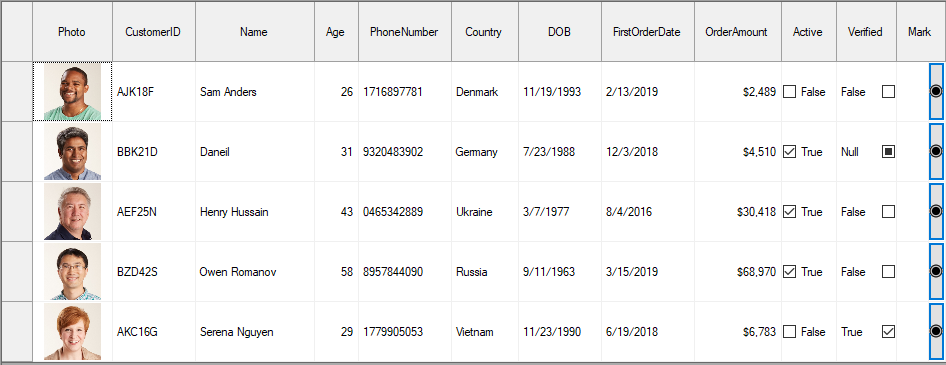
## Built-in Editors
FlexGrid provides several built-in editors to enable efficient in-cell editing. The grid uses **TextBox** control as its default editor. However, other built-in editors such as numeric, date, checkbox, and combo box are also supported. These editors are automatically assigned, generally based on the value of some specific properties such as [DataType](/componentone/api/win/online-flexgrid/dotnet-api/C1.Win.FlexGrid.10/C1.Win.FlexGrid.RowCol.DataType.html) property of the column. The table below summarizes the built-in editors provided by FlexGrid, their brief description and the example codes demonstrating them. For more information about built-in editors and their customization, click the corresponding hyperlink.
| **Built-in Editor** | **Snapshot** | **Description** | **Sample Code** |
| --------------- | -------- | ----------- | ----------- |
| [Checkbox](/componentone/docs/win/online-flexgrid/features/Edit/cell-editors/check-box) |  | Gets enabled automatically when **DataType** property of the [Column](/componentone/api/win/online-flexgrid/dotnet-api/C1.Win.FlexGrid.10/C1.Win.FlexGrid.Column.html) object is set to **Boolean**. | `c1FlexGrid1.Cols[colIndex].DataType = typeof(Boolean);` |
| [Numeric](/componentone/docs/win/online-flexgrid/features/Edit/cell-editors/numeric) |  | Gets enabled automatically when **DataType** property is set to a numeric data type such as **Int** or **Decimal**. | `c1FlexGrid1.Cols[colIndex].DataType = typeof(Int32);` |
| [Date](/componentone/docs/win/online-flexgrid/features/Edit/cell-editors/date) | 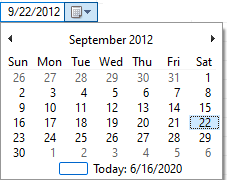 | Gets enabled automatically if the **DataType** property of column is set to **Date** or **DateTime**. | `c1FlexGrid1.Cols[colIndex].DataType = typeof(DateTime);` |
| [ComboBox](/componentone/docs/win/online-flexgrid/features/Edit/cell-editors/combo-box) | 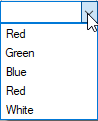 | Gets enabled by setting multiple values separated by pipe in the [ComboList](/componentone/api/win/online-flexgrid/dotnet-api/C1.Win.FlexGrid.10/C1.Win.FlexGrid.RowCol.ComboList.html) property. | `c1FlexGrid1.Cols[colIndex].ComboList = "Red|Green|Blue|Red|White";` |
| [Mask](/componentone/docs/win/online-flexgrid/features/Edit/cell-editors/mask) |  | Gets enabled when the [EditMask](/componentone/api/win/online-flexgrid/dotnet-api/C1.Win.FlexGrid.10/C1.Win.FlexGrid.RowCol.EditMask.html) property of column is set. | `c1FlexGrid1.Cols[colIndex].EditMask = "(999) 999-9999";` |
| [Mapped list](/componentone/docs/win/online-flexgrid/concepts/data/bound-mode/mapped-list) | 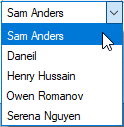 | Gets enabled when the [DataMap](/componentone/api/win/online-flexgrid/dotnet-api/C1.Win.FlexGrid.10/C1.Win.FlexGrid.RowCol.DataMap.html) property is set to an **IDictionary** object which establishes mapping between values stored in the grid and those visible to a user. | `ListDictionary customerNames = new ListDictionary();`
`customerNames.Add("AJK18F", "Sam Anders");`
`customerNames.Add("BBK21D", "Daneil");`
`customerNames.Add("AEF25N", "Henry Hussain");`
`customerNames.Add("BZD42S", "Owen Romanov");`
`customerNames.Add("AKC16G", "Serena Nguyen");`
`c1flexGrid1.Cols["Name"].DataMap = customerNames;`
`c1flexGrid1.ShowButtons = ShowButtonsEnum.WithFocus;` |
| [Cell Button](/componentone/docs/win/online-flexgrid/features/Edit/cell-editors/cell-button) |  | Gets enabled when the **ComboList** property is set to an ellipsis(...) which automatically displays a cell button in edit mode. You can then capture the [CellButtonClick](/componentone/api/win/online-flexgrid/dotnet-api/C1.Win.FlexGrid.10/C1.Win.FlexGrid.C1FlexGridBase.CellButtonClick.html) event either to show a dialog box or to perform any other operation. | `c1flexGrid1.Cols["colIndex"].ComboList = "...";`
`c1flexGrid1.CellButtonClick += C1flexGrid1_CellButtonClick;` |
## Custom Editors
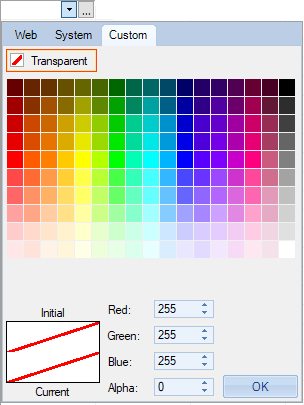
FlexGrid control provides most of the commonly used editing options through the above-mentioned built-in editors. However, in addition, you can also use external controls as editors to meet the specialized editing needs. Any control that derives from the base **Control** class can be easily used as an editor. This can be done at design time as well as through code. In the example below, we are setting the **C1ColorPicker** control as a cell editor.
### At Design Time
2. Add the **C1FlexGrid** control and [C1ColorPicker](https://developer.mescius.com/componentone/docs/win/online-input/C1ColorPickerControlOverview.html) control to the form.
3. Select **Designer...** option from the **C1FlexGrid Tasks** menu to open the **C1FlexGrid Column Editor**.
4. Select a column and switch to **Properties** pane on left hand side.
5. Navigate to the **Editor** property and set its value to instance of the **C1ColorPicker** control.
### At Run Time
To set an external control as editor through code, create an instance of the control and assign it to the [Editor](/componentone/api/win/online-flexgrid/dotnet-api/C1.Win.FlexGrid.10/C1.Win.FlexGrid.RowCol.Editor.html) property of the [Column](/componentone/api/win/online-flexgrid/dotnet-api/C1.Win.FlexGrid.10/C1.Win.FlexGrid.Column.html) object.
See the code below to know how to set an external control as editor in WinForms FlexGrid column.
```csharp
// Create an instance of C1ColorPicker control to be used as custom editor
C1.Win.C1Input.C1ColorPicker customeditor = new C1.Win.C1Input.C1ColorPicker();
// Assign the custom editor the Editor property
c1FlexGrid1.Cols[1].Editor = customeditor;
```
```vbnet
' Create an instance of C1ColorPicker control to be used as custom editor
Dim customeditor As C1.Win.C1Input.C1ColorPicker = New C1.Win.C1Input.C1ColorPicker()
' Assign the custom editor the Editor property
c1FlexGrid1.Cols(1).Editor = customeditor
```
## See Also
**Blog**
[CheckedListBox Editor for FlexGrid](https://www.grapecity.com/blogs/checkedlistbox-editor-for-flexgrid)
[Creating a Derived Accordion Control with FlexGrid](https://www.grapecity.com/blogs/creating-a-derived-accordion-control-with-flexgrid)