# Unbound Mode
FlexGrid supports data in unbound mode as well. Either leave the grid empty or populate it by adding rows and columns at design time or programmatically.
## Content
As the name suggests, in unbound mode, grid is not bound to any data source and data is stored in the control itself. In this case, you need to provide data by adding rows and columns either at design time or programmatically through row and column collections. You can also create an empty grid to let user enter the data.
An unbound grid is not a very common scenario as grid does not store the data and hence, user needs to manage it manually. However, unbound grids suits better to some business scenarios like creation and maintenance of records. For instance, you can use the grid in unbound mode for recording the date-wise sales data or to maintain the daily inventory changes. Below example demonstrates a grid with data populated through code.
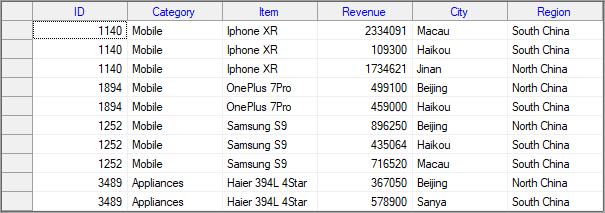
In C1FlexGrid, you can add empty rows or columns by setting the Count property of row or column objects. Also, you can use the Add method of these collections to add the empty rows and columns to a grid. To set data in the cells, you can either use the familiar index notation(Item property) or the SetData method. For more information on setting data in the cells, see [Basic Operation in Cells](/componentone/docs/win/online-flexgrid/).
Use the code below to populate data in unbound FlexGrid for WinForms.
**csharp**
```csharp
// add unbound column
Column col = _flex.Cols.Add();
col.Name = col.Caption = "Unbound";
_flex[1, "Unbound"] = 123;
```
**vbnet**
```vbnet
' add unbound column
Dim col As Column = C1FlexGrid1.Cols.Add()
col.Name = "Unbound"
col.Caption = "Unbound"
C1FlexGrid1(1, "Unbound") = 123
```
## See Also
**Documentation**
[Bound Mode](/componentone/docs/win/online-flexgrid/concepts/data/bound-mode)
**Blog**
[Hyperlinks in Unbound Flexgrid for Winforms](https://www.grapecity.com/blogs/hyperlinks-in-unbound-flexgrid-for-winforms)