# Working with Cells
FlexGrid for WinForms lets you work at cell level by setting the values or formatting cells, cell range etc. Learn more about cell related operations here.
## Content
A **cell** is the smallest unit of a grid. Although most operations occur at the **row** or **column** level, some scenarios require cell‑level operations such as retrieving, assigning, or clearing data.
***
## Set Value in Cell
**FlexGrid** provides two ways to assign a value to a cell:
* Use the [Item](/componentone/api/win/online-flexgrid/dotnet-api/C1.Win.FlexGrid.10/C1.Win.FlexGrid.ComboBoxEditor.Items.html) property, also referred to as the indexer.
* Use the [SetData](/componentone/api/win/online-flexgrid/dotnet-api/C1.Win.FlexGrid.10/C1.Win.FlexGrid.C1FlexGridBase.SetData.html) method.
Specify the row and column indexes to identify the cell.
The following example demonstrates how to assign a value to a cell:
```csharp
// Use indexes to set data
c1FlexGrid1[2, 3] = "2nd col 3rd row";
// Use SetData method to set data
c1FlexGrid1.SetData(2, 4, "2nd col 4th row");
```
```vbnet
' Use indexes to set data
c1FlexGrid1(2, 3) = "2nd col 3rd row"
' Use SetData method to set data
c1FlexGrid1.SetData(2, 4, "2nd col 4th row")
```
***
## Set Values in Cell Range
Assign a value to a cell range by using the [CellRange.Data](/componentone/api/win/online-flexgrid/dotnet-api/C1.Win.FlexGrid.10/C1.Win.FlexGrid.CellRange.Data.html) property or the [SetData](/componentone/api/win/online-flexgrid/dotnet-api/C1.Win.FlexGrid.10/C1.Win.FlexGrid.C1FlexGridBase.SetData.html) method.
First, create a `CellRange` object that represents the required range. Assigning a value to the range applies the value to each cell in that range.
```csharp
// Get the cell range
C1.Win.C1FlexGrid.CellRange cr = c1FlexGrid1.GetCellRange(2, 3, 5, 6);
// Approach 1: Use data property to set data in the cell range
cr.Data = "Cell Range";
// Approach 2: Use SetData method to set data in the cell range
// c1FlexGrid1.SetData(cr, "Cell Range");
```
```vbnet
' Get the cell range
Dim cr As C1.Win.C1FlexGrid.CellRange = c1FlexGrid1.GetCellRange(2, 3, 5, 6)
' Use data property to set data in the cell range
cr.Data = "Cell Range"
' Use SetData method to set data in the cell range
' c1FlexGrid1.SetData(cr, "Cell Range")
```
***
## Set Images in Cell
Display an image in a cell by using the [SetCellImage](/componentone/api/win/online-flexgrid/dotnet-api/C1.Win.FlexGrid.10/C1.Win.FlexGrid.C1FlexGridBase.SetCellImage.html) method. To assign an image to multiple cells, use the [CellRange.Image](/componentone/api/win/online-flexgrid/dotnet-api/C1.Win.FlexGrid.10/C1.Win.FlexGrid.Node.Image.html) property.
By default, a cell displays both its text and image. Set [ImageAndText](/componentone/api/win/online-flexgrid/dotnet-api/C1.Win.FlexGrid.10/C1.Win.FlexGrid.RowCol.ImageAndText.html) to `false` to display only the image.
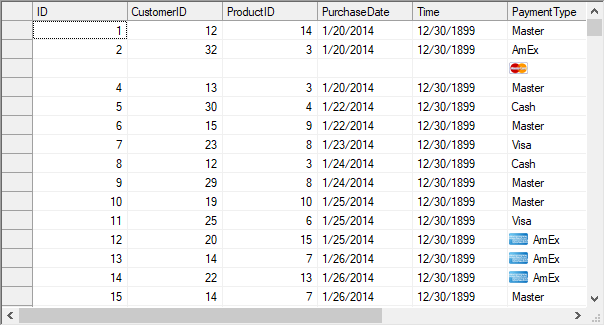
The following example demonstrates how to assign an image to a cell:
```csharp
// Set image in cell (3,6)
c1FlexGrid1.SetCellImage(3, 6, Image.FromFile("master.png"));
// Set image in cell range (12,6) to (14, 6)
C1.Win.C1FlexGrid.CellRange cr;
cr = c1FlexGrid1.GetCellRange(12, 6, 14, 6);
cr.Image = Image.FromFile("amex.jpg");
// Display image without text
c1FlexGrid1.Rows[3].ImageAndText = false;
```
```vbnet
' Set image in cell (3,6)
c1FlexGrid1.SetCellImage(3, 6, Image.FromFile("master.png"))
' Set image in cell range (12,6) to (14, 6)
Dim cr As C1.Win.C1FlexGrid.CellRange
cr = c1FlexGrid1.GetCellRange(12, 6, 14, 6)
cr.Image = Image.FromFile("amex.jpg")
' Display image without text
c1FlexGrid1.Rows(3).ImageAndText = False
```
***
## Clear Value from Cell (Range)
Clear the contents of a cell or range programmatically by assigning an empty string through the `Item` property or the `SetData` method.
Set [AutoClipboard](/componentone/api/win/online-flexgrid/dotnet-api/C1.Win.FlexGrid.10/C1.Win.FlexGrid.C1FlexGridBase.AutoClipboard.html) to `true` to support keyboard operations such as pressing Delete to clear selected cell contents.
```csharp
// Allow user to perform keyboard operations like pressing Delete key to clear cell content
c1FlexGrid1.AutoClipboard = true;
// Clear data of a particular cell through code
c1FlexGrid1.SetData(3, 4, "");
```
```vbnet
' Allow user to perform keyboard operations like pressing Delete key to clear cell content
c1FlexGrid1.AutoClipboard = True
' Clear data of a particular cell through code
c1FlexGrid1.SetData(3, 4, "")
```
***
## Display Tooltip in Cell
Set the [ShowCellLabels](/componentone/api/win/online-flexgrid/dotnet-api/C1.Win.FlexGrid.10/C1.Win.FlexGrid.C1FlexGridBase.ShowCellLabels.html) property to display partially hidden cell content as a tooltip.
To display additional information in a tooltip, handle the [MouseEnterCell](/componentone/api/win/online-flexgrid/dotnet-api/C1.Win.FlexGrid.10/C1.Win.FlexGrid.C1FlexGridBase.MouseEnterCell.html) and [MouseLeaveCell](/componentone/api/win/online-flexgrid/dotnet-api/C1.Win.FlexGrid.10/C1.Win.FlexGrid.C1FlexGridBase.MouseLeaveCell.html) events. Use `MouseEnterCell` to display the tooltip for the active cell and `MouseLeaveCell` to hide it when the pointer leaves the cell.
The following image shows additional employee information displayed in a tooltip:
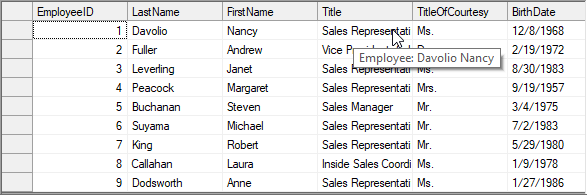
The following example demonstrates how to display a tooltip for a **FlexGrid** cell.
```csharp
private void Form1_Load(object sender, EventArgs e)
{
// TODO: This line of code loads data into the 'c1NWindDataSet.Employees' table. You can move, or remove it, as needed.
this.employeesTableAdapter.Fill(this.c1NWindDataSet.Employees);
for (int i = c1FlexGrid1.Rows.Fixed; i < c1FlexGrid1.Rows.Count; i++)
{
c1FlexGrid1.Rows[i].UserData = "Employee: " + c1FlexGrid1[i, 2] + " " + c1FlexGrid1[i, 3];
}
}
private void C1FlexGrid1_MouseEnterCell(object sender, C1.Win.C1FlexGrid.RowColEventArgs e)
{
if (e.Row >= c1FlexGrid1.Rows.Fixed)
{
string tip;
tip = c1FlexGrid1.Rows[e.Row].UserData.ToString();
// Display the tooltip
toolTip1.SetToolTip(c1FlexGrid1, tip);
}
}
private void C1FlexGrid1_MouseLeaveCell(object sender, C1.Win.C1FlexGrid.RowColEventArgs e)
{
// Hide the tooltip
toolTip1.SetToolTip(c1FlexGrid1, "");
}
```
```vbnet
Private Sub Form1_Load(ByVal sender As Object, ByVal e As EventArgs)
' TODO: This line of code loads data into the 'c1NWindDataSet.Employees' table. You can move, or remove it, as needed.
Me.employeesTableAdapter.Fill(Me.c1NWindDataSet.Employees)
For i As Integer = c1FlexGrid1.Rows.Fixed To c1FlexGrid1.Rows.Count - 1
c1FlexGrid1.Rows(i).UserData = "Employee: " & c1FlexGrid1(i, 2) & " " + c1FlexGrid1(i, 3)
Next
End Sub
Private Sub C1FlexGrid1_MouseEnterCell(ByVal sender As Object, ByVal e As C1.Win.C1FlexGrid.RowColEventArgs)
If e.Row >= c1FlexGrid1.Rows.Fixed Then
Dim tip As String
tip = c1FlexGrid1.Rows(e.Row).UserData.ToString()
' Display the tooltip
toolTip1.SetToolTip(c1FlexGrid1, tip)
End If
End Sub
Private Sub C1FlexGrid1_MouseLeaveCell(ByVal sender As Object, ByVal e As C1.Win.C1FlexGrid.RowColEventArgs)
' Hide the tooltip
toolTip1.SetToolTip(c1FlexGrid1, "")
End Sub
```
***
## Retrieve Cell Values
FlexGrid provides multiple methods and properties for retrieving cell values. Retrieve raw or formatted data from an individual cell or from a cell range, depending on the required format and scope.
| Requirement | Method/Property | Usage |
| ----------- | --------------- | ----- |
| Get the raw data | [Item](/componentone/api/win/online-flexgrid/dotnet-api/C1.Win.FlexGrid.10/C1.Win.FlexGrid.ComboBoxEditor.Items.html) property (indexer) | Returns the underlying value from a cell identified by its row and column indexes.
Example:
`var data = c1FlexGrid1[1, 1]; System.Diagnostics.Debug.WriteLine($"Cell data: {data}");` |
| | [GetData()](/componentone/api/win/online-flexgrid/dotnet-api/C1.Win.FlexGrid.10/C1.Win.FlexGrid.C1FlexGridBase.GetData.html) method | Returns the underlying value from the specified cell.
Example:
`var data1 = c1FlexGrid1.GetData(1, 1); System.Diagnostics.Debug.WriteLine($"Cell data: {data1}");` |
| Get the formatted data | [GetDataDisplay()](/componentone/api/win/online-flexgrid/dotnet-api/C1.Win.FlexGrid.10/C1.Win.FlexGrid.C1FlexGridBase.GetDataDisplay.html) method | Returns the formatted text displayed in the specified cell.
Example:
`var data2 = c1FlexGrid1.GetDataDisplay(1, 1); System.Diagnostics.Debug.WriteLine($"Display data: {data2}");` |
| Get values of a cell range | [Clip](/componentone/api/win/online-flexgrid/dotnet-api/C1.Win.FlexGrid.10/C1.Win.FlexGrid.CellRange.Clip.html) property | Returns the values from the current cell selection in a clipboard-compatible format.
Example:
`var data3 = c1FlexGrid1.Clip; System.Diagnostics.Debug.WriteLine($"Clip data: {data3}");` |
| | [GetCellRange()](/componentone/api/win/online-flexgrid/dotnet-api/C1.Win.FlexGrid.10/C1.Win.FlexGrid.Node.GetCellRange.html) method | Returns a `CellRange` object for the specified cells. Use its `Clip` property to retrieve the range values.
Example:
`var data4 = c1FlexGrid1.GetCellRange(1, 1); System.Diagnostics.Debug.WriteLine($"Cell Range data: {data4.Clip}");` |