# User Interaction
FlexGrid for WinForms lets you give power to the end user by allowing to edit, drag, sort, filter and resize the columns. Know more about user interaction.
## Content
This topic discusses how you can let end users interact with the FlexGrid columns.
## Allow Editing
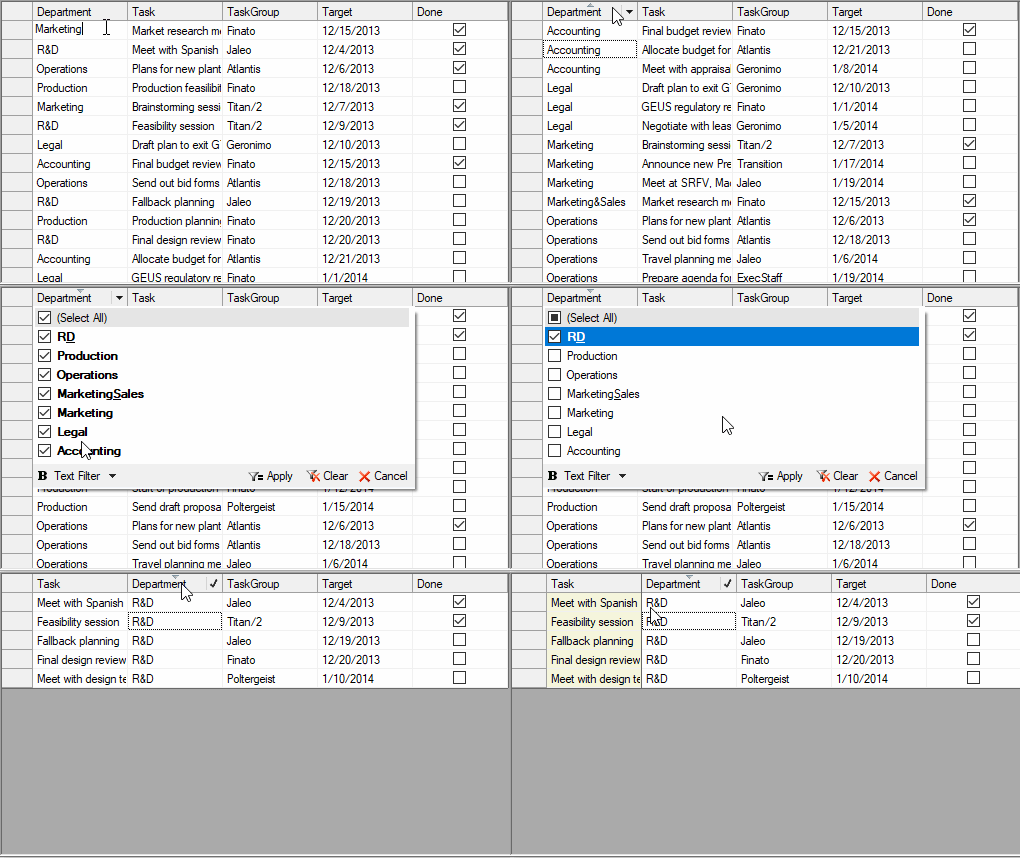
By default, FlexGrid allows to edit all columns of the grid. However, you can choose to disable editing of a particular column by setting AllowEditing property of the Column object to **false**. You can also disable editing of the whole grid by setting the **C1FlexGrid.AllowEditing** property to **false**. For more information on editing, see [Edit](/componentone/docs/win/online-flexgrid/features/Edit).
Following code shows how to disable editing of WinForms FlexGrid while keeping only one column editable.
```csharp
// Disable editing of the whole grid
c1FlexGrid1.AllowEditing = false;
// Enable editing in third column only
c1FlexGrid1.Cols[3].AllowEditing = true;
```
```vbnet
' Disable editing of the whole grid
c1FlexGrid1.AllowEditing = False
' Enable editing in third column only
c1FlexGrid1.Cols(3).AllowEditing = True
```
## Allow Dragging
FlexGrid, by default, allows user to reorder columns by dragging a column header and dropping it to the target position. However, you can change this behavior by using the FlexGrid.AllowDragging property and Column.AllowDragging property. To disable dragging of a particular column, you can set the **Column.AllowDragging** property of that column to **false**. On the other hand, setting the **FlexGrid.AllowDragging** property to either **Rows** or **None** disables the column reordering at grid level. This property accepts the values from AllowDraggingEnum. You can also disable column reordering at design time by checking off the **Enable Column Reordering** checkbox in the **C1FlexGrid Tasks** menu. For more information on tasks menus, see [Tasks Menus](/componentone/docs/win/online-flexgrid/quick-start/design-time-support/tasks-menus).
Below code demonstrates how to enable dragging of columns in WinForms FlexGrid.
```csharp
// Allow dragging of all columns across the grid
c1FlexGrid1.AllowDragging = C1.Win.C1FlexGrid.AllowDraggingEnum.Columns;
// Disable dragging of a particular column
c1FlexGrid1.Cols[3].AllowDragging = false;
```
```vbnet
' Allow dragging of all columns across the grid
c1FlexGrid1.AllowDragging = C1.Win.C1FlexGrid.AllowDraggingEnum.Columns
' Disable dragging of a particular column
c1FlexGrid1.Cols(3).AllowDragging = False
```
## Allow Freezing
To allow end user to freeze the columns at runtime, you can use the AllowFreezing property of the C1FlexGrid class which accepts values from AllowFreezingEnum. When this property is set to **Columns** or **Both**, a lock sign appears when mouse is hovered over the edge of header column. User can click and drag the lock sign to freeze the columns.
Following code shows how to allow users to freeze the columns in WinForms FlexGrid.
```csharp
// Allow freezing of columns at runtime
c1FlexGrid1.AllowFreezing = C1.Win.C1FlexGrid.AllowFreezingEnum.Columns;
```
```vbnet
' Allow freezing of columns at runtime
c1FlexGrid1.AllowFreezing = C1.Win.C1FlexGrid.AllowFreezingEnum.Columns
```
## Allow Pinning
FlexGrid lets you allow your users to pin a particular column or column range at run time by using the AllowPinning property of the **C1FlexGrid** class. Setting the property adds a Pin button() in the column header which allows users to pin columns at run-time so they remain in view as the user scrolls the grid horizontally. The property accepts its values from AllowPinning enumeration which lets you set pinning for a single column or a column range. When property is set to **ColumnRange**, user can pin or unpin all the columns starting from left till the clicked column in one go.
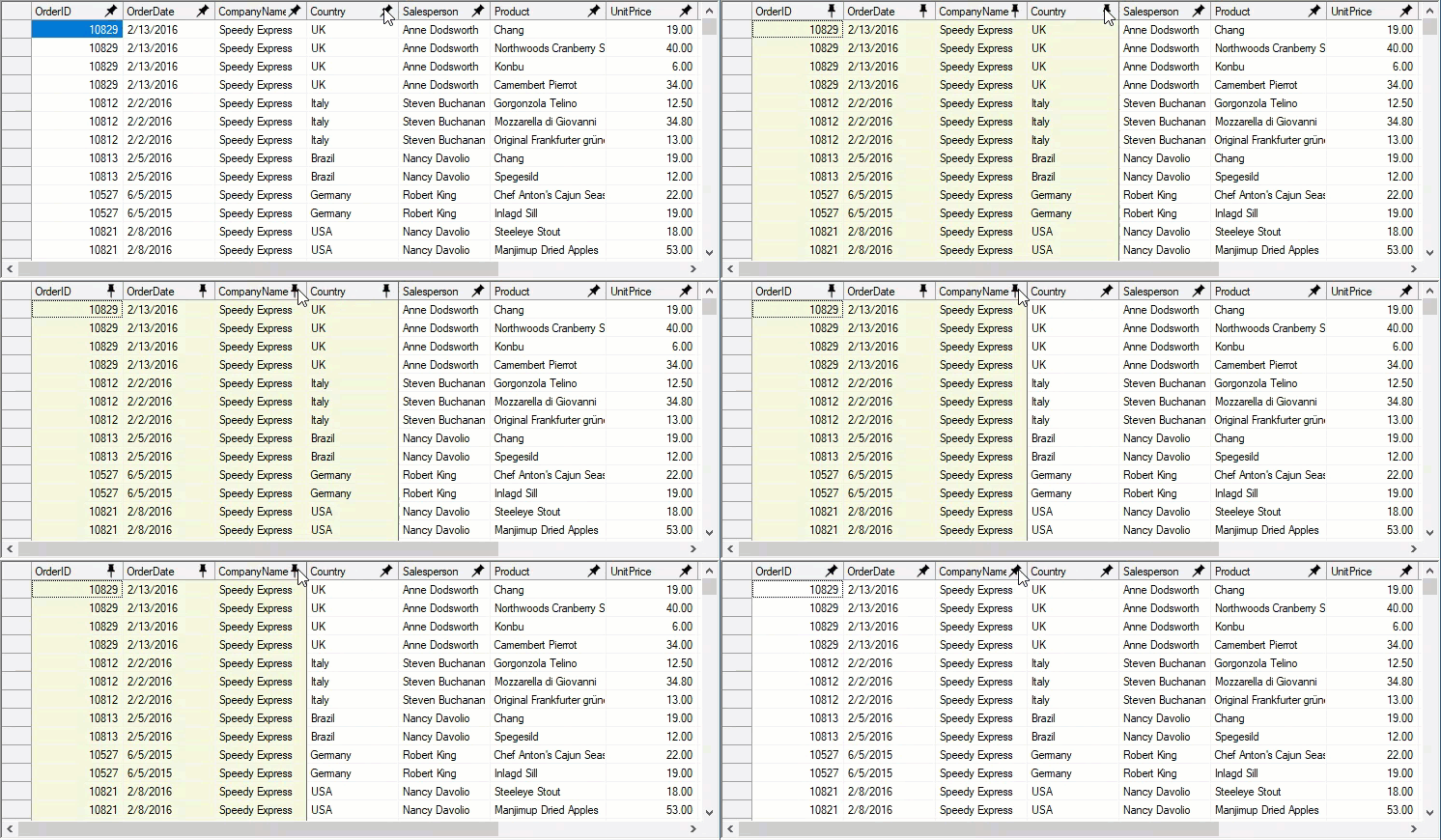
Use the code below to let user pin multiple columns in the WinForms FlexGrid.
```csharp
// Allow user to pin a column range
c1FlexGrid1.AllowPinning = C1.Win.C1FlexGrid.AllowPinning.ColumnRange;
```
```vbnet
' Allow user to pin a column range
c1FlexGrid1.AllowPinning = C1.Win.C1FlexGrid.AllowPinning.ColumnRange
```
## Allow Sorting
In FlexGrid, column sorting is enabled for the whole grid by default, and value of AllowSorting property of the **C1FlexGrid** class is set to **Auto**. In this mode, user can sort a **single column** by clicking the column header and **multiple columns** by holding the CTRL key while clicking the column headers. On sorting multiple columns, the grid shows sort index in the column header next to the sort direction glyph. You can also choose to prevent sorting or simply change the way the columns are sorted through AllowSortingEnum enumeration. The AllowSortingEnum enumeration allows you to choose whether to auto sort columns, sort single column, multiple columns or column range, or just prevent sorting.
You can enable **multi-column sorting** in the WinForms FlexGrid using the code below. When **AllowSorting** property is set to **MultiColumn**, user may sort multiple columns by simply clicking on their headers one after the other.
```csharp
// Enable the multi-column sorting in the grid
c1FlexGrid1.AllowSorting = C1.Win.C1FlexGrid.AllowSortingEnum.MultiColumn;
// Disable sorting on just one column
c1FlexGrid1.Cols[1].AllowSorting = false;
```
```vbnet
' Enable the multi-column sorting in the grid
c1FlexGrid1.AllowSorting = C1.Win.C1FlexGrid.AllowSortingEnum.MultiColumn
' Disable sorting on just one column
c1FlexGrid1.Cols(1).AllowSorting = False
```
To disable sorting on a particular column, you need to set the Column.AllowSorting property of that column to **false**. For more information on sorting, see [Sort](/componentone/docs/win/online-flexgrid/features/sort).
## Allow Filtering
FlexGrid doesn't allow filtering at runtime by default. However, you can enable it by setting the C1FlexGrid.AllowFiltering property to **true**. To define the type of filter you want to apply on a particular column, you can use the Column.AllowFiltering property which accepts following values from the AllowFiltering enumeration.
| **AllowFiltering Values** | **Description** |
| --------------------- | ----------- |
| Default | The grid automatically creates a filter of type [ColumnFilter](/componentone/docs/win/online-flexgrid/walkthroughs/customcolumnfilter). This filter is the combination of a value filter and a condition filter. |
| ByValue | The grid automatically creates a filter of type [ValueFilter](/componentone/api/win/online-flexgrid/dotnet-api/C1.Win.FlexGrid.10/C1.Win.FlexGrid.ValueFilter.html). This filter offers a checkbox list of values to choose from. Values that are not checked in the list are excluded from the filter output. |
| ByCondition | The grid automatically creates a filter of type [ConditionFilter](/componentone/api/win/online-flexgrid/dotnet-api/C1.Win.FlexGrid.10/C1.Win.FlexGrid.ConditionFilter.html). This filter provides several options such as **Equals**, **is Greater than**, **Contains**, **Begins with** etc. to create conditions. You can also combine two conditions by using the **And** and **Or** operators available in the filter. |
| Custom | The grid does not create a filter automatically and allows you to define your own filter and then explicitly assign it to [Filter](/componentone/api/win/online-flexgrid/dotnet-api/C1.Win.FlexGrid.10/C1.Win.FlexGrid.Column.Filter.html) property of the **Column** class. |
| None | Filtering is disabled for the column. |
For more information on filtering, see [Filter](/componentone/docs/win/online-flexgrid/features/filter).
Following code shows how to enable filtering in the WinForms FlexGrid and how to apply filters.
```csharp
// Allow filtering at grid level
c1FlexGrid1.AllowFiltering = true;
// Apply condition filter on the first column
c1FlexGrid1.Cols[1].AllowFiltering = C1.Win.C1FlexGrid.AllowFiltering.ByCondition;
```
```vbnet
' Allow filtering at grid level
c1FlexGrid1.AllowFiltering = True
' Apply condition filter on the first column
c1FlexGrid1.Cols(1).AllowFiltering = C1.Win.C1FlexGrid.AllowFiltering.ByCondition
```
## Allow Resizing
By default, FlexGrid allows resizing of all columns of the grid. To change this behavior, you can use AllowResizing property of the **C1FlexGrid** class. This property accepts values from the AllowResizingEnum enumeration which lets you resize columns, rows, both or none. The enumeration also gives you options to uniformly resize the rows, columns or both, that is, if you resize one of the columns or rows, the grid automatically resizes rest of the columns or rows as well. FlexGrid also provides Column.AllowResizing property which is a Boolean type property and lets you enable or disable resizing of a particular row or column.
Below code shows how to allow users to resize columns of WinForms FlexGrid.
```csharp
// Allows resizing of columns and rows uniformly
c1FlexGrid1.AllowResizing = C1.Win.C1FlexGrid.AllowResizingEnum.Both;
// Disable resizing of first column only
c1FlexGrid1.Cols[1].AllowResizing = false;
```
```vbnet
' Allows resizing of columns and rows uniformly
c1FlexGrid1.AllowResizing = C1.Win.C1FlexGrid.AllowResizingEnum.Both
' Disable resizing of first column only
c1FlexGrid1.Cols(1).AllowResizing = False
```
## Enable Context Menu
FlexGrid provides support for column context menu at run-time to facilitate quick actions related to column operations. To enable the column context menu on right-click, you need to set ColumnContextMenuEnabled property provided by the **C1FlexGrid** class to **true**. By default, this property is set to false.
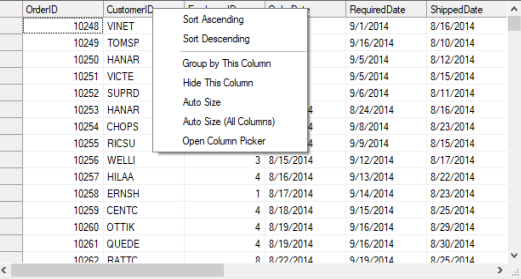
The column context menu provides following options:
| Option | Description |
| ------ | ----------- |
| Sort Ascending | Sorts the column in ascending order. |
| Sort Descending | Sorts the column in descending order. |
| Group by This Column | Groups the grid data based on column under mouse pointer. |
| Ungroup | Removes grouping from the grid data. The option displays only when grid is in grouped state. |
| Hide this Column | Hides the column under mouse pointer. |
| Auto size | Resizes the column according to the length of longest value. |
| Auto size (all columns) | Resizes all columns according to the length of longest value in each of them. |
| Open Column Picker | Opens the Column Picker. |
```csharp
// Enable column context menu
c1FlexGrid1.ColumnContextMenuEnabled = true;
```
```vbnet
' Enable column context menu
c1FlexGrid1.ColumnContextMenuEnabled = True
```
## See Also
**Documentation**
[Basic Operations](/componentone/docs/win/online-flexgrid/concepts/basic-column-operation)
[Editors](/componentone/docs/win/online-flexgrid/features/Edit/cell-editors)