# Sizing
FlexGrid for WinForms provides options to size the column width such as auto-adjust, star sizing etc. Learn more about sizing the column.
## Content
## Set Column Width
FlexGrid provides the DefaultSize property of ColumnCollection class to set the column width across the grid. You can also specify the width of a particular column by setting the **Width** property of the Column class. Default value of **Width** property is -1 which indicates that the column is taking width specified by the **DefaultSize** property. The Width property is also available at design time through the **C1FlexGrid Column Editor**. For more information on column editor, see [Editors](/componentone/docs/win/online-flexgrid/quick-start/design-time-support/editors).
Use the code below to set the default width of a column of the WinForms FlexGrid.
```csharp
// Set the default width of all columns
c1FlexGrid1.Cols.DefaultSize = 110;
// Set the width of the first column
c1FlexGrid1.Cols[1].Width = 30;
```
```vbnet
' Set the default width of all columns
c1FlexGrid1.Cols.DefaultSize = 110
' Set the width of the first column
c1FlexGrid1.Cols(1).Width = 30
```
## Auto-adjust Column Width
To adjust the column width according to the text length, FlexGrid provides the **AutoSizeCol()** and **AutoSizeCols()** methods. While **AutoSizeCol()** method automatically adjusts width of the specified column, the **AutoSizeCols()** method is used for cell ranges.
Following code shows how you can auto adjust the column widths according to the text length in the WinForms FlexGrid.
```csharp
// Auto adjust width of first column as per the text length
c1FlexGrid1.AutoSizeCol(1);
// Auto adjust width of the columns through first to fourth
c1FlexGrid1.AutoSizeCols(1, 4, 2);
// Auto adjust the width of all columns
// c1FlexGrid1.AutoSizeCols();
```
```vbnet
' Auto adjust width of first column as per the text length
c1FlexGrid1.AutoSizeCol(1)
' Auto adjust width of the columns through first to fourth
c1FlexGrid1.AutoSizeCols(1, 4, 2)
' Auto adjust the width of all columns
' c1FlexGrid1.AutoSizeCols()
```
## Set Min/Max Column Width
FlexGrid allows you to set bounds to the column width by using the MinSize and MaxSize properties of ColumnCollection. This feature is especially useful in scenarios such as when **AllowResizing** property is set to true or while using the **AutoSizeCol** or **AutoSizeCols** method.
Specify the bounds of column width in the WinForms FlexGrid using the code below.
```csharp
// Set the minimum width of the column collection
c1FlexGrid1.Cols.MinSize = 20;
// Set the maximum width of the column collection
c1FlexGrid1.Cols.MaxSize = 60;
```
```vbnet
' Set the minimum width of the column collection
c1FlexGrid1.Cols.MinSize = 20
' Set the maximum width of the column collection
c1FlexGrid1.Cols.MaxSize = 60
```
## Star Sizing
Star sizing refers to proportional sizing of grid columns to occupy the available space, so that layout of grid remains same even on resizing. For instance, consider a grid with 5 columns whose star sizes are specified as "\*", "3\*", "2\*", "\*" and "\*". In this case, first, fourth and fifth column always take the same width and grid allocates thrice the width of first column to the second and twice the width to third column.
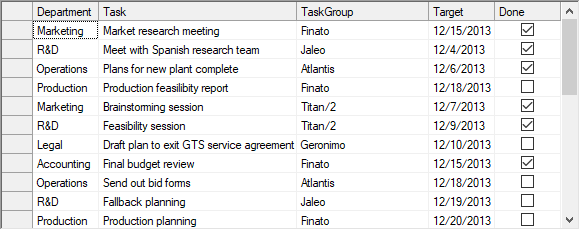
FlexGrid provides the **StarWidth** property of Column class to specify the star sizes of columns. To restrict the widths from getting too narrow or too wide, you can set the **MinWidth** and **MaxWidth** properties. These properties are also available through the **C1FlexGrid Column Editor**. For more information on column editor, see [Editors](/componentone/docs/win/online-flexgrid/quick-start/design-time-support/editors).
Set star sizing or proportional sizing in the WinForms FlexGrid columns using the code below.
```csharp
//Set the star sizing for columns
c1FlexGrid1.Cols[1].StarWidth = "*";
c1FlexGrid1.Cols[2].StarWidth = "3*";
c1FlexGrid1.Cols[3].StarWidth = "2*";
c1FlexGrid1.Cols[4].StarWidth = "*";
c1FlexGrid1.Cols[5].StarWidth = "*";
// Set the MinWidth property to prevent the column from getting too narrow
c1FlexGrid1.Cols[1].MinWidth = 50;
```
```vbnet
' Set the star sizing for columns
c1FlexGrid1.Cols(1).StarWidth = "*"
c1FlexGrid1.Cols(2).StarWidth = "3*"
c1FlexGrid1.Cols(3).StarWidth = "2*"
c1FlexGrid1.Cols(4).StarWidth = "*"
c1FlexGrid1.Cols(5).StarWidth = "*"
' Set the MinWidth property to prevent the column from getting too narrow
c1FlexGrid1.Cols(1).MinWidth = 50
```
## See Also
**Documentation**
[Sizing](/componentone/docs/win/online-flexgrid/concepts/basic-row-operations/row-sizing)
**Blog**
[Implement responsive columns in a WinForms data grid](https://www.grapecity.com/blogs/winforms-data-grid-star-sizing)