# Zoom and Pan
Get started with MultiSelect, a WinForms control that makes selecting multiple objects from a list or a collection of selected items easy. See more in documentation here.
## Content
Zooming in charts allows users to enlarge a specific area enabling them to analyze the data packed charts at granular level. FlexChart supports zooming through the [ZoomBehavior](/componentone/docs/win/online-flexchart/) class. To implement zooming, create an instance of the **ZoomBehavior** class available in [C1.Win.Chart.Interaction](/componentone/docs/win/online-flexchart/) namespace and add it to the FlexChart's behavior collection using the **Add** method. This integrates zoom behavior to the FlexChart on scroll of the mouse wheel or Pinch-In and Pinch-Out for touch-based input within the chart area.
The following GIF shows the zoom behavior of FlexChart.
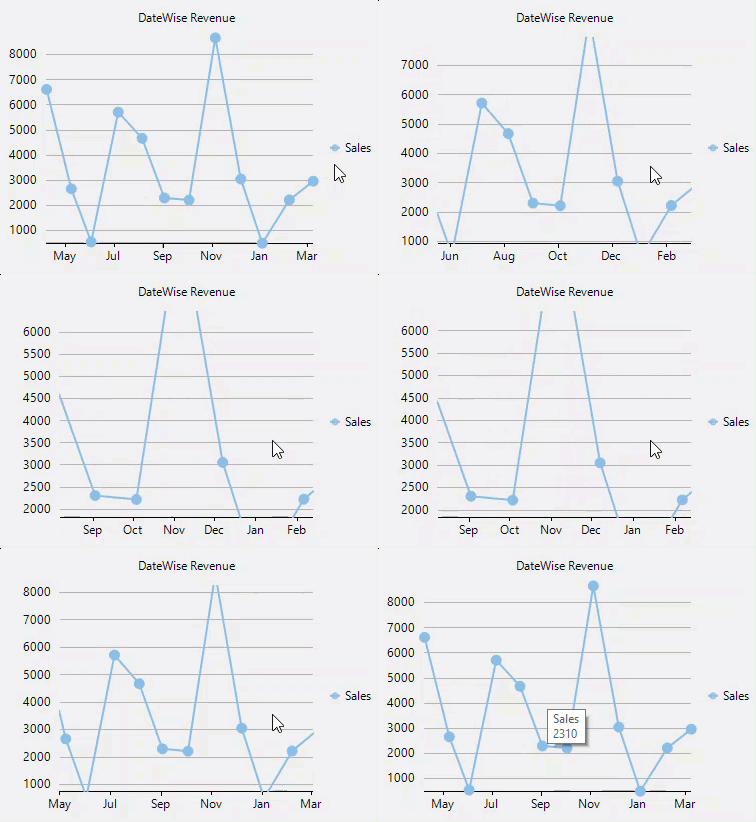
The following code example illustrates adding zooming behavior in FlexChart. This example uses the sample created in Quick Start section:
```csharp
flexChart1.Behaviors.Add(new C1.Win.Chart.Interaction.ZoomBehavior());
```
```vbnet
FlexChart1.Behaviors.Add(New C1.Win.Chart.Interaction.ZoomBehavior())
```
Similarly, panning is the ability to scroll or move within a zoomed image. Panning in FlexChart can be implemented by creating an instance of the [TranslateBehavior](/componentone/docs/win/online-flexchart/) class available in the **C1.Win.Chart.Interaction** namespace and adding it to the FlexChart's Behaviors collections using the **Add** method.
The below GIF shows translate behavior in FlexChart.
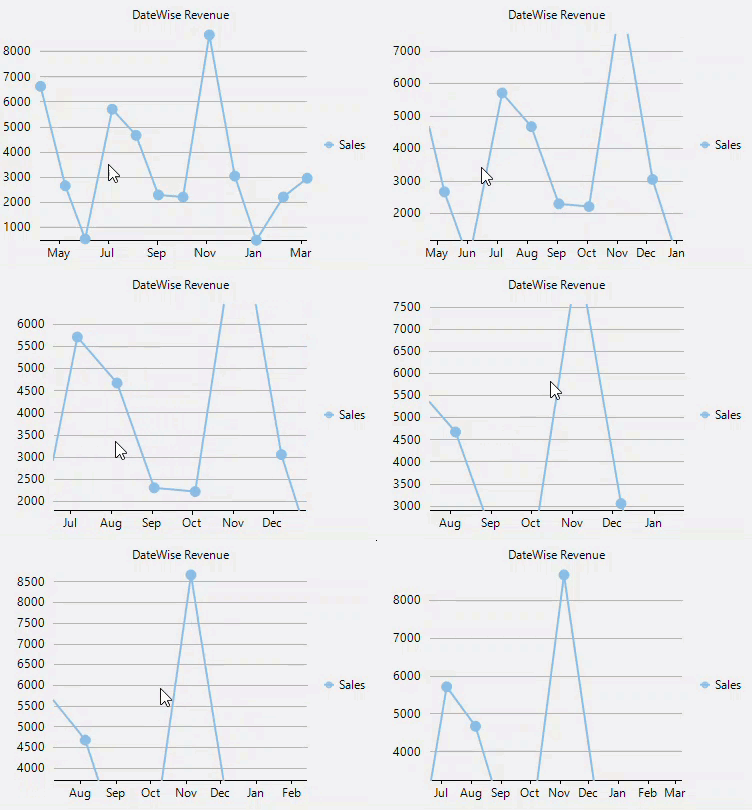
The following code example illustrates adding translate behavior in FlexChart. This example uses the sample created in Quick Start section:
```csharp
flexChart1.Behaviors.Add(new C1.Win.Chart.Interaction.TranslateBehavior());
```
```vbnet
FlexChart1.Behaviors.Add(New C1.Win.Chart.Interaction.TranslateBehavior())
```
Additionally, the Chart **,** [MaxZoom](/componentone/docs/win/online-flexchart/)**,** and [Mode](/componentone/docs/win/online-flexchart/) properties can be used with zoom and translate behaviors as discussed in the below table:
| **Option** | @cols=2:**Description** |
| ------ | ----------- | ----------- |
| Chart | @cols=2:Attach the behavior with specific chart. |
| MaxZoom | @cols=2:Set the max zoom level for **Zoom** behavior for the chart. By default, the value is 10000. |
| Mode | @cols=2:Enables touch based zooming and panning by setting the gesture direction through the [GestureMode](/componentone/docs/win/online-flexchart/) enumeration, that provides four modes as detailed below :
**None** \- Disables zooming and panning\.
**X** \- Enables zooming along x\-axis\.
**Y** \- Enables zooming along y\-axis\.
**XY** \- Enables zooming along both x and y axes\. |
The following code illustrates Chart, MaxZoom and Mode properties used with the Zoom and Translate behaviors:
```csharp
flexChart1.Behaviors.Add(new C1.Win.Chart.Interaction.ZoomBehavior { Chart = flexChart1, MaxZoom = 200, Mode = GestureMode.XY});
flexChart1.Behaviors.Add(new C1.Win.Chart.Interaction.TranslateBehavior { Chart = flexChart1, Mode = GestureMode.XY });
```
```vbnet
FlexChart1.Behaviors.Add(New C1.Win.Chart.Interaction.ZoomBehavior With {
.Chart = FlexChart1,
.MaxZoom = 200,
.Mode = GestureMode.XY})
FlexChart1.Behaviors.Add(New C1.Win.Chart.Interaction.TranslateBehavior With {
.Chart = FlexChart1,
.Mode = GestureMode.XY})
```