# Appearance and Styling
Expression Editor for WinForms control allows users to apply different types of styles to enhance the look and feel of the control. See more demos, documentation, and samples here.
## Content
Expression Editor supports customizing its appearance by changing the look of its elements.
**C1ExpressionEditorPanel** class provides following properties to modify the appearance of Expression Editor's panel.
| **Properties** | **Purpose** |
| ---------- | ------- |
| BackColor | Modifies the background color of the control. |
| ForeColor | Modifies the foreground color of the control. |
| Font | Specifies the font of the text displayed by the control. |
| Theme | Gets or sets the theme. Using this property, the applied C1Theme can also be edited. It works both with and without the applied C1Theme. |
**C1ExpressionEditor** class provides following properties to modify the appearance of Expression Editor's text box.
| **Properties** | **Purpose** |
| ---------- | ------- |
| BackColor | Modifies the background color of the control. |
| ForeColor | Modifies the foreground color of the control. |
| Font | Specifies the font of the text displayed by the control. |
| Theme | Gets or sets the theme. Using this property, the applied C1Theme can also be edited. It works both with and without the applied C1Theme. |
The following image illustrates customizing the appearance of Expression Editor.
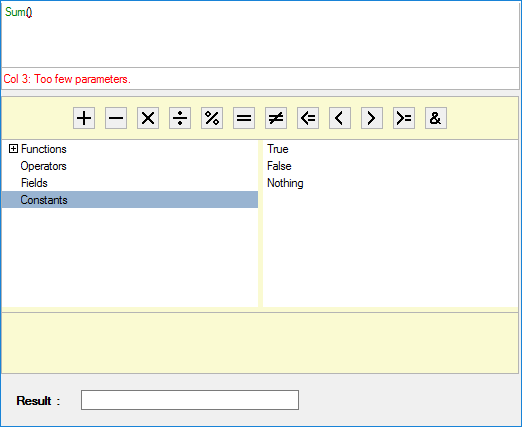
The following code demonstrates changing the appearance of Expression Editor control.
```csharp
c1ExpressionEditorPanel1.BackColor = Color.LightGoldenrodYellow;
c1ExpressionEditorPanel1.ForeColor = Color.BlueViolet;
c1ExpressionEditorPanel1.Font = new Font("GenericMonoSerif", 1);
c1ExpressionEditor1.BackColor = Color.Beige;
c1ExpressionEditor1.ForeColor = Color.Firebrick;
c1ExpressionEditor1.Font = new Font("GenericMonoSerif", 1);
```
## See Also
[End-User Capabilities](/componentone/docs/win/online-expressioneditor/)
**Common Topics**
[Features](/componentone/docs/win/online-expressioneditor/Features)