# Insert Elements
## Content
**C1Editor** supports inserting and editing tables, lists, images, hyperlinks, and other XHTML elements.
## Insert and Edit Tables
Use the [InsertTableAtSelection](/componentone/api/win/online-editor-net/dotnet-api/C1.Win.Editor.10/C1.Win.Editor.C1Editor.InsertTableAtSelectionAsync.html)[ ](https://developer.mescius.com/componentone/api/win/online-editor-net/dotnet-api/C1.Win.Editor.10/C1.Win.Editor.C1Editor.InsertTableAtSelection.html "https://developer.mescius.com/componentone/api/win/online-editor-net/dotnet-api/C1.Win.Editor.10/C1.Win.Editor.C1Editor.InsertTableAtSelection.html")method of the [C1Editor](/componentone/api/win/online-editor-net/dotnet-api/C1.Win.Editor.10/C1.Win.Editor.C1Editor.html) class to insert a table at the current cursor position.
The method accepts the following parameters:
* CSS class name
* Number of columns
* Number of rows
* Whether the table contains a header
* Whether the table contains a footer
The following example creates a table with two rows and three columns without a header or footer:
```auto
c1Editor1.InsertTableAtSelection(null, 3, 2, false, false);
```
Use the following operations to modify table structure:
| Option | Description |
| ------ | ----------- |
| Insert Column | Uses [InsertTableColumnAtSelection](/componentone/api/win/online-editor-net/dotnet-api/C1.Win.Editor.10/C1.Win.Editor.C1Editor.InsertTableColumnAtSelectionAsync.html)[ ](https://developer.mescius.com/componentone/api/win/online-editor-net/dotnet-api/C1.Win.Editor.10/C1.Win.Editor.C1Editor.InsertTableColumnAtSelection.html "https://developer.mescius.com/componentone/api/win/online-editor-net/dotnet-api/C1.Win.Editor.10/C1.Win.Editor.C1Editor.InsertTableColumnAtSelection.html")to insert a column. When its Boolean parameter is set to `true`, the column is inserted to the left of the current column. |
| Insert Row | Uses [InsertTableRowAtSelection](/componentone/api/win/online-editor-net/dotnet-api/C1.Win.Editor.10/C1.Win.Editor.C1Editor.InsertTableRowAtSelectionAsync.html) to insert a row. When its Boolean parameter is set to `true`, the row is inserted above the current row. |
| Delete Table | Uses [RemoveTableAtSelection](/componentone/api/win/online-editor-net/dotnet-api/C1.Win.Editor.10/C1.Win.Editor.C1Editor.RemoveTableAtSelectionAsync.html) to remove the selected table. |
| Delete Column | Uses [RemoveTableColumnAtSelection](/componentone/api/win/online-editor-net/dotnet-api/C1.Win.Editor.10/C1.Win.Editor.C1Editor.RemoveTableColumnAtSelectionAsync.html) to remove the current column. |
| Remove Row | Uses [RemoveTableRowAtSelection](/componentone/api/win/online-editor-net/dotnet-api/C1.Win.Editor.10/C1.Win.Editor.C1Editor.RemoveTableAtSelectionAsync.html) to remove the current row. |
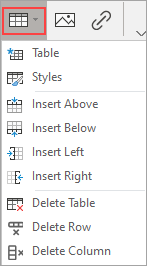
Table elements can also be inserted or removed through the **Table** menu in the **Insert** group of EditorRibbon.
The following image shows the available table commands:
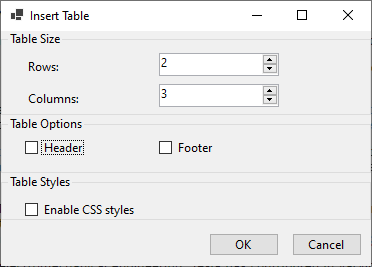
Selecting **Table** from the **Table** menu opens a dialog box for configuring the table before inserting it into the document.
***
## Insert and Edit Lists
Lists present document content in an ordered or unordered structure and can contain nested items.
Use the [InsertList](/componentone/api/win/online-editor-net/dotnet-api/C1.Win.Editor.10/C1.Win.Editor.C1Editor.InsertListAsync.html) method of the [C1Editor](/componentone/api/win/online-editor-net/dotnet-api/C1.Win.Editor.10/C1.Win.Editor.C1Editor.html) class to insert a list programmatically.
The associated example creates a nested unordered list with disc bullets.
```auto
c1Editor1.InsertList("Disc", new string[] { "Europe", "Asia",
"- India
|style=\"list-style-type:none;\"",
"|style=\"list-style-type:none;\"", "
" });
```
>type=note
> Note: **Note:** The example uses an HTML fragment to define nested child items within the list.
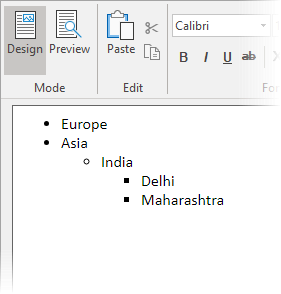
The following image shows the resulting nested list:
At run time, create ordered or unordered lists through the **Bullets** and **Numbering** commands in the **Paragraph** group of EditorRibbon.
The following image shows the available list commands:

***
## Insert Images
Use the [InsertImageAtSelection](/componentone/api/win/online-editor-net/dotnet-api/C1.Win.Editor.10/C1.Win.Editor.C1Editor.InsertImageAtSelectionAsync.html) method of the [C1Editor](/componentone/api/win/online-editor-net/dotnet-api/C1.Win.Editor.10/C1.Win.Editor.C1Editor.html) class to insert an image at the current cursor position. Supply the image loaded from the required source file.
The associated example inserts `C1.png` from the `Resources` folder.
```auto
c1Editor1.InsertImageAtSelection(Image.FromFile(@"Resources/C1.png"));
```
The following image shows the inserted image in the document:

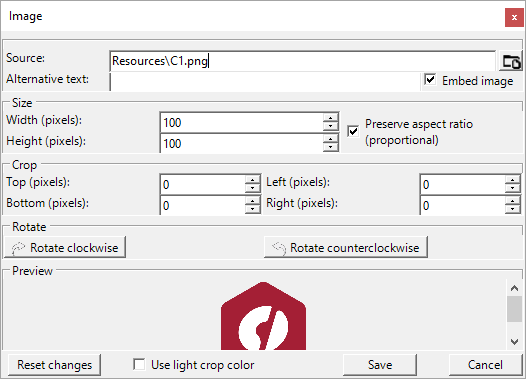
Images can also be inserted by selecting **Insert > Insert Image** in EditorRibbon. This command opens the **Image** dialog box, which provides options for:
* Specifying the image source
* Adding alternative text
* Embedding the image
* Resizing the image
* Preserving the aspect ratio
* Cropping the image
* Rotating the image
### Edit an Existing Image
Use either of the following methods to edit an image already inserted in the document.
**From EditorRibbon**
1. Select the image.
2. In the **Insert** group of EditorRibbon, select **Insert Image**.
3. Configure the image in the **Image** dialog box.
4. Select **Save**.
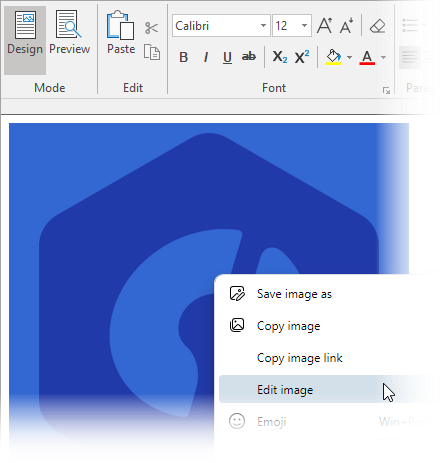
**From the Context Menu**
1. Right-click the image.
2. Select **Edit Image** to open the **Image** dialog box.
3. Configure the image.
4. Select **Save**.