# View Document
Learn how to view PDF documents using PdfDocumentSource.
## Content
To view a PDF document loaded using **PdfDocumentSource**, you need to use the **FlexViewer** control. It is a cross-platform viewer which provides text selection, text search, navigation using outlines, and hyperlinks, print and export settings etc.
Here is a list of features that are supported in a PDF document loaded in FlexViewer.
* **Text selection**
Text can be selected for copying from a PDF document by opening it in a viewer, such as FlexViewer.
Following image shows the selected text using **Text Select Tool**.
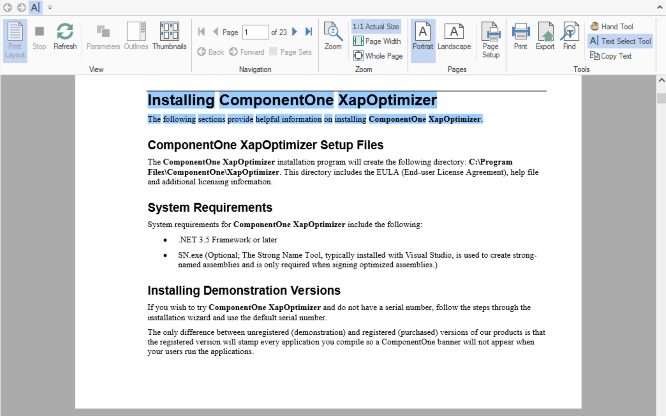
To select text in a PDF document, follow these steps.
1. Load the PDF containing text in the FlexViewer control.
2. Select **Text Select Tool** from the FlexViewer Ribbon.
3. Select the text in the PDF.
4. Copy the text using Keyboard keys,Ctrl+C, or **Copy Text** option in FlexViewer Ribbon.
* **Text search**
You can search text in a PDF document once you open it in a viewer, such as FlexViewer.
Following image shows the searched text using **Find** tool.
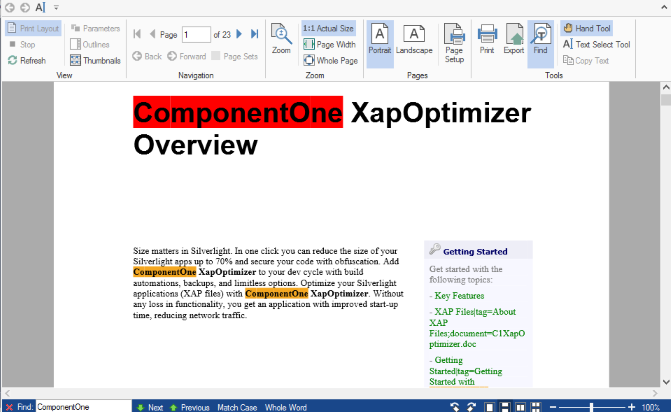
To search text in a PDF document, follow these steps.
1. Load the PDF containing text in the FlexViewer control.
2. Select **Find** option in the FlexViewer Ribbon.
3. In the Find textbox that appears in status bar, type the text you want to search and press Enter.
* **Outlines**
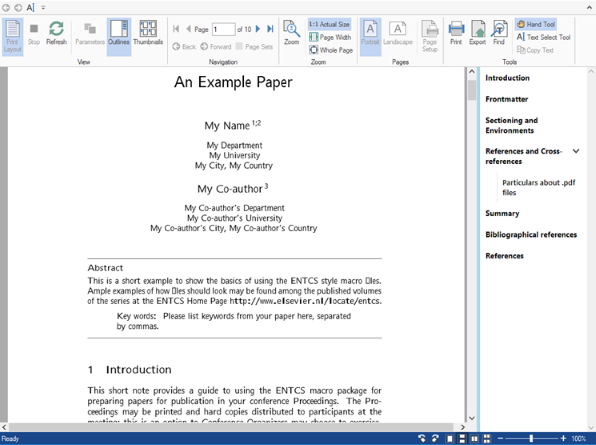
Most of the large PDF documents contain an outline structure displayed in a pane which makes it easy to browse through a document's structure. The outlines in a PDF document can be viewed on opening the file in a viewer.
* **Hyperlinks**
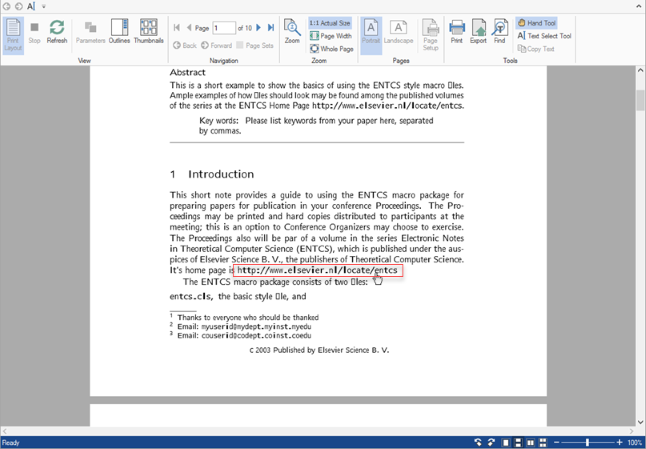
PDF documents may contain local links that when clicked take the user to another location within the same PDF document or to an external web page. The PDF documents containing hyperlinks can be opened in a viewer and the links can easily be accessed from them.
* **Embedded fonts support**
PDF documents with embedded font, such as CFF, TTF, OpenType, and Type1, can be opened as it is in a viewer without impacting the existing font style in the original file, which means the system font does not replace the original font.
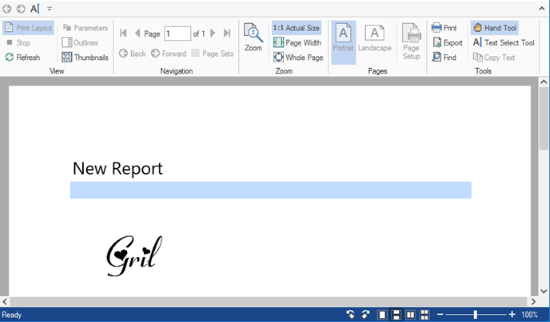
These are some important features supported by FlexViewer for PDF documents. However, there are more features available in FlexViewer. For information on these features, please refer [FlexViewer Key features](https://www.grapecity.com/componentone/docs/win/online-flexreport/overview.html) and related topics.
> type=note
> **Note**: The following features are disabled at runtime in FlexViewer for PDF documents and SSRS reports:
>
> * Portrait
> * Landscape
> * Page Setup