# Export Document
Learn how to export files using PdfDocumentSource.
## Content
**PdfDocumentSource** allows you to export PDF documents to other file formats which can be shared electronically. The following table lists the export filters along with the description about the various export formats to which the document can be exported:
| **Filter** | **Description** |
| --- | --- |
| [HtmlFilter](/componentone/docs/win/online-documentlibrary/) | Exports the PDF documents to HTML streams or files. |
| [JpegFilter](/componentone/docs/win/online-documentlibrary/) | Exports the PDF documents to JPEG streams or files. |
| [GifFilter](/componentone/docs/win/online-documentlibrary/) | Exports the PDF documents to GIF streams or files. |
| [PngFilter](/componentone/docs/win/online-documentlibrary/) | Exports the PDF documents to PNG streams or files. |
| [BmpFilter](/componentone/docs/win/online-documentlibrary/) | Exports the PDF documents to BMP streams or files. |
| [TiffFilter](/componentone/docs/win/online-documentlibrary/) | Exports the PDF documents to TIFF streams or files. |
PdfDocumentSource provides support for exporting the PDF documents to any external format through the [C1DocumentSource](/componentone/docs/win/online-documentlibrary/) class. Learn how **C1DocumentSource** supports the exporting of PDF documents in detail in the following sections.
## Export PDF using Format Specific Filter
PdfDocumentSource provides support for exporting a PDF file to an external format through [Export](/componentone/docs/win/online-documentlibrary/#EXPORT) method inherited from [C1DocumentSource](/componentone/docs/win/online-documentlibrary/) class.
**To export PDF to HTML format, follow the steps below**:
1. Add a button control to the form for exporting PDF.
2. Drag and drop **PdfDocumentSource** component from the **Toolbox** on the form to add it to the component tray.
3. Switch to the code view and add the following namespace in the code view.
```csharp
using C1.Win.C1Document.Export;
```
4. Add a PDF file to the project. In our case, we have used PDF file named DefaultDocument.pdf.
5. Load the PDf file into the object of PdfDocumentSource using the [LoadFromFile](/componentone/docs/win/online-documentlibrary/#LOADFROMFILE) method.
```csharp
c1PdfDocumentSource1.LoadFromFile(@"..\..\DefaultDocument.pdf");
```
6. Add the following code to the button's click event to export the PDF to **HTML** format using [HtmlFilter](/componentone/docs/win/online-documentlibrary/) class. Use the **FileName** property in HtmlFilter class to set the name of the html file. By default, the ShowOptions property is true, which means the options dialog will appear before exporting the document. Here, we have set this property to false.
```csharp
//Create HTMLFilter object
HtmlFilter filter = new HtmlFilter();
//Set the output file name
filter.FileName = @"..\..\DefaultDocument.html";
filter.ShowOptions = false;
if (filter.ShowOptionsDialog())
{
//Export PDF
c1PdfDocumentSource1.Export(filter);
System.Diagnostics.Process.Start(filter.OutputFiles[0]);
MessageBox.Show(this, "Document was successfully exported.",
"Information", MessageBoxButtons.OK,
MessageBoxIcon.Information);
}
```
**To export PDF to an image file format**:
Similar code as above can be used for exporting a PDF document to a series of page image files in one of the supported image formats (JPEG, PNG, TIFF, etc.). It is also possible to create a single ZIP file containing the page images. The following code uses one of the image format filter class, [JpegFilter](/componentone/docs/win/online-documentlibrary/), to export the multi-paged file to JPEG format and creates a single ZIP file of the exported images setting the **UseZipForMultipleFiles** property to true.
```csharp
//Create JPEGFilter object
JpegFilter filter = new JpegFilter();
filter.FileName = @"..\..\DefaultDocument.zip";
filter.UseZipForMultipleFiles = true;
filter.ShowOptions = false;
if (filter.ShowOptionsDialog())
{
//Export PDF
c1PdfDocumentSource1.Export(filter);
System.Diagnostics.Process.Start(filter.OutputFiles[0]);
MessageBox.Show(this, "Document was successfully exported.",
"Information", MessageBoxButtons.OK,
MessageBoxIcon.Information);
}
```
PdfDocumentSource allows you to enumerate the supported export formats for a PDF document using the [SupportedExportProviders](/componentone/docs/win/online-documentlibrary/) property. The property returns a collection of ExportProvider classes that contain information about the supported formats. This data can be used to create the corresponding export filter by using the [NewExporter](/componentone/docs/win/online-documentlibrary/#NEWEXPORTER) method of [ExportProvider](/componentone/docs/win/online-documentlibrary/) class, which is the base class from which all export providers with specific formats are derived. Different document types support different sets of export formats, therefore enumerating and creating the export filters via **SupportedExportProviders** property yields the correct results.
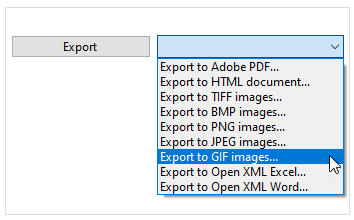
To export PDF using supported exporters, follow the steps below:
1. Drag and drop PdfDocumentSource component, SaveFileDialog, Button, and ComboBox controls from the **Toolbox** on the form.
2. In the **Properties** window, navigate to **DropDownStyle** property of the ComboBox and select **DropDownList** from the drop-down.
3. Add a PDF file to the project.
4. Switch to code view and add the following namespaces in the code view.
```EXAMPLE
using System.IO;
using C1.Win.C1Document;
using C1.Win.C1Document.Export;
```
5. Load the PDF file into the object of C1PdfDocumentSource using the [LoadFromFile](/componentone/docs/win/online-documentlibrary/#LOADFROMFILE) method.
```csharp
c1PdfDocumentSource1.LoadFromFile(@"..\..\DefaultDocument.pdf");
```
6. Add the following code below **InitializeComponent** method to get the list of supported exporters using **SupportedExportProviders** property.
```csharp
var supportedProviders = c1PdfDocumentSource1.SupportedExportProviders;
foreach (var sep in supportedProviders)
cbExporter.Items.Add(new FileAction()
{
Text = string.Format("Export to {0}...",
sep.FormatName), ExportProvider = sep
});
```
7. Add the following code to add a class, FileAction, containing variables.
```csharp
private class FileAction
{
public string Text { get; set; }
public ExportProvider ExportProvider { get; set; }
public override string ToString()
{
return Text;
}
}
```
8. Add the following code to create a method, **DoExport**, for exporting the PDF to another format using **Export** method.
```csharp
private void DoExport(C1PdfDocumentSource pds, ExportProvider ep)
{
saveFileDialog1.DefaultExt = "." + ep.DefaultExtension;
saveFileDialog1.FileName = Path.GetFileName("Document")+ "." +
ep.DefaultExtension;
saveFileDialog1.Filter = string.Format("{0} (*.{1})|*.{1}|All files (*.*)|*.*",
ep.FormatName, ep.DefaultExtension);
if (saveFileDialog1.ShowDialog(this) != DialogResult.OK)
return;
try
{
var exporter = ep.NewExporter();
exporter.ShowOptions = false;
exporter.FileName = saveFileDialog1.FileName;
if (exporter.ShowOptionsDialog())
{
pds.Export(exporter);
MessageBox.Show(this, "Document was successfully exported.",
"Information", MessageBoxButtons.OK,
MessageBoxIcon.Information);
}
}
catch (Exception ex)
{
MessageBox.Show(this, ex.Message, "Error", MessageBoxButtons.OK,
MessageBoxIcon.Error);
}
}
```
9. Add the following code to the button's click event to call the DoExport method that accepts the object of C1PdfDocumentSource and ExportProvider as parameters.
```csharp
private void btnExport_Click(object sender, EventArgs e)
{
DoExport(c1PdfDocumentSource1, ((FileAction)
cbExporter.SelectedItem).ExportProvider);
}
```