# Step 1: Adding a Data Source
## Content
Begin by creating a new Windows Forms project in Visual Studio. Then you will add a connection to the Northwind database.
1. In Visual Studio, choose **File \| New \| Project\.**
2. Select the **Windows Forms Application** template and click **OK**.
Next, add an Entity Data Model based on the Northwind database. This model will provide the data for the entire application.
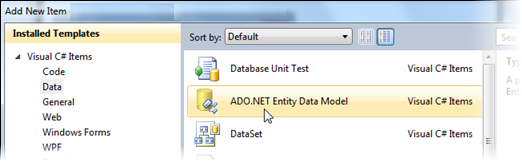
3. In the **Solution Explorer**, right-click the project name and select **Add \| New Item**.
4. Choose the **ADO.NET Entity Data Model** item and then click **Add**.
5. In the **Entity Data Model Wizard**, select **Generate from database** to generate the model from the Northwind database, and then click **Next**.
6. Click the **New Connection** button.
7. In the **Choose DataSource** dialog box, select **Microsoft SQL Server Database File** and click **Continue**.
8. Browse to find the NORTHWND.MDF, select it, and click **Open**. The NORTHWND.MDF is installed with the product in the **Common** folder within **Documents\\ComponentOne Samples\\Common** .
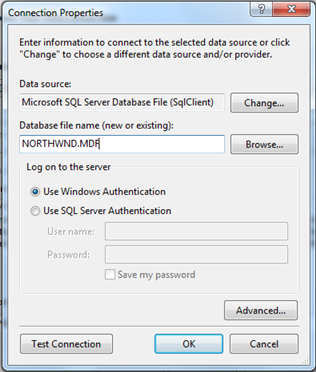
9. Click **OK** and then click **Next**.
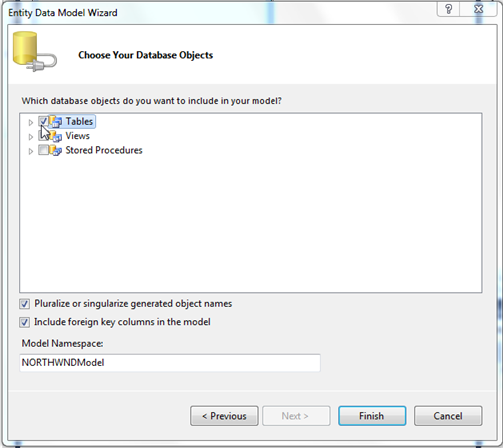
10. In the **Choose Your Database Objects** window, select **Tables** and click **Finish**.
11. In the Solution Explorer, expand the *model1.edmx* node.
12. Delete the *Model1.Context.tt* file.
13. Delete the *Model1.tt* file.
14. Right click the model diagram and select **Add Code Generation Item** from the context menu.
15. In the Add Code Generation Item Dialog box, select ‘**ComponentOne EF 6.x DbContext Generator’**.
>type=note
> **Note**: When you install **DataSource for Entity Framework**, **ComponentOne EF6.x DBContext Code Generation Templates** will be added to each version of Visual Studio that [C1DataSource](/componentone/api/win/online-datasource/dotnet-framework-api/C1.Win.Data.Entity.4.8/C1.Win.Data.Entities.C1DataSource.html) supports. These templates ensure that the DBContext models that you create, provide entities that support **INotifyPropertyChanged**.
Now build the project so the new Entity Data Model classes are generated and become available throughout the project. Once they are available, you will be able to connect the data to the [C1DataSource](/componentone/api/win/online-datasource/dotnet-framework-api/C1.Win.Data.Entity.4.8/C1.Win.Data.Entities.C1DataSource.html) component.