# Quick Start
Learn how to add FlexGrid and FilterEditor controls to an application, binding FlexGrid to a data source and setting the properties of controls.
## Content
This quick start will guide you through the steps of adding FlexGrid and FilterEditor controls to an application, binding FlexGrid to a data source and setting the properties of controls.
Complete the steps given below to see how the FilterEditor control appears after data binding and setting properties.
### Step 1: Setting up the application
1. Create a new **Windows Forms App**.
2. Drag and drop the **C1FilterEditor** control from the Toolbox onto your form.
3. Drag and drop the **C1FlexGrid** control from the Toolbox onto your form.
### Step 2: Binding FlexGrid to a data source
1. Open the **FlexGrid** Tasks menu by clicking on the smart tag glyph on the upper-right corner of the FlexGrid control.
2. In the **FlexGrid** Tasks menu, click the **Choose Data Source** drop-down arrow and select the **Add Project Data Source** link from the drop-down box. The **Data Source Configuration Wizard** appears.
3. On the **Choose a Data Source Type** page, select **Database** and click **Next**.
4. On the **Choose a Database Model** page, leave **Dataset** selected and click **Next**.
5. Click the **New Connection** button to create a new connection or choose one from the drop-down list. When you click **New Connection**, the **Add Connection** dialog box appears. Set **Microsoft Access Database File** as the **Data source.**
6. Click the **Browse** button under **Database file name**. In the **Select Microsoft Access Database File** dialog box, browse to the C1NWind.mdb database in the Documents\\ComponentOne Samples\\Common directory. Select the C1NWind.mdb file and click **Open**.
7. In the **Add Connection** dialog box, click the **Test Connection** button to make sure that you have successfully connected to the database or server and click **OK**.
8. Click **OK** to close the **Add Connection** dialog box .
9. Click the **Next** button to continue. A dialog box will appear asking if you would like to add the data file to your project and modify the connection string. Since it is not necessary to copy the database to your project, click **No**.
10. Save the connection string in the application configuration file by checking the **Yes, save the connection as** box and entering a name. Click the **Next** button to continue.
11. On the **Choose Your Database Objects** page and click **Finish**.
### Step 3: Creating Filter Expressions
1. Select a [Combination](/componentone/docs/win/online-datafilter/filtereditor/filterexpressions) from the drop-down list which contains **AND** & **OR** logical functions to create a filter expression in the **FilterEditor** control. Note that the **AND** function is set by default.
2. Click on the **(+)** sign and select an [Operation](/componentone/docs/win/online-datafilter/filtereditor/filterexpressions) from the drop-down list after adding the combination.
3. Select **Field** using the ellipsis button. It is the property to which expression applies.
4. Now, select the **logical operator** and **Operand Value**. The implementation can be seen in the GIF below.
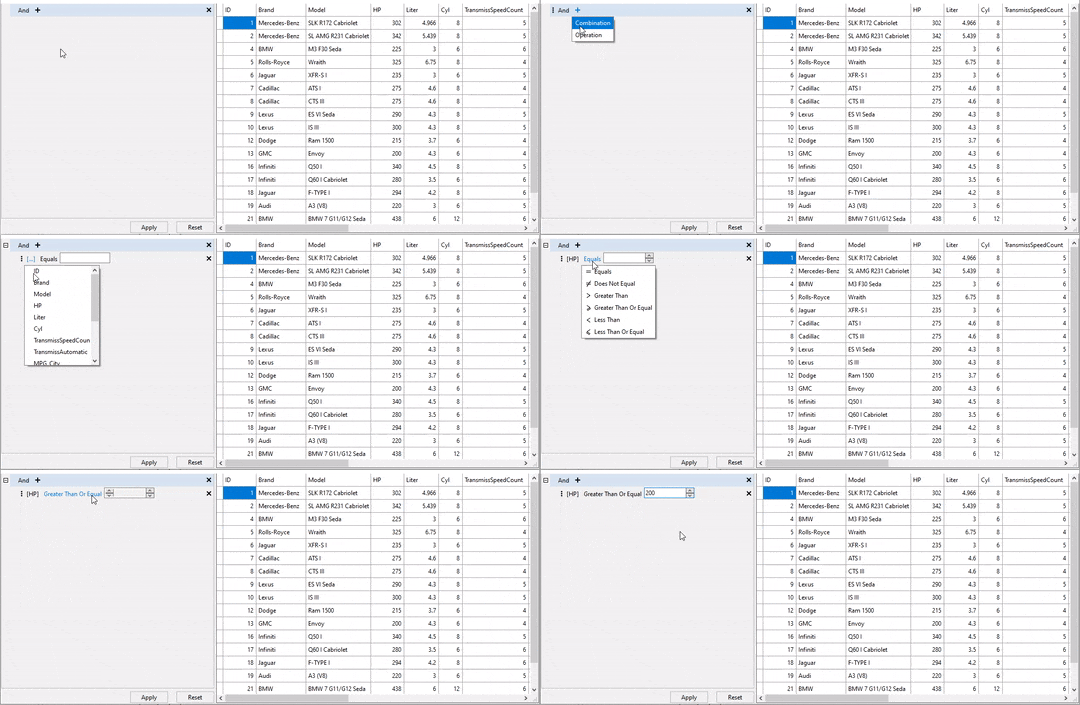
The above filter expression created at runtime can also be created using the following code.
```csharp
private static CombinationExpression GetPredefinedFilter()
{
var filterExpression = new CombinationExpression();
var filterExpressions = filterExpression.Expressions;
var hpGreaterThen200Expression = new OperationExpression()
{
PropertyName = "HP",
FilterOperation = FilterOperation.GreaterThanOrEqual,
Value = 200
};
filterExpressions.Add(hpGreaterThen200Expression);
return filterExpression;
}
```
To apply and clear the filter conditions given in example above, FilterEditor provides [ApplyFilterAsync](/componentone/api/win/online-datafilter/dotnet-api/C1.Win.DataFilter.10/C1.Win.DataFilter.C1DataFilter.ApplyFilterAsync.html) and [ClearFilter](/componentone/api/win/online-datafilter/dotnet-api/C1.Win.DataFilter.10/C1.Win.DataFilter.C1FilterEditor.ClearFilter.html) methods. For more information, refer to [Filter Expressions](/componentone/docs/win/online-datafilter/filtereditor/filterexpressions) topic.