# Quick Start
Understand how to create a simple application that uses a DataFilter to filter data based on filter criteria or condition. Learn more about how to use data filter in DataFilter for WinForms documentation.
## Content
This quick start will guide you through the steps of adding DataFilter and DataGridView controls to an application, binding DataGridView to a data source and setting the properties of controls.
### .NET Framework
The following image shows filtered values in DataGridView on the basis of filters applied in the DataFilter control.
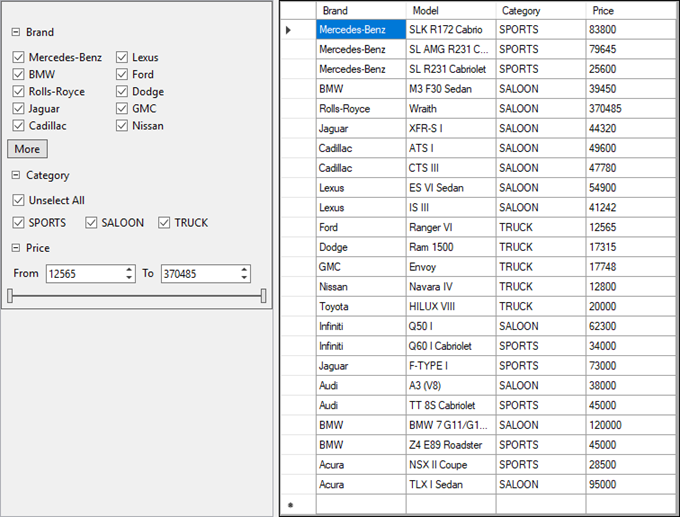
Complete the steps given below to see how the DataFilter control appears after data binding and setting properties.
### Step 1: Setting up the application
1. Create a new **Windows Forms App**.
2. Drag and drop the **C1DataFilter** control from the Toolbox onto your form. Set its **Dock** property to **Left**.
3. Drag and drop the MS DataGridView control from the Toolbox onto your form. Set its **Dock** property to **Right**.
### Step 2: Binding DataGridView to a data source
1. Open the **DataGridView** Tasks menu by clicking on the smart tag glyph on the upper-right corner of the DataGridView control.
2. In the **DataGridView** Tasks menu, click the **Choose Data Source** drop-down arrow and select the **Add Project Data Source** link from the drop-down box. The **Data Source Configuration Wizard** appears.
3. On the **Choose a Data Source Type** page, select **Database** and click **Next**.
4. On the **Choose a Database Model** page, leave **Dataset** selected and click **Next**.
5. Click the **New Connection** button to create a new connection or choose one from the drop-down list. When you click **New Connection**, the **Add Connection** dialog box appears. Set **Microsoft Access Database File** as the **Data source.**
6. Click the **Browse** button under **Database file name**. In the **Select Microsoft Access Database File** dialog box, browse to the C1NWind.mdb database in the Documents\\ComponentOne Samples\\Common directory. Select the C1NWind.mdb file and click **Open**.
7. In the **Add Connection** dialog box, click the **Test Connection** button to make sure that you have successfully connected to the database or server and click **OK**.
8. Click **OK** to close the **Add Connection** dialog box .
9. Click the **Next** button to continue. A dialog box will appear asking if you would like to add the data file to your project and modify the connection string. Since it is not necessary to copy the database to your project, click **No**.
10. Save the connection string in the application configuration file by checking the **Yes, save the connection as** box and entering a name. Click the **Next** button to continue.
11. On the **Choose Your Database Objects** page, expand the **Tables** node, and select the **Brand**, **Model**, **Category** and **Price** fields of the **Cars** table.
12. Click **Finish**.
C1NWindDataSet.xsd is added to your project and DataSource property of the DataGridView is set to carsBindingSource.
### Step 3: Configuring DataFilter
1. Select the DataFilter control and set its **AutoGenerateFilters** property to true from the **Properties** window.
Note that setting [AutoGenerateFilters](/componentone/api/win/online-datafilter/dotnet-api/C1.Win.DataFilter.10/C1.Win.DataFilter.C1DataFilter.AutoGenerateFilters.html) property to true automatically generates the filters depending on the type of the fields present in the data source of DataFilter.
2. To customize the auto generated filters for defining the filtering criterias such as the minimum /maximum values for the RangeFilter and the checklist items for the CheckListFilter, subscribe to the **FilterAutoGenerating** event of DataFilter.
```vbnet
'Subscribe the FilterAutoGenerating event of DataFilter to define criterias for the filters.
c1DataFilter1.FilterAutoGenerating = (c1DataFilter1.FilterAutoGenerating + C1DataFilter1_FilterAutoGenerating)
```
```csharp
//Subscribe the FilterAutoGenerating event of DataFilter to define criterias for the filters.
c1DataFilter1.FilterAutoGenerating += C1DataFilter1_FilterAutoGenerating;
```
3. Add the following code in the event handler of the FilterAutoGenerating event which provides the checklist items for the two filters namely “Brand”, “Category” and sets the maximum and minimum value for the price filter.
Defining these filters allows you to filter the cars listing by a specific brand, category or price which are the basic criterias used to view a car listing.
```vbnet
Private Sub C1DataFilter1_FilterAutoGenerating(ByVal sender As Object, ByVal e As C1.DataFilter.FilterAutoGeneratingEventArgs)
Select Case (e.Property.Name)
Case "Brand"
Dim brandFilter = CType(e.Filter,C1.Win.DataFilter.ChecklistFilter)
brandFilter.ItemsSource = c1NWindDataSet.Cars
brandFilter.ValueMemberPath = "Brand"
brandFilter.SelectAll
Case "Category"
Dim categoryFilter = CType(e.Filter,C1.Win.DataFilter.ChecklistFilter)
categoryFilter.ItemsSource = c1NWindDataSet.Cars
categoryFilter.ValueMemberPath = "Category"
categoryFilter.SelectAll
Case "Price"
Dim priceFilter = CType(e.Filter,C1.Win.DataFilter.RangeFilter)
priceFilter.Maximum = c1NWindDataSet.Cars.AsEnumerable.Max(() => { }, x.Field(Of Double)("Price"))
priceFilter.Minimum = c1NWindDataSet.Cars.AsEnumerable.Min(() => { }, x.Field(Of Double)("Price"))
priceFilter.Increment = 1000
priceFilter.Digits = 0
Case Else
e.Cancel = true
End Select
End Sub
```
```csharp
private void C1DataFilter1_FilterAutoGenerating(object sender, C1.DataFilter.FilterAutoGeneratingEventArgs e)
{
switch (e.Property.Name)
{
//Set the checklist items for Brand filter
case "Brand":
var brandFilter = (C1.Win.DataFilter.ChecklistFilter)e.Filter;
brandFilter.ItemsSource = c1NWindDataSet.Cars;
brandFilter.ValueMemberPath = "Brand";
brandFilter.SelectAll();
break;
//Set the checklist items for Category filter
case "Category":
var categoryFilter = (C1.Win.DataFilter.ChecklistFilter)e.Filter;
categoryFilter.ItemsSource = c1NWindDataSet.Cars;
categoryFilter.ValueMemberPath = "Category";
categoryFilter.SelectAll();
break;
//Set the minimum/maximum value for the Price filter
case "Price":
var priceFilter = (C1.Win.DataFilter.RangeFilter)e.Filter;
priceFilter.Maximum = c1NWindDataSet.Cars.AsEnumerable().Max(x => x.Field("Price"));
priceFilter.Minimum = c1NWindDataSet.Cars.AsEnumerable().Min(x => x.Field("Price"));
priceFilter.Increment = 1000;
priceFilter.Digits = 0;
break;
//Cancels the creation of all other filters
default:
e.Cancel = true;
break;
}
}
```
4. In the Form Load event handler, set the **DataSource** property of DataFilter to carsBindingSource.
```vbnet
'Set the datasource of C1DataFilter equal to the datasource assigned to DataGridView
c1DataFilter1.DataSource = carsBindingSource
```
```csharp
//Set the datasource of C1DataFilter equal to the datasource assigned to DataGridView
c1DataFilter1.DataSource = carsBindingSource;
```
Run the application and observe that filters are automatically applied to the rendered grid because the **AutoApply** property of the DataFilter control is set to true by default. Use interactive UI of DataFilter to change the filter values and observe how the grid gets filtered.
### .NET
The following image shows filtered values in DataGridView on the basis of filters applied in the DataFilter control.

Complete the steps given below to see how the DataFilter control appears after data binding and setting properties.
### Set up the application
1. Create a new **Windows Forms** application.
2. Initialize the DataFilter and DataGridView objects using the following code:
```csharp
//Initialize Objects
this.dataGridView1 = new System.Windows.Forms.DataGridView();
this.c1DataFilter1 = new C1.Win.DataFilter.C1DataFilter();
```
3. Set the DataGrid and DataFilter properties using the following code.
```csharp
//DataGrid
this.dataGridView1.AutoGenerateColumns = false;
this.dataGridView1.Columns.AddRange(new System.Windows.Forms.DataGridViewColumn[] {
this.brandDataGridViewTextBoxColumn,
this.modelDataGridViewTextBoxColumn,
this.categoryDataGridViewTextBoxColumn,
this.priceDataGridViewTextBoxColumn});
this.dataGridView1.ColumnHeadersHeightSizeMode = System.Windows.Forms.DataGridViewColumnHeadersHeightSizeMode.AutoSize;
this.dataGridView1.Dock = System.Windows.Forms.DockStyle.Right;
this.dataGridView1.Location = new System.Drawing.Point(310, 0);
this.dataGridView1.Name = "dataGridView1";
this.dataGridView1.Size = new System.Drawing.Size(446, 575);
this.dataGridView1.TabIndex = 3;
this.Controls.Add(this.dataGridView1);
//DataFilter
this.c1DataFilter1.AutoGenerateFilters = true;
this.c1DataFilter1.Dock = System.Windows.Forms.DockStyle.Left;
this.c1DataFilter1.Location = new System.Drawing.Point(0, 0);
this.c1DataFilter1.Name = "c1DataFilter1";
this.c1DataFilter1.Size = new System.Drawing.Size(304, 575);
this.c1DataFilter1.TabIndex = 0;
this.c1DataFilter1.Text = "c1DataFilter1";
this.c1DataFilter1.Dock = DockStyle.Left;
// this.c1DataFilter1.Anchor=AnchorStyles.
this.Controls.Add(this.c1DataFilter1);
```
### Bind DataGridView to a data source
1. Bind the DataGridView to a data source using the following code:
```csharp
//Data Binding Code
dt = new DataTable();
string connectionString = "Provider=Microsoft.ACE.OLEDB.12.0;Data Source=" +
System.IO.Path.Combine(Environment.GetFolderPath(Environment.SpecialFolder.MyDocuments),
@"ComponentOne Samples\Common\C1NWind.mdb") + ";";
OleDbConnection conn = new OleDbConnection(connectionString);
OleDbDataAdapter adapter = new OleDbDataAdapter("Select Brand, Model, Category, Price from Cars", conn);
adapter.Fill(dt);
this.dataGridView1.DataSource = dt;
```
### Configure DataFilter
1. Set the AutoGenerateFilters property of DataFilter to true.
2. Subscribe to the FilterAutoGenerating event of DataFilter to customize the auto generated filters for defining the filtering criterias such as the minimum /maximum values for the RangeFilter and the checklist items for the CheckListFilter.
```csharp
//Subscribe the FilterAutoGenerating event of DataFilter to define criterias for the filters.
c1DataFilter1.FilterAutoGenerating += C1DataFilter1_FilterAutoGenerating;
```
3. Add the following code in the event handler of the FilterAutoGenerating event to provide the checklist items for the two filters namely “Brand”, “Category” and set the maximum and minimum value for the price filter.
```csharp
private void C1DataFilter1_FilterAutoGenerating(object sender, C1.DataFilter.FilterAutoGeneratingEventArgs e)
{
switch (e.Property.Name)
{
//Set the checklist items for Brand filter
case "Brand":
var brandFilter = (C1.Win.DataFilter.ChecklistFilter)e.Filter;
brandFilter.SelectAll();
break;
//Set the checklist items for Category filter
case "Category":
var categoryFilter = (C1.Win.DataFilter.ChecklistFilter)e.Filter;
categoryFilter.SelectAll();
break;
//Set the minimum/maximum value for the Price filter
case "Price":
var priceFilter = (C1.Win.DataFilter.RangeFilter)e.Filter;
priceFilter.Maximum = dt.AsEnumerable().Max(x => x.Field("Price"));
priceFilter.Minimum = dt.AsEnumerable().Min(x => x.Field("Price"));
priceFilter.Increment = 1000;
priceFilter.Digits = 0;
break;
//Cancels the creation of all other filters
default:
e.Cancel = true;
break;
}
```
4. In the Form Load event handler, set the DataSource property of DataFilter using the following code.
```csharp
//Set DataSource for DataFilter
c1DataFilter1.DataSource = dt;
```
>type=note
> **Note**: WinForms .NET Edition does not include rich design-time support yet. We will enhance it in future releases.