# Creating Dashboard with Grid Layout
## Content
This topic guides you through the steps to create a lead conversion dashboard using grid layout. It displays the lead conversion ratio, sales in different countries in a pie chart, and sales details of companies in a FlexgGrid.
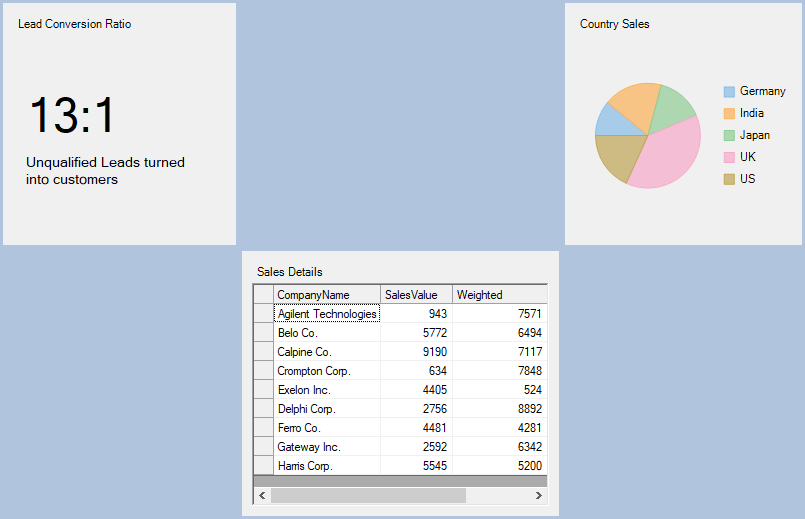
1. Create a new Windows Forms App.
2. In the Windows Forms Designer, set the height of the form to 730 and width to 550.
3. Drag and drop the C1DashboardLayout control from the Toolbox onto your form.
Observe: By default, a layout of the type Split is attached to it.
4. Select the **C1DashboardLayout** control. In the **Properties** window, set the following properties:
| **Property Name** | **Value** |
| ------------- | ----- |
| LayoutType | Grid |
| Dock | Fill |
5\. Click inside the C1DashboardLayout control\. The GridContentPanel \(layout control attached to C1DashboardLayout\) is selected\.
**Observe**: By default, the GridContentPanel contains six cells and two child containers named Panel2 and Panel4 of the type Panel.
6\. Select **Panel2** and set the following properties:
| **Property Name** | **Value** |
| ------------- | ----- |
| Dock | Fill |
| Caption on c1DashboardLayout1 | Lead Conversion Ratio |
7\. Drag and drop a Label control on Panel2 and set the following properties:
| **Property Name** | **Value** |
| ------------- | ----- |
| Location | 15,85 |
| Text | 13:1 |
| Font > Size | 35 |
Now, drag and drop another Label control on Panel2 and set the following properties:
| **Property Name** | **Value** |
| ------------- | ----- |
| Location | 20,150 |
| Text | Unqualified Leads turned into customers |
| Font > Size | 35 |
8\. Select Panel4 and set the following properties:
| **Property Name** | **Value** |
| ------------- | ----- |
| Column | 1 |
| Dock | Fill |
| Caption on c1DashboardLayout1 | Sales Details |
9\. Drag and drop the **C1FlexGrid** control on Panel4 and set its **Dock** property to **Fill**.
You can adjust the size of rows and columns to show the FlexGrid control appropriately using resizing handle which appears around the cell borders of the GridContentPanel when the GridContentPanel is selected in the form’s designer.
10\. Add a class named SalesDetails\.cs to the project and copy the following code to it to add data for FlexGrid\.
```csharp
public class SalesDetails
{
public SalesDetails(string companyName, double salesValue, double weighted,string salesStage)
{
CompanyName = companyName;
SalesValue = salesValue;
Weighted = weighted;
SalesStage = salesStage;
}
public SalesDetails() { }
public string CompanyName { get; set; }
public double SalesValue { get; set; }
public double Weighted { get; set; }
public string SalesStage { get; set; }
public List GetData()
{
string[] companyNames = { "Agilent Technologies", "Belo Co.", "Calpine Co.", "Crompton Corp.", "Exelon Inc.", "Delphi Corp.", "Ferro Co.","Gateway Inc.","Harris Corp."};
string[] salesStages={"Qualified", "Lead", "Qualified", "Proposal", "Negotiation", "Won", "Lost","Lead","Proposal"};
List salesDetailsList = new List();
Random random = new Random();
for(int i=0;i<9;i++)
{
salesDetailsList.Add(new SalesDetails(companyNames[i],random.Next(0,10000), random.Next(1,10000),salesStages[i]));
}
return salesDetailsList;
}
}
```
```vbnet
Public Class SalesDetails
Public Sub New(ByVal companyName As String, ByVal salesValue As Double, ByVal weighted As Double, ByVal salesStage As String)
CompanyName = companyName
SalesValue = salesValue
Weighted = weighted
SalesStage = salesStage
End Sub
Public Sub New()
End Sub
Public Property CompanyName() As String
End Property
Public Property SalesValue() As Double
End Property
Public Property Weighted() As Double
End Property
Public Property SalesStage() As String
End Property
Public List Sub GetData()
Dim companyNames() As String = {"Agilent Technologies", "Belo Co.", "Calpine Co.", "Crompton Corp.", "Exelon Inc.", "Delphi Corp.", "Ferro Co.","Gateway Inc.","Harris Corp."}
Dim salesStages() As String = {"Qualified", "Lead", "Qualified", "Proposal", "Negotiation", "Won", "Lost","Lead","Proposal"}
Dim salesDetailsList As List = New List()
Dim random As Random = New Random()
Dim i As Integer
For i = 0 To 9- 1 Step i + 1
salesDetailsList.Add(New SalesDetails(companyNames(i),random.Next(0,10000),random.Next(1,10000),salesStages(i)))
Next
Return salesDetailsList
End Sub
End Class
```
11. Add the following code to Form1\_Load event to populate the grid with data.
```csharp
SalesDetails salesDetails = new SalesDetails();
List salesDetailsList = salesDetails.GetData();
c1FlexGrid1.DataSource = salesDetailsList;
```
```vbnet
Dim salesDetails As SalesDetails = New SalesDetails()
Dim salesDetailsList As List = salesDetails.GetData()
c1FlexGrid1.DataSource = salesDetailsList
```
12. Drag and drop a FlexPie in third column of the first row and set the following properties:
| **Property Name** | **Value** |
| ------------- | ----- |
| Dock | Fill |
| BindingName | CountryName |
| Binding | OpportunityCount |
A child container named Panel5 is created under it.
13. Select Panel5 and set the following properties:
| **Property Name** | **Value** |
| ------------- | ----- |
| Dock | Fill |
| Caption on c1DashboardLayout1 | Country Sales |
14. Add a class named CountrySales.cs to the project and copy the following code to it to add data for FlexPie.
```csharp
public class CountrySales
{
public CountrySales(string countryName, int opportunityCount)
{
CountryName = countryName;
OpportunityCount = opportunityCount;
}
public CountrySales() { }
public string CountryName { get; set; }
public int OpportunityCount { get; set; }
public List GetData()
{
string[] countryNames = {"Germany", "India", "Japan", "UK" , "US" };
List countrySalesList = new List();
Random random = new Random();
for (int i = 0; i < 5; i++)
countrySalesList.Add(new CountrySales(countryNames[i],random.Next(0,30)));
return countrySalesList;
}
}
```
```vbnet
Public Class CounTrySales
Public Sub New(ByVal counTryName As String, ByVal opportunityCount As Integer)
CounTryName = counTryName
OpportunityCount = opportunityCount
End Sub
Public Sub New()
End Sub
Public Property CounTryName() As String
End Property
Public Property OpportunityCount() As Integer
End Property
Public List< New> Sub GetData()
Dim counTryNames() As String = {"Germany", "India", "Japan", "UK" , "US"}
Dim counTrySalesList As List = New List()
Dim random As Random = New Random()
Dim i As Integer
For i = 0 To 5- 1 Step i + 1
counTrySalesList.Add(New CounTrySales(counTryNames(i),random.Next(0,30)))
Next
Return counTrySalesList
End Sub
End Class
```
15. Add the following code to Form1\_Load event to populate the pie with data.
```csharp
CountrySales countrySales = new CountrySales();
List countrySalesList = countrySales.GetData();
flexPie1.DataSource = countrySalesList;
```
```vbnet
CountrySales countrySales = new CountrySales();
List countrySalesList = countrySales.GetData();
flexPie1.DataSource = countrySalesList;
```
16. Select **C1DasboardLayout** and in the **Properties** window, navigate to **C1DashboardLayout > Styles > Common > BackColor** property and set it to **LightSteelBlue**.
>type=note
> **Note**: If the **BackColor** property of **C1DashboardLayout** is set before adding child containers to it, the child containers inherit back color of the parent container. Therefore, changing the back color of C1DashboardLayout after adding child containers does not affect the child containers back color.
The sales conversion dashboard gets created.