# Resizing
## Content
DashboardLayout allows you to resize the child containers at runtime. The resizing behavior of the child containers differ for different layouts. The behaviors are discussed below:
### Resizing in Flow Layout
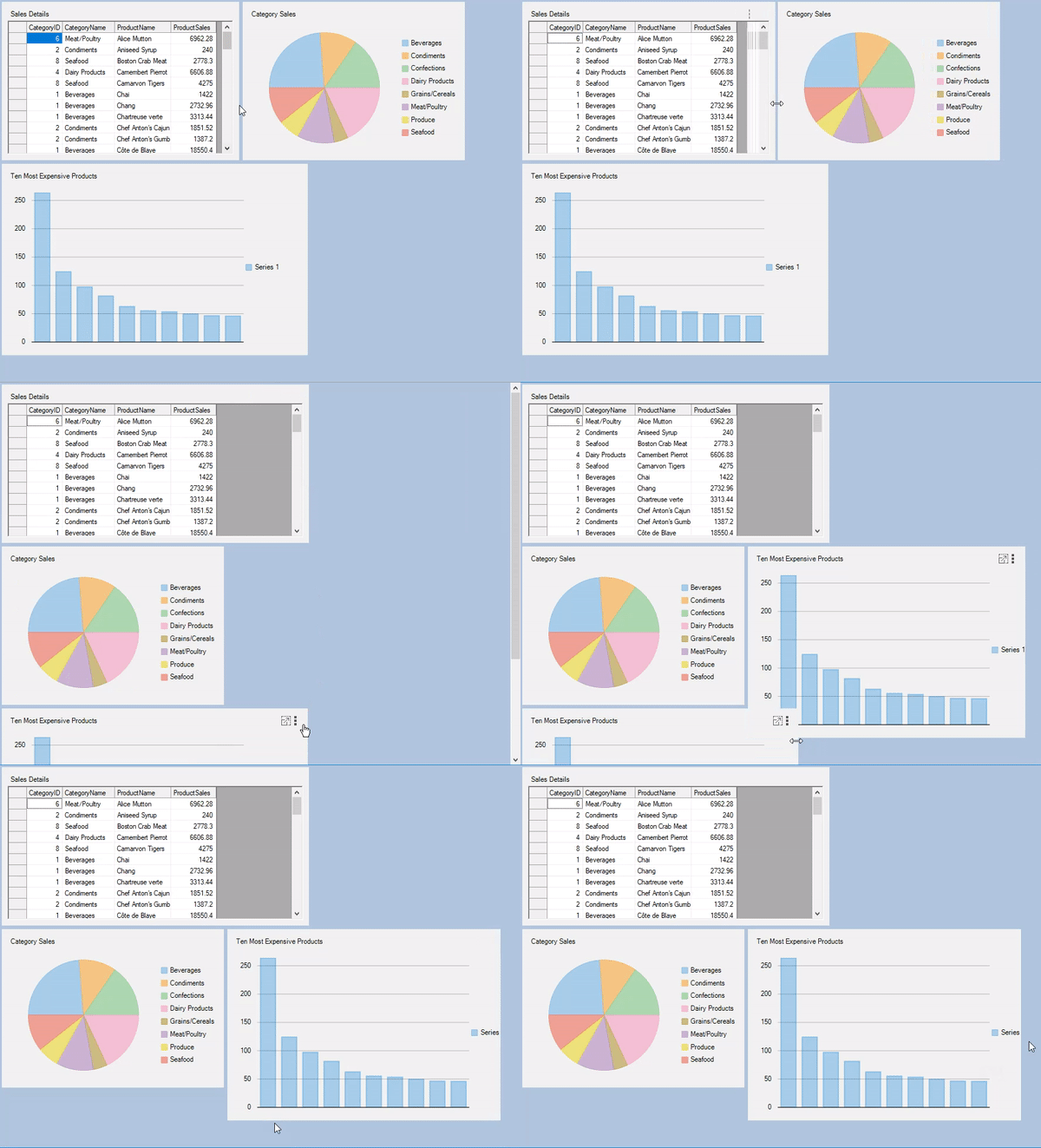
On resizing a specific child container, other child containers rearrange themselves maintaining the flow direction.
### Resizing in Grid Layout
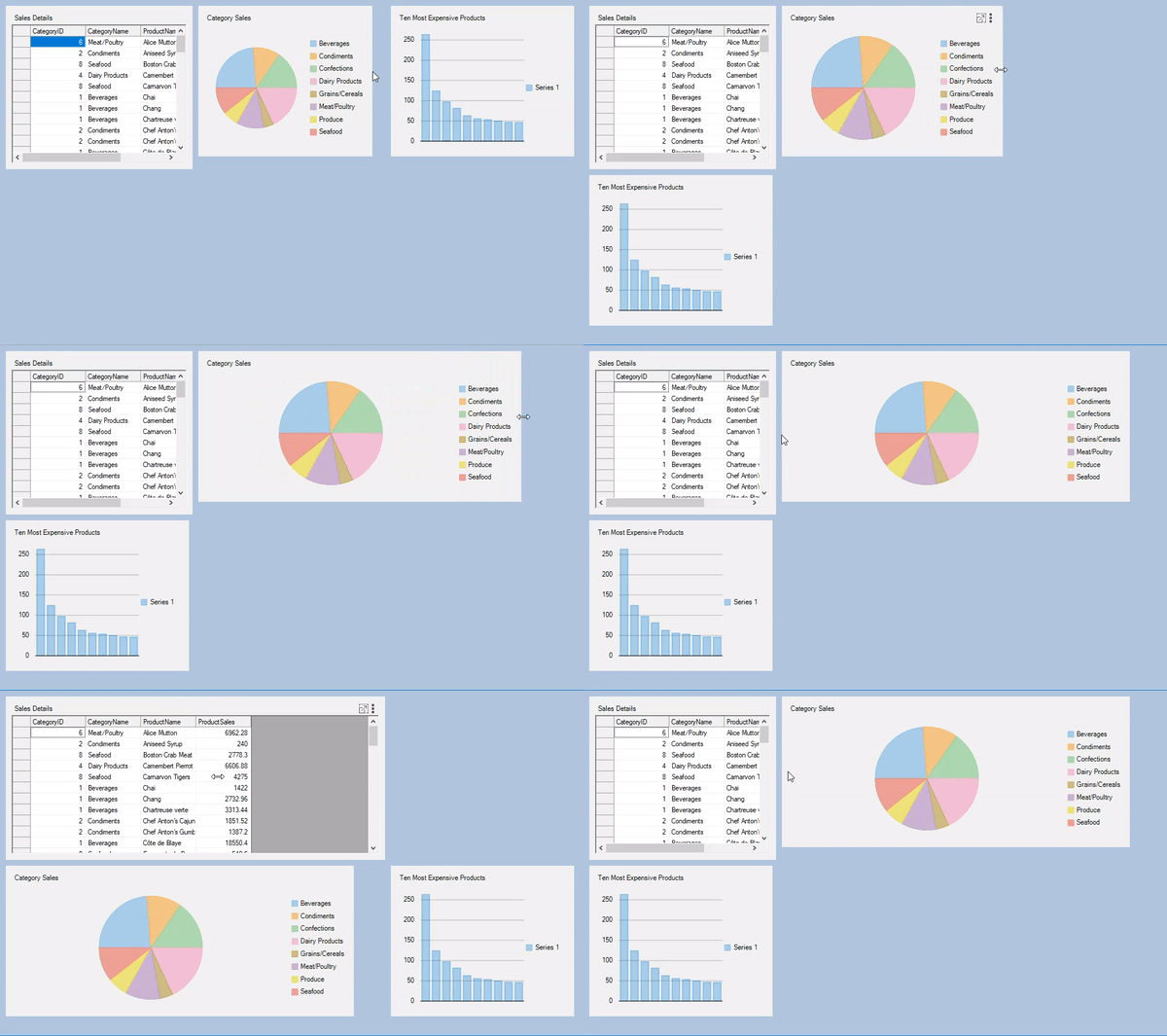
On resizing width of a specific child container, it spans the adjacent column and the other child containers rearrange themselves accordingly in the next column/row. However, on resizing height of a specific child container, it spans the row below and the other child containers rearrange themselves accordingly in the next row/column.
### Resizing in Split Layout
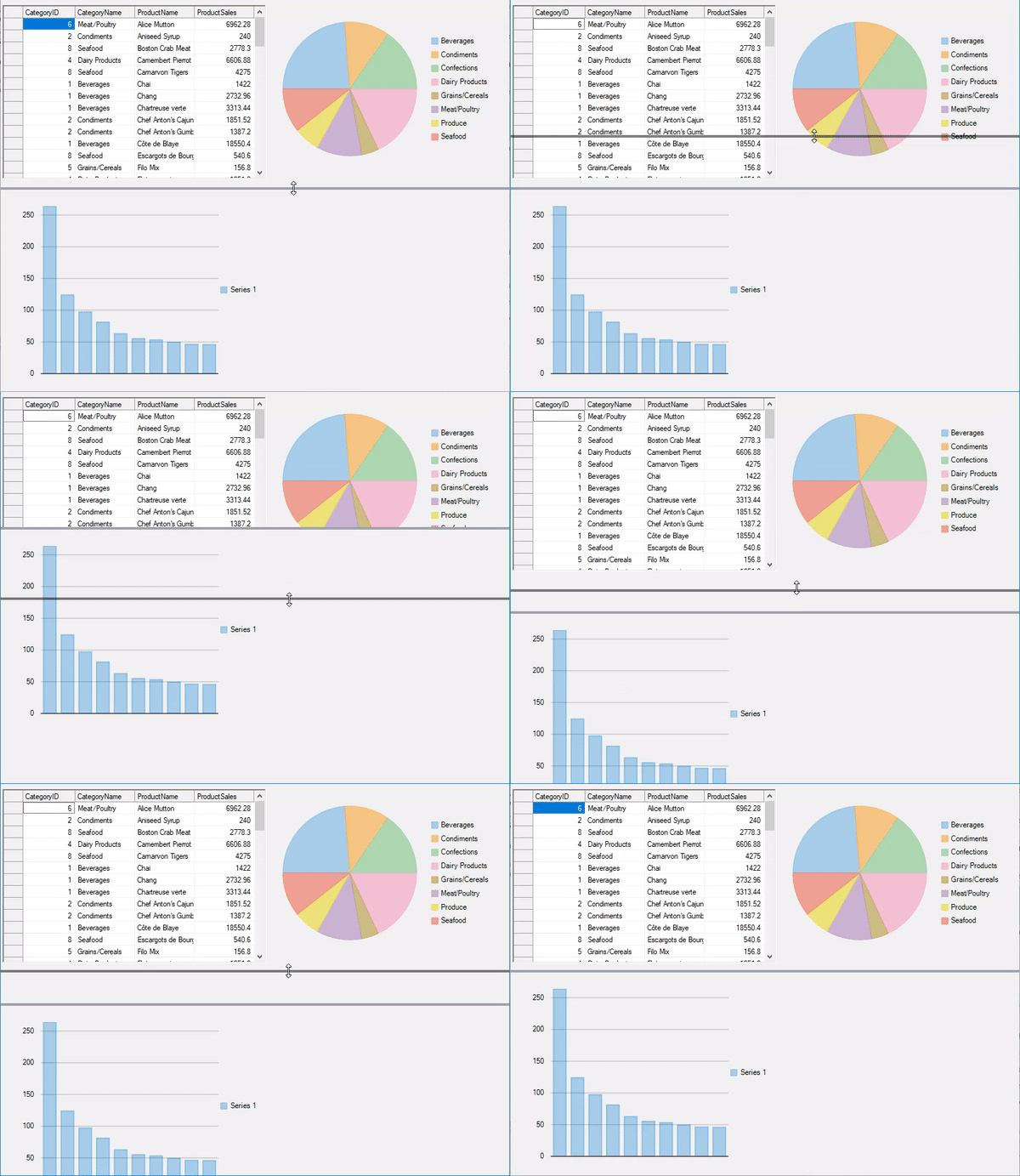
On hovering mouse over the **SplitterBar**, a resizing handle appears over the bar which can be used to resize the child containers (**C1SplitterPanel**) at runtime. However, you can specify minimum width or height of each panel to prevent the user from resizing it too small through the [MinWidth](/componentone/docs/win/online-dashboardlayout/) and [MinHeight](/componentone/docs/win/online-dashboardlayout/) properties of the C1SplitterPanel class. The following code below shows an example of setting the minimum width for the child containers:
```csharp
((C1SplitterPanel)(c1DashboardLayout1.Items["Container1"].ItemContainer)).MinWidth = 200;
```
```vbnet
((C1SplitterPanel)(c1DashboardLayout1.Items("Container1").ItemContainer)).MinWidth = 200
```
You can also specify the minimum and maximum size for all the child containers at once using [MinimumItemContainerSize](/componentone/docs/win/online-dashboardlayout/) and [MaximumItemContainerSize](/componentone/docs/win/online-dashboardlayout/) properties of the DashboardOptions class as illustrated in the following code:
```csharp
c1DashboardLayout1.Options.MinimumItemContainerSize = new System.Drawing.Size(400,200);
c1DashboardLayout1.Options.MaximumItemContainerSize = new System.Drawing.Size(600, 400);
```
```vbnet
c1DashboardLayout1.Options.MinimumItemContainerSize = New System.Drawing.Size(400,200)
c1DashboardLayout1.Options.MaximumItemContainerSize = New System.Drawing.Size(600, 400)
```