# QuickStart
This topic provides an easy, simple way to create an application in VS using Docking Tab.
## Content
This quick start gets you started with creating a simple WinForms application using Docking Tab.
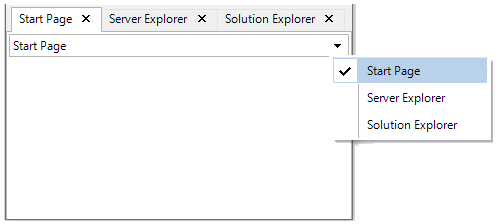
To quickly get started using the control, follow these steps:
### Add Command Dock
1. Create a **Windows Forms Application** in Visual Studio.
2. Drag and drop the **CommandDock** control from the Toolbox to the application. The CommandDock control will provide docking and floating capabilities to the DockingTab.
Users can also add CommandDock to the form programmatically using [C1CommandDock](/componentone/docs/win/online-command5/) class:
```csharp
// Initialize command dock
C1CommandDock commandDock = new C1CommandDock();
// Add command dock to form
this.Controls.Add(commandDock);
```
3. Set the location, size and docking style for CommandDock.
```csharp
// Set Command Dock docking style, location and size
commandDock.Dock = DockStyle.Fill;
commandDock.Location = new Point(0, 0);
commandDock.Size = new Size(800, 450);
```
### Add Docking Tab
1. Drag and drop the **DockingTab** control from the Toolbox to the application. The DockingTab control will provide a tab control interface to add overlaying tab pages. Users can also add DockingTab to the form programmatically using [C1DockingTab](/componentone/docs/win/online-command5/):
```csharp
// Initialize docking tab
C1DockingTab dockingTab = new C1DockingTab();
```
2. Add DockingTab to the CommandDock.
```csharp
// Add docking tab to command Dock
commandDock.Controls.Add(dockingTab);
```
3. Set the DockingTab location and size. Configure the properties to set the page caption, tab list dropdown, rename tab, move tab and close tab functionality in the DockingTab.
```csharp
// Set docking tab properties
dockingTab.Location = new Point(0, 0);
dockingTab.Size = new Size(800, 450);
// Close individual tab pages
dockingTab.CanCloseTabs = true;
// Rearrange tabs by dragging
dockingTab.CanMoveTabs = true;
// enable tab renaming
dockingTab.CanRenameTabs = true;
// Add close boxes on all tabs. The enumeration provides more options such as Default, Active and AllPages
dockingTab.CloseBox = CloseBoxPositionEnum.AllPages;
// Show caption on pages
dockingTab.ShowCaption = true;
// Show dropdown list of all tabs
dockingTab.ShowTabList = true;
```
### Add Docking Tab Pages
1. Initialize Docking TabPages and add the pages to Docking Tab.
```csharp
// Initialize three docking tab pages
C1DockingTabPage tabPage1 = new C1DockingTabPage();
C1DockingTabPage tabPage2 = new C1DockingTabPage();
C1DockingTabPage tabPage3 = new C1DockingTabPage();
// Add the tab pages to docking tab
dockingTab.Controls.Add(tabPage1);
dockingTab.Controls.Add(tabPage2);
dockingTab.Controls.Add(tabPage3);
```
2. Configure all the docking tab pages, with properties such as text, location, size, TabIndex, AllowDrop and CaptionVisible properties.
```csharp
// Set first docking tab page properties
tabPage1.Text = "Start Page";
tabPage1.Location = new Point(1, 27);
tabPage1.Size = new Size(798, 422);
// Set tab order within the docking tab
tabPage1.TabIndex = 0;
tabPage1.AllowDrop = true;
tabPage1.CaptionVisible = true;
// Set Second docking tab page properties
tabPage2.Text = "Server Explorer";
tabPage2.Location = new Point(1, 27);
tabPage2.Size = new Size(798, 422);
tabPage2.TabIndex = 1;
tabPage2.AllowDrop = true;
tabPage2.CaptionVisible = true;
// Set Third docking tab page properties
tabPage3.Text = "Solution Explorer";
tabPage3.Location = new Point(1, 27);
tabPage3.Size = new Size(798, 422);
tabPage3.TabIndex = 2;
tabPage3.AllowDrop = true;
tabPage3.CaptionVisible = true;
```
### Build and Run the Project
1. Click **Build | Build Solution** to build the project.
2. Press **F5** to run the project.