# Axes Toolbars
## Content
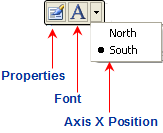
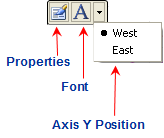
The floating toolbar for the Axis X and Axis Y elements include the following command buttons: **Properties**, **Font**, and a **Axis X** and **Axis Y** position for the Axis X and Axis Y elements of the [C1Chart](/componentone/api/win/online-chart2d/dotnet-framework-api/C1.Win.C1Chart.4.8/C1.Win.C1Chart.C1Chart.html) control. The figure below illustrates the command buttons on the Axis X or Axis Y toolbars.
| Axis X toolbar | Axis Y toolbar |
| --- | --- |
|  |  |
### Exposing the AxisX or AxisY Floating Toolbar
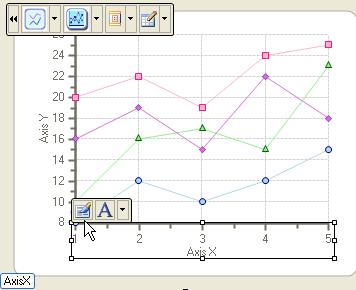
To expose the **AxisX** or **AxisY** floating toolbar slide your cursor in the AxisX or AxisY area.
The following example illustrates the **AxisX** toolbar exposed from sliding the cursor over the Axis X area.
### AxisX/AxisY Toolbar's Command Buttons
The section below lists all of the command buttons available in the **AxisX/AxisY** toolbar and describes the functionality of each one.
### Properties button
The **Properties** command button exposes the **Chart Properties** dialog box for the **Axis X** and/or **Axis Y** elements when the user clicks on the **Properties** command button in the AxisX or AxisY toolbars.
The following image represents the properties for the AxisX when the **Properties** command button is selected from the Axis X toolbar:
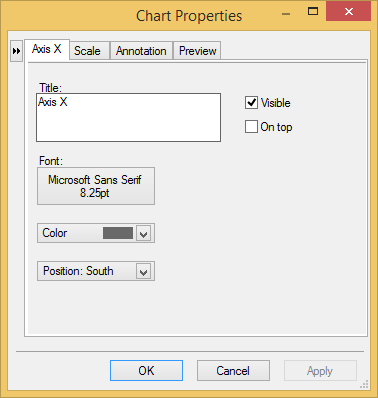
Clicking on the button opens the navigational tree view of the chart elements in the left pane of the **Chart Properties** designer.
### Font button
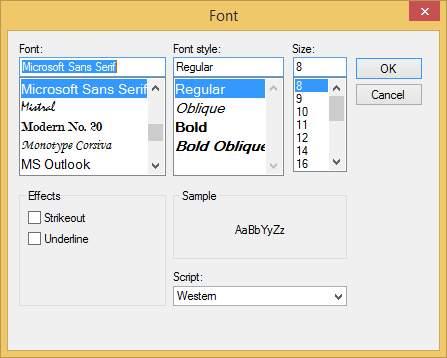
The **Font** command button exposes the **Font** dialog box for the **AxisX** and **AxisY** elements. Here the Font style can be modified for the Axes' text.
### Position button
The **Position** command button has a drop-down list box which includes a list of different compass directions (West, East, North, or South) for the user to choose from. The **AxisY** compass directions will position the AxisY to the West position which is to the left of the Chart or to the East position which is to the right of the Chart. The AxisX compass directions will position the AxisX to the South which is below the chart or to the North which is above the chart. The default compass position for the AxisY is West and the default position for the AxisX is South.
## See Also
[Header and Footer Toolbars](/componentone/docs/win/online-chart2d/designtimetoolsforcr/workingwiththesmartd/secondaryfloatingtoo/headerandfootertoolb)