# Modify the Appearance of the Chart Footer
## Content
To modify the chart footer's appearance, complete the following steps:
1. Select the **Properties** button from the Footer's floating toolbar. The Appearance [Footer\] properties appear in the **Chart Properties** editor.
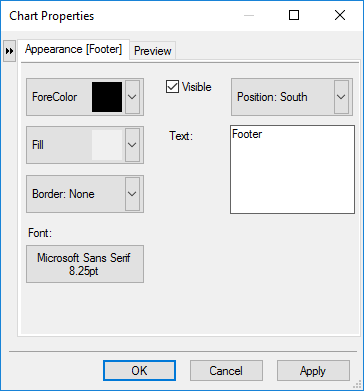
2. Modify its **ForeColor**, **Fill**, and **Border** properties to the following:
* Set its ForeColor to **Maroon**.
* Set its Fill color's style to **Gradient** and Color1 to **MistyRose** and Color2 to **RosyBrown**.
* Set is Font type to **Georgia**, Font style to **Bold**, and Font size to **10**.
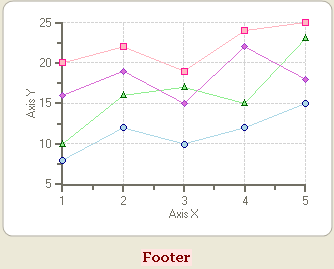
3. Select **OK** from its dialog box. The new changes for the **Footer** element appear on the chart.
## See Also
[Modify the Appearance of the Chart Header](/componentone/docs/win/online-chart2d/chartforwinformstask/creatingandformattin1/modifytheappearanceo2)