# Access the Visual Effects Designer
## Content
To access the **Visual Effects** designer, use the **C1Chart Tasks** menu (smart tag), the C1Chart context menu, or the Property grid editor.
### C1Chart Tasks menu
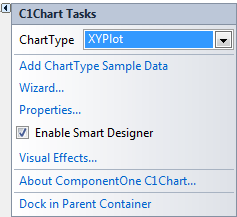
Click the smart tag () in the upper-right corner of **C1Chart** to open the **C1Chart Tasks** menu, and select **Visual Effects**.
### Context Menu
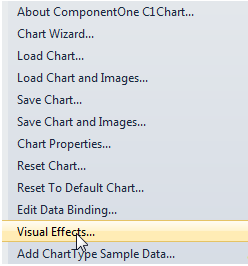
Right-click on the **Chart2D** control and select **Visual Effects** from the context menu.
### Properties Window
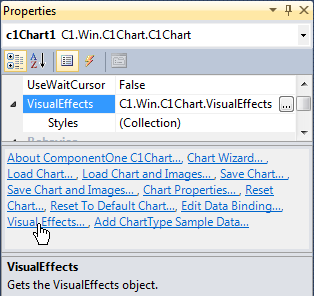
Right-click on the **Chart2D** control and select **Properties**. Click on the **ellipsis** button next to **VisualEffects** in the Properties window or click on **Visual Effects** in the **Action** list area at the bottom of Visual Studio .NETs Properties window. The following image displays the **VisualEffects** items in C1Chart's Properties window.
## See Also
[Customize Header and Footer](/componentone/docs/win/online-chart2d/chartforwinformstask/addingvisualeffectst/customizeheaderandfo)