# Design-Time Support
Read the topic to know more about DateEdit control for WinForms.
## Content
CalendarView provides design-time support to simplify working with the object model. While the CalendarView control includes a smart tag to readily access properties, it also provides a collection editor to quickly add and remove dates.
## Smart tags
CalendarView includes smart tags to readily access common properties and other options.
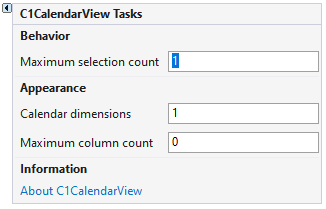
The **C1CalendarView Tasks** menu provides the following options:
* **Maximum selection count**: Allows you to set the maximum number of dates that can be selected.
* **Calendar dimensions**: Enables you to set the number of months to be shown.
* **Maximum column count**: Allows you to set the maximum number of columns for calendar dimensions.
* **About C1CalendarView**: Enables you to find the version number of the control and online resources.
## Collection Editor
CalendarView provides **DateTime Collection Editor** that lets you add or remove annually bolded, bolded, and disabled dates.
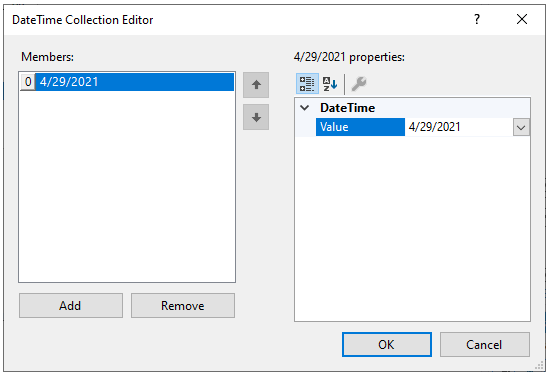
To access the **DateTime Collection Editor,** for adding or removing annually bolded dates, follow these steps:
1. Right-click on the **C1CalendarView** control and select **Properties** from the context menu.
2. In the **Properties** window, click the ellipsis button next to the **AnnuallyBoldedDates** property to open **DateTime Collection Editor**.
3. **Add annually bolded dates**:
1. Click the **Add** button to add annually bolded dates.
2. Click the dropdown button next to the **Value** property in the right panel to select a date.
3. Add more dates in the same manner using the **Add** button.
4. Click the **OK** button to confirm the changes in the CalendarView.
4. **Remove annually bolded dates**:
1. Select the date that you want to remove from annually bolded status. Select more than one dates using the Ctrl key.
2. Click the **Remove** button to remove the selected dates.
3. Click **OK** button to confirm the changes in the CalendarView.
> type=note
> **Note**: To access DateTime Collection Editor for bolded or disabled dates, click the ellipsis button next to the **BoldedDates** or the **DisabledDates** property respectively.