# Step 3: Running the Project
## Content
Now that you set up the project and added code, let's run the project to view code types supported by **BarCode for WinForms**.
Complete the following steps:
1. Run the project and select code type from the **ComboBox**.
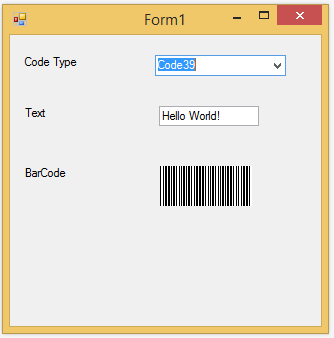
2. Select different code types and notice the corresponding barcodes displayed.
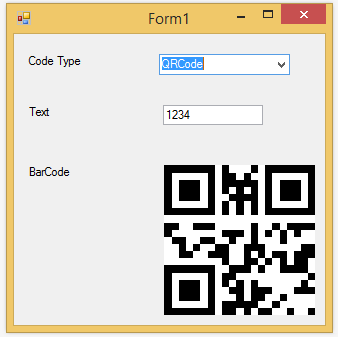
3. Try entering different text strings of alpha numeric characters. If a text is not supported by the barcode, an error message is displayed as in image below.
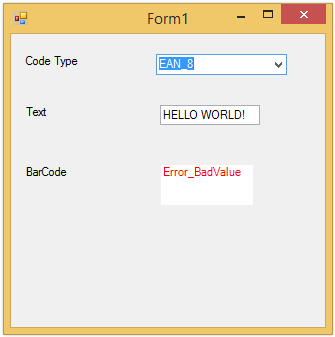
Congratulation! You have completed the quick start in which you created a simple application for viewing different barcodes supported in **BarCode for WinForms**.
> type=note
> Note that some encodings have a minimum character requirement, while others work only with numeric values. For more information about supported barcode symbologies, see [BarCode Symbology](/componentone/docs/win/online-barcode/UsingBarCodeforWinForms/BarCodeSymbology).