# Export FlexGrid to Excel
## Content
This section shows how to call the Web API service project through a client application and add export function for exporting FlexGrid data as an excel.
[Step 1: Call the Service](/componentone/docs/webapi/online-webapicore/Services/excel-services/ExcelExportService/ExportDatafromFlexGridtoExcel#step-1-call-the-service)
[Step 2: Run the Client Project](/componentone/docs/webapi/online-webapicore/Services/excel-services/ExcelExportService/ExportDatafromFlexGridtoExcel#step-2-run-the-client-project)
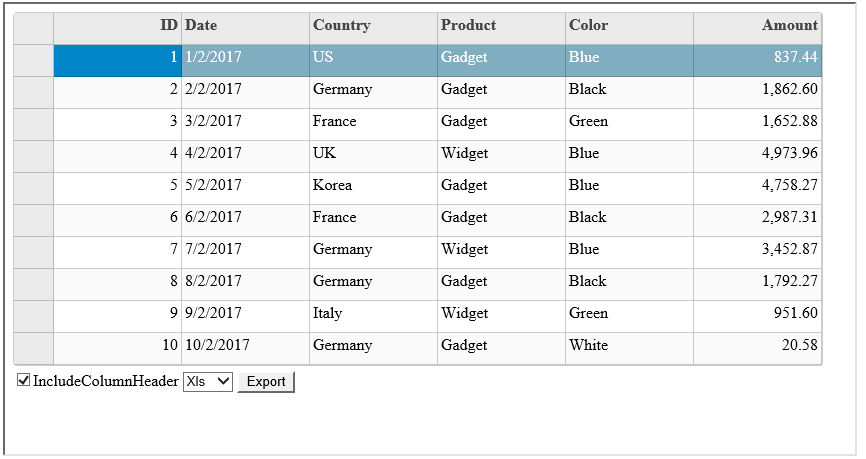
The following image shows how the FlexGrid appears after completing the steps above:
### Step 1: Call the Service
Complete the following steps to call the Web API service.
1. Add **C1 Web API Client JavaScript** file and its reference to your MVC or HTML project.
2. Create a function, using Client JavaScript Helper, to implement the export functionality. **MVC**
Add the following code to **Views|MVCFlexGrid****|****Index.cshtml** to export FlexGrid data to excel.
```razor
```
**HTML**
Add the following markup in \
```
> type=note
> **Note**: To use Wijmo 5 controls in your HTML application, you need to include references to few Wijmo files in your HTML pages. You may either download these wijmo files and copy them to appropriate folders in your application, or reference Wijmo files hosted in cloud on our Content Delivery Network (CDN). If you download and place the Wijmo script files in a folder named "Scripts", css files in a folder named "Styles", and script files specific to Wijmo controls to "Controls" folder, then add the following references within \ tags of your HTML pages:
>
> ```html
>
>
>
>
>
> ```
3. Add a button and call the export functionality on its button click for initiating export request. **MVC**
* Add the following code in **Views | MVCFlexGrid** **|** **Index.cshtml** to add buttons for export and import functionalities.
Add the following code in **Views | MVCFlexGrid** **|** **Index.cshtml** to add buttons for export functionality.
```razor
```
**HTML**
Add the following markup within the \ tags to create button for export function.
```html
```
### Step 2: Run the Client Project
**MVC Application**
* Click **Build | Build Solution** to build the project.
* Press **F5** to run the project.
**HTML Application**
* Save your HTML file and open it in a browser.
**Export** button appears along with the control, in the output. Use this button to export the data in the control to Excel format.
> type=note
> Explore detailed demo samples of export service for MVC and Wijmo5 FlexGrid control in:
>
> * [MVCFlexGrid Live Demo](https://demos.componentone.com/ASPNET/WebApiExplorer/MVCFlexGrid)
> * [Wijmo5FlexGrid Live Demo](https://demos.componentone.com/ASPNET/WebApiExplorer/Wijmo5FlexGrid)