# Configure PDF Web API Service
## Content
C1 Web API PDFDocument Services enable you to build HTTP services, which can be consumed by a variety of clients for viewing, loading and caching PDF files. These are REST based API services, which communicate with the HTML 5 PDFViewer control to display the pdf file content on the web.
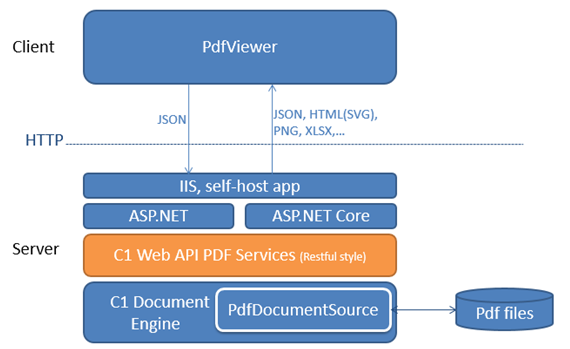
Complete the following steps to setup PDF services.
* [Step1: Create a new WebAPI application](/componentone/docs/webapi/online-webapi/Services/PDFDocumentServices/ConfigurePDF#step1-create-a-new-webapi-application)
* [Step 2: Configure Startup.cs](/componentone/docs/webapi/online-webapi/Services/PDFDocumentServices/ConfigurePDF#configure-startupcs-file)
* [Step 3: Build and Run the Project](/componentone/docs/webapi/online-webapi/Services/PDFDocumentServices/ConfigurePDF#step-3-build-and-run-the-project)
### Step1: Create a new WebAPI application
1. In Visual Studio, select **File \| New \| Project** to create a new Web API Service Project.
2. Under installed templates, select **Visual C\# \| Web \| C1 Web API Application** to create a new C1 Web API Service application.
3. Set a **Name** and **Location** for your application, and then Click **OK.**
4. In the **ComponentOne ASP.NET Web API Application Wizard**, select **Pdf services** option.
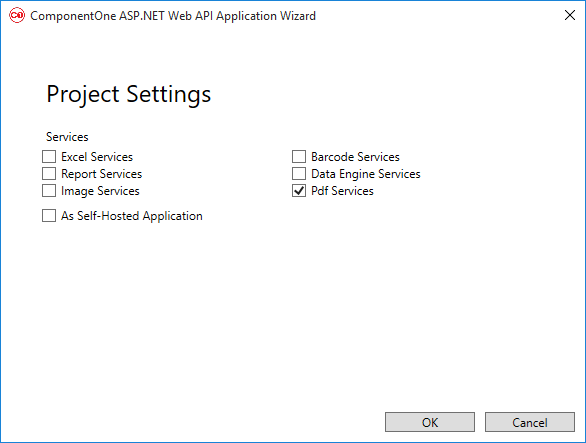
5. Once you have selected the **Services** from the wizard, click **OK** to create a new **C1 Web API Service application**.
### Configure Startup.cs file
1. Create a folder named **PdfRoot**, in your service application.
2. Add the desired **PDF files** to this folder.
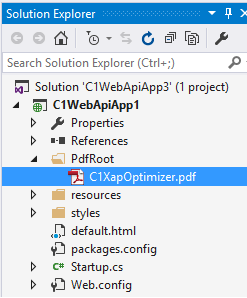
3. From the Solution Explorer, select and open **Startup.cs** file.
4. In the **Startup.cs** file, add disk storage in **Configure** method of **Startup**.
```csharp
app.UseStorageProviders()
.AddDiskStorage ("PdfRoot", System.IO.Path.Combine(System.Web.HttpRuntime.AppDomainAppPath, "PdfRoot"));
```
### Step 3: Build and Run the Project
1. Click **Build \| Build Solution** to build the project.
2. Press **F5** to run the project.
>type=note
> Append the URL path (for example: http://localhost:1234/api/pdf/\/\$pdf) in the address bar of the browser to see the output.