# Merge Multiple Excel Files Posted from Client

## Content

This section demonstrates how to call the Web API service through a client application and merge multiple excel files, that are posted from client, into workbook.
[Step 1: Call the Service](/componentone/docs/webapi/online-webapi/Services/ExcelServices/MergeExcelService/POSTMergeExcel#step-1-call-the-service)
[Step 2: Run the Client Project](/componentone/docs/webapi/online-webapi/Services/ExcelServices/MergeExcelService/POSTMergeExcel#step-2-run-the-client-project)
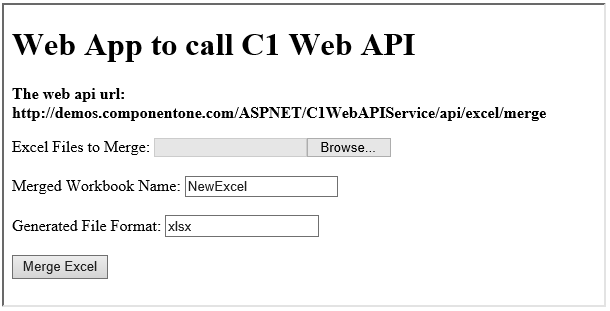
The following example makes a call to the Web API [service](/componentone/docs/webapi/online-webapi/overview/WorkingwithC1WebAPI/ConfiguringWebAPI) through HTML as well as WinForms client applications. These clients send a POST request to the service, which returns a response stream. This response stream is then saved in the desired excel file format.
In the following example, user provides the excel files (to merge into workbook) through the client applications. Moreover, the end user needs to specify the service URL, name and desired file format of workbook (generated upon merging multiple excel sheets) through client project. It is so, because the parameters or query string for merging excel are sent in the HTTP message body of the POST request and not in the request URL.
![](https://cdn.mescius.io/document-site-files/images/66c72527-2495-47b0-9257-2ee31dae74e5/images/postmergeexcel.png)

>type=note
> **Note**: Service can merge xls, xlsx, and csv files posted from the client.

### Step 1: Call the Service

Complete the following steps to call the Web API service.
**csharp**

```csharpC#
private void button1_Click(object sender, EventArgs e) {
  OpenFileDialog x = new OpenFileDialog();
  x.Multiselect = true;
  x.ShowDialog();
  result = x.FileNames;
  label1.Text = "Files Selected";
}
```

**HTML**
1\. Create an HTML application\, as discussed in [Configure Client for REST API service](/componentone/docs/webapi/online-webapi/overview/WorkingwithC1WebAPI/configuring-the-client-application/ClientAppRESTApiServices).

2. Add the following markups in the \<form> tags, within \<body> tags, of your HTML page.

    ```html
    <form action="https://developer.mescius.com/componentone/demos/aspnet/c1WebAPI/latest/api/excel/merge" method="POST" enctype="multipart/form-data">
            <label for="FilesToMerge">Excel Files to Merge:</label>
        <input type="file" id="FilesToMerge" name="FilesToMerge" multiple/>
        <br /><br />
        <label for="FileName">Merged Workbook Name:</label>
        <input type="text" id="fileName" name="FileName" value="Excel"/>
        <br /><br />
        <label for="Type">Generated File Format:</label>
        <input type="text" id="Type" name="Type" value="xlsx" />
        <br /><br />
        <input type="submit" value="Merge Excel"/>
    </form>
    ```

    Note that, for POST request we set **method** attribute of \<form> tag to POST, its **enctype** attribute to "multipart/form-data" and set its **action** attribute to service request URL. Also, we create input controls on the HTML page, which take various parameters to merge multiple excel files, provided by client, to the desired workbook format.

### Step 2: Run the Client Project

**WinForms Application**

* Click **Build \| Build Solution** to build the project.
* Press **F5** to run the project.
* Click **Select Files to Merge** button, to select multiple excel files.

    >type=note
> **Note**: Hold down CTRL or SHIFT keys while selecting multiple excel files.\* Specify the name and [appropriate file format](/componentone/docs/webapi/online-webapi/Services/ExcelServices/MergeExcelService) of the generated workbook, in respective text boxes.
* Provide the service URL for POST request (https://developer.mescius.com/componentone/demos/aspnet/c1WebAPI/latest/api/excel/merge) in respective text box, and click the **Merge Excel** button. The merged excel data file will open.

**HTML Application**

* **Save** your HTML file and open it in a browser.
* Select and post excel files to merge.

    >type=note
> **Note**: Hold down CTRL or SHIFT keys while selecting multiple excel files.
* Set name and [appropriate file format](/componentone/docs/webapi/online-webapi/Services/ExcelServices/MergeExcelService) for merged excel, and click **Merge Excel** button.

>type=note
> Explore detailed demo samples of REST API service to merge multiple excel files at:
>
> * [Merge Excel Live Demo](https://demos.componentone.com/ASPNET/WebApiExplorer/)