# Merge Multiple Excel Files Present in Storage

## Content

This section demonstrates how to call the Web API service through a client application and merge multiple excel files available in file storage (remote storage or storage at the same server) to workbook.
[Step 1: Call the Service](/componentone/docs/webapi/online-webapi/Services/ExcelServices/MergeExcelService/GETMergeExcel#step-1-call-the-service)
[Step 2: Run the Client Project](/componentone/docs/webapi/online-webapi/Services/ExcelServices/MergeExcelService/GETMergeExcel#step-2-run-the-client-project)
The following example makes a call to the Web API [service](/componentone/docs/webapi/online-webapi/overview/WorkingwithC1WebAPI/ConfiguringWebAPI) through HTML as well as WinForms client applications. These clients send a GET request to the service, which returns a response stream. This response stream is then saved in the desired excel file format.
In the following example, the service URL takes name and location of excel data files (present in [storage](/componentone/docs/webapi/online-webapi/overview/WorkingwithC1WebAPI/ConfiguringWebAPI/Configuring.NETCollections)) to merge in **FileNamesToMerge** parameter and the desired file format, xls, in **Type** parameter. The specified excel files to merge, reside in root folder of the hosted service.
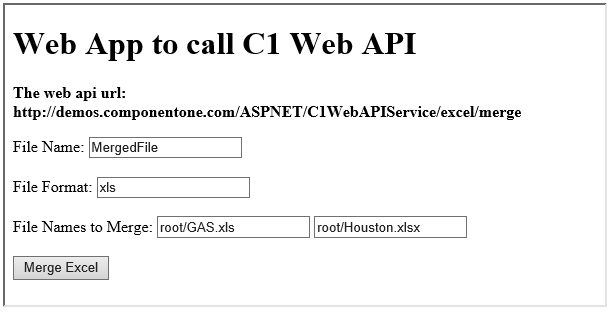
![](https://cdn.mescius.io/document-site-files/images/66c72527-2495-47b0-9257-2ee31dae74e5/images/getmergeexcel.png)

### Step 1: Call the Service

Complete the following steps to call the Web API service.
**csharp**

```csharp
public void MergeExcel() {
  var apiURL = "https://developer.mescius.com/componentone/demos/aspnet/c1WebAPI/latest/api/excel/merge?
  FileName=excel&type=xls&FileNamesToMerge=root%%2FHouston.xlsx";
  WebRequest request = WebRequest.Create(apiURL);
  WebResponse response = request.GetResponse();
  var fileStream = File.Create("D:\\MergedFile.xls");
  response.GetResponseStream().CopyTo(fileStream);
}
```

**HTML**
1\. Create an HTML application\, as discussed in [Configure Client for REST API service](/componentone/docs/webapi/online-webapi/overview/WorkingwithC1WebAPI/configuring-the-client-application/ClientAppRESTApiServices).

2. Add the following markups in the \<form> tags, within \<body> tags, of your HTML page.

    ```html
    <form action="https://developer.mescius.com/componentone/demos/aspnet/c1WebAPI/latest/api/excel/merge" method="GET">
            <label for="fileName">File Name:</label>
            <input type="text" id="fileName" name="fileName" value="MergedFile" />
            <br /><br />
            <label for="fileFormat">File Format:</label>
            <input type="text" id="fileFormat" name="type" value="xls" />
            <br /><br />
            <label for="FileNamesToMerge">File Names to Merge:</label>
            <input type="text" id="FileNamesToMerge" name="FileNamesToMerge" value="root/GAS.xls" />
            <input type="text" id="FileNamesToMerge" name="FileNamesToMerge" value="root/Houston.xlsx" />
            <input type="submit" value="Merge Excel"/>
    </form>
    ```

    Note that, for GET request we set **method** attribute of \<form> tag to GET, and set its **action** attribute to service request URL. Also, we create input controls on the HTML page, which take various parameters to merge multiple excel files, available in the [storage](/componentone/docs/webapi/online-webapi/overview/WorkingwithC1WebAPI/ConfiguringWebAPI/ConfiguringStorage), to the desired excel format.

### Step 2: Run the Client Project

**WinForms Application**

* Click **Build \| Build Solution** to build the project.
* Press **F5** to run the project.
* Provide the service URL, along with the query string containing appropriate parameters, in the textbox corresponding to **Request URL** field.
* Click the **Merge Excel** button. The merged excel data stream will get downloaded at the location specified within the MergeExcel() method.

**HTML Application**

* Save your HTML file and open it in a browser.\* Set name and [appropriate excel file format](/componentone/docs/webapi/online-webapi/Services/ExcelServices/MergeExcelService), and click **Merge Excel** button.

>type=note
> Explore detailed demo samples of REST API service to merge multiple excel files at:
>
> * [Merge Excel Live Demo](https://demos.componentone.com/ASPNET/WebApiExplorer/)