# Generate Barcode from Texts

## Content


This section demonstrates how to call the Web API service through a client application and generate barcode image from the desired text.

[Step 1: Call the Service](/componentone/docs/webapi/online-webapi/Services/BarcodeService/GenerateBarcode#step-1-call-the-service)

[Step 2: Run the Client Project](/componentone/docs/webapi/online-webapi/Services/BarcodeService/GenerateBarcode#step-2-run-the-client-project)

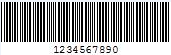
The following image shows the barcode generated after completing the steps above:
<br />![](https://cdn.mescius.io/document-site-files/images/66c72527-2495-47b0-9257-2ee31dae74e5/images/generatebarcode.png)

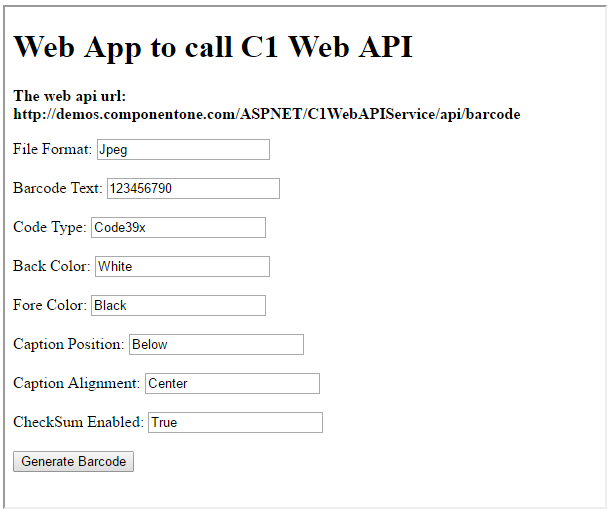
The following example makes a call to the Web API [service](/componentone/docs/webapi/online-webapi/overview/WorkingwithC1WebAPI/ConfiguringWebAPI) through HTML as well as WinForms client applications. These clients send a GET request to the service, which returns a barcode stream in response. This response stream can then be saved as image, as the barcode image above.

In the following example, the service url takes 1234567890 in **Text** parameter and **encoding type** parameter as Code39x, to generate the above image.
![](https://cdn.mescius.io/document-site-files/images/66c72527-2495-47b0-9257-2ee31dae74e5/images/getgeneratebarcode.png)

### Step 1: Call the Service

Complete the following steps to call the Web API service.

**csharp**

```csharp
public void GetBarcode() {
  var apiURL = string.IsNullOrEmpty(c1TextBox1.Text) ?
  "https://demos.componentone.com/ASPNET/WebAPI/api/barcode?
  Type=Png&Text=1234567890&CodeType=Ansi39" : c1TextBox1.Text;
  WebRequest request = WebRequest.Create(apiURL);
  WebResponse response = request.GetResponse();
  var fileStream = File.Create("D:\\BarcodeImg.Png"); 
        //The file format specified here should be same as that         specified in the
  request url
  response.GetResponseStream().CopyTo(fileStream);
}
```

### HTML

2.  Create an HTML application, as discussed in [Configure Client for REST API service](/componentone/docs/webapi/online-webapi/overview/WorkingwithC1WebAPI/configuring-the-client-application/ClientAppRESTApiServices).
3.  Add the following markups in the \<form> tags, within \<body> tags, of your HTML page.
    
    ```html
    <form action="https://demos.componentone.com/ASPNET/WebAPI/api/barcode" method="GET">
      <label for="fileFormat">File Format:</label>
      <input type="text" id="fileFormat" name="type" value="Jpeg" />
      <br />
      <br />
      <label for="text"> Barcode Text:</label>
      <input type="text" id="text" name="text" value="123456790" />
      <br />
      <br />
      <label for="codeType">Code Type:</label>
      <input type="codeType" id="codeType" name="codeType" value="Code39x" />
      <br />
      <br />
      <label for="backColor">Back Color:</label>
      <input type="backColor" id="backColor" name="backColor" value="White" />
      <br />
      <br />
      <label for="foreColor">Fore Color:</label>
      <input type="foreColor" id="foreColor" name="foreColor" value="Black" />
      <br />
      <br />
      <label for="captionPosition">Caption Position:</label>
      <input type="captionPosition" id="captionPosition" name="captionPosition" value="Below" />
      <br />
      <br />
      <label for="captionAlignment">Caption Alignment:</label>
      <input type="captionAlignment" id="captionAlignment" name="captionAlignment" value="Center" />
      <br />
      <br />
      <label for="CheckSumEnabled">CheckSum Enabled:</label>
      <input type="CheckSumEnabled" id="CheckSumEnabled" name="CheckSumEnabled" value="True" />
      <br />
      <br />
      <input type="submit" value="Generate Barcode" />
    </form>
    ```
    
    Note that, for GET request we set **method** attribute of \<form> tag to GET, and set its **action** attribute to service request URL. Also, we create input controls on the HTML page, which take various barcode parameters to generate the barcode image, from the specified text, to the desired image format.
    

### Step 2: Run the Client Project

**WinForms Application**

*   Click **Build | Build Solution** to build the project.
*   Press **F5** to run the project.
*   Provide the service URL, along with the query string containing appropriate barcode parameters, in the textbox corresponding to Request URL field.
*   Click the **Generate Barcode** button. The generated barcode image will get downloaded at the location specified within the GetBarcode() method.

**HTML Application**

*   Save your HTML file and open it in a browser.
*   Set the appropriate barcode parameters for the desired barcode image, and click **Generate Barcode** button.


> type=note
> Explore detailed demo samples of REST API service to generate barcode at:
> 
> *   [Generate Barcode Live Demo](https://demos.componentone.com/ASPNET/WebApiExplorer/)