# Exporting extracted result to class/CSV
## Content
**TextParser** provides different techniques for extracting text from an input source and generate output in JSON string format. However, consider a scenario where a user wants to extract text from plain text and HTML documents using several extractors. Further, the user also wants to store it in a purposeful approach. This walkthrough explains how you can retrieve the extracted text into a custom user defined **class**. It also demonstrates how you can export the extraction result into a **CSV** file.
After completing the implementation of this walkthrough, you will be able to:
1. [Extract text using Template based extractor](/componentone/docs/services/online-textparser/walkthrough/exportresult#step-1-extract-text-using-template-based-extractor)
2. [Retrieve extraction results in a custom class](/componentone/docs/services/online-textparser/walkthrough/exportresult#step-2-retrieve-extraction-results-in-a-custom-class)
3. [Export extraction results to CSV](/componentone/docs/services/online-textparser/walkthrough/exportresult#step-3-export-extraction-results-to-csv)
For an example, let's take a scenario where the user wants to extract all the ‘**ERROR**’ logs from the server log file (‘**input.txt’**). Following drop down section shows the input source.
DOC-DETAILS-TAG-OPEN
DOC-SUMMARY-TAG-OPEN
Click here to see the input
DOC-SUMMARY-TAG-CLOSE
2012-11-11 00:51:25,676 INFO - Starting Backup Manager 5.0.0 build 18536
2012-11-11 00:51:25,789 WARN - Generating Self-Signed SSL Certificate (alias = cdp)
2012-11-11 00:51:26,566 WARN - Saved SSL Certificate (alias = cdp) to Key Store /usr/sbin/r1soft/conf/comkeystore
2012-11-11 00:51:26,789 INFO - Operating System: Linux
2012-11-11 00:51:27,234 INFO - Architecture: amd64
2012-11-11 00:51:27,986 INFO - OS Version: 2.6.32-279.11.1.e16.x86\_64
2012-11-11 00:51:28,123 INFO - Processors Detected: 1
2012-11-11 00:51:28,954 INFO - Max Configured Heap Memory: 989.9 MB
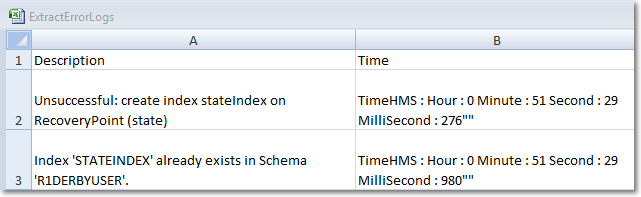
2012-11-11 00:51:29,276 ERROR - Unsuccessful: create index stateIndex on RecoveryPoint (state)
2012-11-11 00:51:29,980 ERROR - Index 'STATEINDEX' already exists in Schema 'R1DERBYUSER'.
2012-11-11 00:51:30,213 WARN - Invalid feature (0xECEBE6F7).
2012-11-11 00:51:30,736 INFO - Tomcat Wrapper starting
2012-11-11 00:51:30,800 INFO - Tomcat Wrapper started
DOC-DETAILS-TAG-CLOSE
Extracting information from this input file can help in troubleshooting the errors quickly. From the above input file, you can observe that each log entry follows a predefined fixed structure, which consists of four major elements; the date, the time (up to ms), the log type and description of the log. Considering this, it would be ideal to use the **Template-Based extractor** to extract the desired text from the input file.
### Step 1: Extract text using Template-Based extractor
* Create a new application (any target that supports **.NET Standard 2.0**).
* Create a sample input text file named “**input.txt**”, by copy pasting the contents described above and place the input file in the project’s root directory.2. Install the ‘**C1.TextParser**’ NuGet package in your application. For more information, refer [Adding NuGet Packages to your app](/componentone/docs/services/online-textparser/addingnuget).
3. To create a template that defines the structure of a log entry (the text to be extracted from the input file), add a new XML file to your project. Name it as ‘**template.xml**’ and add the following code to it.
> type=note
> **Note**: For more information on defining a template, refer ‘[Defining the Nested Template](/componentone/docs/services/online-textparser/working/xmltemplate/nestedtemplate)’.
**XML Template** **XML TEMPLATE**
```XML
```
4. In order to extract the desired text from the input stream based on the above template, add the following lines of code to **Program.cs**. The code provided below initializes and configures the [TemplateBasedExtractor](/componentone/api/services/online-textparser/dotnet-standard-api/C1.TextParser/C1.TextParser.TemplateBasedExtractor.html) class to perform the text extraction and display the extracted result in the JSON format on the console. After extraction, the results are returned into a variable of type [IExtractionResult](/componentone/api/services/online-textparser/dotnet-standard-api/C1.TextParser/C1.TextParser.IExtractionResult.html).
**csharp**
```csharp
//Open the stream which contains the user defined XML template
FileStream templateStream = File.Open(@"template.xml", FileMode.Open);
//Open the stream from which you wish to extract the data
FileStream inputStream = File.Open(@"input.txt", FileMode.Open);
//Initialize the TemplateBasedExtractor class to parse input data that matches the template format
TemplateBasedExtractor templateBasedExtractor = new TemplateBasedExtractor(templateStream);
//Extract the required text from the input stream and close the input/template streams
IExtractionResult extractedResult = templateBasedExtractor.Extract(inputStream);
inputStream.Close();
templateStream.Close();
//Write the parsed result(in Json Format) to the console window
Console.WriteLine(extractedResult.ToJsonString());
```
### Step 2: Retrieve extraction results in a custom class
1. Define the following classes to map the extraction results to a custom class. It is important to note that each class property has a **DataMember** Attribute, the ‘**Name**’ property of which corresponds to the “name” property of the template element to which is should be mapped.
**csharp**
```csharp
public class TimeHMS
{
[DataMember(Name = "hour")]
public int Hour { get; set; }
[DataMember(Name = "minute")]
public int Minute { get; set; }
[DataMember(Name = "second")]
public int Second { get; set; }
}
public class Time
{
[DataMember(Name = "timeHMS")]
public TimeHMS TimeHMS { get; set; }
[DataMember(Name = "millisecond")]
public int MilliSecond { get; set; }
}
public class Log
{
[DataMember(Name = "description")]
public String Description { get; set; }
[DataMember(Name = "time")]
public Time Time { get; set; }
}
public class Logs
{
[DataMember(Name = "errorLog")]
public List ErrorLogs { get; set; }
}
```
2. Retrieve the extraction result into the custom class using the **Get** method of the **IExtractionResult** interface as shown:
**csharp**
```csharp
//Map the extracted result to user defined class "Logs"
Logs logs = extractedResult.Get();
```
### Step 3: Export extraction results to CSV
The extracted text can further be output to a CSV file. This section describes the same in detail:
1. Add a new class file to the project. Name it as ‘**CsvExportHelper.cs’**. This class will be used to convert the **IEnumerablecollection** containing the extraction results into a string formatted in CSV format. Add the following code to the ‘**CsvExportHelper.cs**’ file:
**csharp**
```csharp
public static class CsvExportHelper
{
public static StringBuilder ExportList(IEnumerable list)
{
var stringBuilder = new StringBuilder();
//Create Header Part
var headerProperties = typeof(T).GetProperties();
for (int i = 0; i < headerProperties.Length - 1; i++)
{
stringBuilder.Append(headerProperties[i].Name + ",");
}
var lastProp = headerProperties[headerProperties.Length - 1].Name;
stringBuilder.Append(lastProp + Environment.NewLine);
if (list == null) return stringBuilder;
//Create Rows
foreach (var item in list)
{
var rowValues = typeof(T).GetProperties();
for (int i = 0; i < rowValues.Length; i++)
{
var prop = rowValues[i];
var obj = prop.GetValue(item);
stringBuilder.Append("\"" + obj.ToCustomString() + "\"" + ",");
}
stringBuilder.Append(Environment.NewLine);
}
return stringBuilder;
}
}
public static class Extension
{
public static string ToCustomString(this object obj)
{
Type objType = obj.GetType();
if (objType.IsPrimitive || objType == typeof(string))
{
return obj.ToString();
}
StringBuilder sb = new StringBuilder();
if (objType.FullName.StartsWith("System.Collections.Generic.List"))
{
sb.Append('"');
int i = 1;
foreach (object child in (IList)obj)
{
sb.Append(i);
sb.Append(' ');
sb.Append(child.ToCustomString());
sb.Append(' ');
i++;
}
sb.Append('"');
return sb.ToString();
}
var objProperties = objType.GetProperties();
for (int i = 0; i < objProperties.Length; i++)
{
var prop = objProperties[i];
var obj1 = prop.GetValue(obj);
sb.Append(prop.Name);
sb.Append(" : ");
sb.Append(obj1.ToCustomString());
if (i < objProperties.Length - 1)
sb.Append(' ');
}
string val = sb.ToString();
val = '"' + val.Replace("\"", string.Empty) + '"';
return val;
}
}
```
2. Invoke the **ExportList** method of the **CsvExportHelper** class to convert the **IEnumerable** collection containing the extraction results into a string formatted in CSV format.
**csharp**
```csharp
//Export the extracted result to csv file
StringBuilder sb = CsvExportHelper.ExportList(logs.ErrorLogs);
```
3. Finally write the string content to a **CSV** file as shown:
**csharp**
```csharp
string str = sb.ToString();
File.WriteAllText("ExtractErrorLogs.csv", sb.ToString());
```
4. Run the application. Observe that the extraction results have been successfully exported to "**ExtractErrorLogs.csv**" as shown in the image below: