# Quick Start
## Content
TextParser library offers everything from wide range of text exraction techniques to accurate results. This documentation helps you get started with **TextParser** which gives an idea about different ways of parsing and their efficiency with respect to the requirement.
This quick start will guide you through the steps of using TextParser library in an application and setting different text extraction techniques supported by the TextParser library.
Complete the steps given below to see how TextParser library works.
### Step 1: Create a new Console App (that supports .NET Standard 2.0)
1. Open Visual Studio
2. Select **File -> New -> Project**.
3. In the center pane, select **Console App**.
4. Add a name for your app and select a location to save it.
5. Click **OK**.
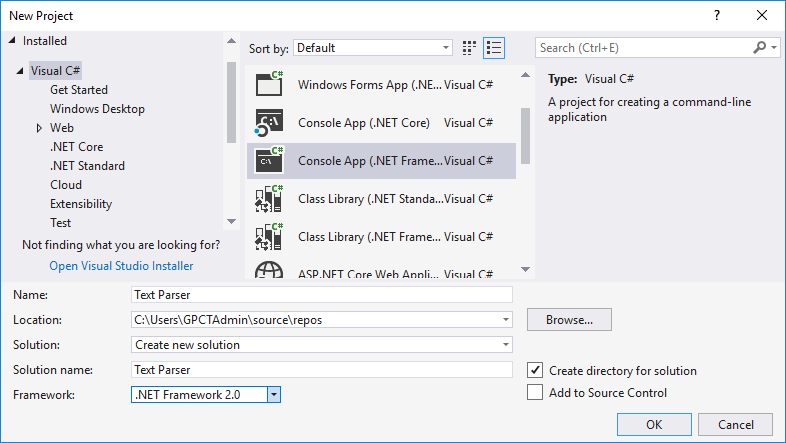
### Step 2: Add the ‘C1.TextParser’ NuGet package in your application
1. Open a pre-existing **Console App** or create a new **Console App**.
2. From the Project menu, select **Manage NuGet Packages**. The **NuGet Package** Manager appears.
3. Select **nuget.org** from the **Package source** drop down.
4. Click **Browse** tab and select **C1.TextParser** from the left pane.
5. In the right pane, click **Install**. This adds the references for the **C1.TextParser**.
### Step 3: Use the text extraction technique
Follow the links provided below to learn and impletement different text extraction techniques as required.
* [Using Regular Expressions](/componentone/docs/services/online-textparser/working/regularexpressions)
* [Using XML Template](/componentone/docs/services/online-textparser/working/xmltemplate)
* [Using HTML Markup](/componentone/docs/services/online-textparser/working/htmlmarkup)