# Getting Started
## Content
The **ADO.NET provider for ServiceNow** provides a wide range of features that enable connectivity to ServiceNow from .Net applications. The documentation will help you understand the [C1.AdoNet.ServiceNow](/componentone/api/services/online-dataconnector/dotnet-standard-api/C1.AdoNet.ServiceNow/Assembly) namespace, which includes all the available classes that can be used to connect and retrieve data from a ServiceNow service.
DataConnectors are mostly used in combination with other ComponentOne components, such as DataEngine and FlexPivot. The procedure below describes how to use the DataConnector in a console application within Visual Studio.
### How to create a new Console Application
The ADO.NET provider for ServiceNow can be used in any application. In this guide, a console application is created:
1. Open **Visual Studio**.
2. Select **Create a new project** from the **Get Started** pane.
3. In the **Create a new project** window, select **Console Application** and click **Next**, as in the screenshot below: 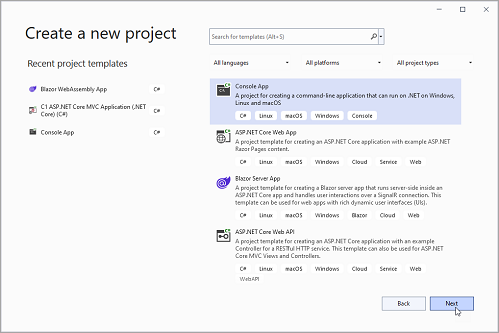
4. In the **Configure your new project** window, write your project name, choose a location to save your project, and click **Create**.
### How to add the NuGet packages
1. From the Project menu, select **Manage NuGet Packages**. The **NuGet Package** Manager appears.
2. In the **NuGet Package** Manager, click the **Package source** drop-down and select **nuget.org**
3. In the **left** pane of the **Browse** tab, select **C1.AdoNet.ServiceNow.**
4. In the **right** pane of the **Browse** tab, click **Install** to add the reference to the package.
### How to use ADO.Net provider for ServiceNow to retrieve data
Follow the steps provided below to learn and implement data retrieval using the ADO.NET provider for ServiceNow.
1. Create a connection string to set up a connection to a local resource by setting the properties.
```csharp
//Define connection string
string connectionString = @"Username= yourusername; Password= yourpassword; Oauth Client Id= yourid;
Oauth Client Secret= yoursecretcode; Oauth Token Endpoint= http://****/****/****; Url= http://****/****/****";
```
2. Fetch the data using [C1ServiceNowConnection](/componentone/api/services/online-dataconnector/dotnet-standard-api/C1.AdoNet.ServiceNow/C1.AdoNet.ServiceNow.C1ServiceNowConnection.html) class. The connection string using corresponding attributes is passed as an argument. For more information on creating connections, see [Creating Connection](/componentone/docs/services/online-dataconnector/ado.net-provider-for-servicenow/servicenowconnection).
**C1ServiceNowConnection** implements the ADO.NET DbConnection, similar to standard ADO.NET connection object that retrieves a single result set of all the data that matches a query. Once the connection is established, it retrieves the data from the source as shown in the **following** **code example.**
```csharp
using (C1ServiceNowConnection conn = new C1ServiceNowConnection(connectionString))
{
//Populate DataTable
C1ServiceNowDataAdapter adapter = new C1ServiceNowDataAdapter(conn, "Select caller_id, category, description, close_code from incident");
DataTable dataTable = new DataTable();
var i = adapter.Fill(dataTable);
if (i != -1)
{
//Display fetched data
foreach (DataRow row in dataTable.Rows)
{
Console.WriteLine("CallerId:{0}", row["caller_id"]);
Console.WriteLine("Category:{0}", row["category"]);
Console.WriteLine("Description:{0}", row["description"]);
Console.WriteLine("CloseCode:{0}", row["close_code"]);
Console.WriteLine("\n");
}
Console.WriteLine("Read operation successful !!! \n \n");
}
}
```
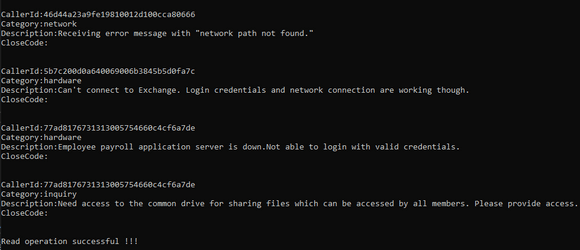
The following output is generated on the console application on executing the above steps.