# Getting Started
## Content
**The** **ADO.NET provider for Kintone** provides a wide range of features that enable connectivity to Kintone from .Net applications. The documentation will help you understand the [C1.AdoNet.Kintone](/componentone/api/services/online-dataconnector/dotnet-standard-api/C1.AdoNet.Kintone/Assembly) namespace, which includes all the available classes that can be used to connect and retrieve data from a Kintone service.
DataConnectors are mostly used in combination with other ComponentOne components, such as DataEngine and FlexPivot. For a better understanding of this application, please see the Kintone Sample live [demo](https://demos.componentone.com/DataConnectors/DataConnectorExplorer/Kintone).
The procedure below describes how to use the DataConnector in a console application within Visual Studio.
### How to create a new Console Application
The ADO.NET provider for Kintone can be used in any application. In this guide, a console application is created:
1. Open **Visual Studio**.
2. Select **Create a new project** from the **Get Started** pane.
3. In the **Create a new project** window, select **Console Application** and click **Next**, as in the screenshot below: 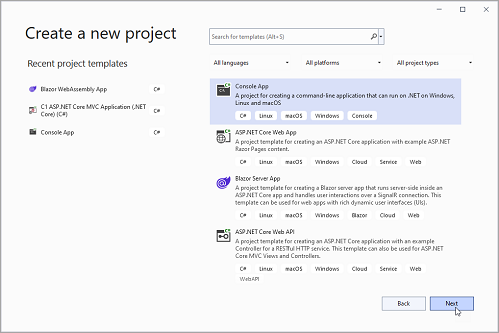
4. In the **Configure your new project** window, write your project name, choose a location to save your project, and click **Create**.
### How to add the NuGet packages
To use the ADO.NET provider for Kintone in an application, the respective NuGet package should be added:
1. From the **Project** menu, select **Manage NuGet Packages**.
2. In the **NuGet Package** Manager, click the **Package source** drop-down and select **nuget.org**
3. In the **left** pane of the **Browse** tab, select **C1.AdoNet.Kintone.**
4. In the **right** pane of the **Browse** tab, click **Install** to add the reference to the package.
### How to use ADO.Net provider for Kintone to retrieve data
Follow the steps provided below to learn and implement data retrieval using the ADO.NET provider for Kintone.
1. The first step is to create a reference to the Kintone service URL.
```csharp
const string Username = "***********";
const string Password = "************";
const string Url = "https://xg0w2.kintone.com";
```
2. In the next step, [C1KintoneDataAdapter](/componentone/api/services/online-dataconnector/dotnet-standard-api/C1.AdoNet.Kintone/C1.AdoNet.Kintone.C1KintoneDataAdapter.html) is used to retrieve the data. **C1KintoneDataAdapter** objects retrieve a single result set of all the data that matches a query. [Click here](/componentone/docs/services/online-dataconnector/ado.net-provider-for-kintone/kintoneconnection) for more information on creating connections.
C1KintoneConnection implements the ADO.NET DbConnection, similar to the standard ADO.NET connection object. Once the connection is established, the adapter's **Fill** method is used to retrieve the data from the source as shown in the following **code**.
```csharp
string kintoneConnection = string.Format("Username={0};Password={1};Url={2}", Username, Password, Url);
C1KintoneConnection conn = new C1KintoneConnection(kintoneConnection);
C1KintoneCommand comm = new C1KintoneCommand(conn);
comm.CommandText = "Select * from Products";
conn.Open();
using (C1KintoneDataAdapter a = new C1KintoneDataAdapter(comm))
{
//Filling Data Table with the help of adapter
DataTable t = new DataTable();
a.Fill(t);
//Printing the fetched table data on console
foreach (DataRow dataRow in t.Rows)
{
foreach (var item in dataRow.ItemArray)
{
Console.Write(item + " - ");
}
Console.WriteLine();
}
}
```