# Sort Data
## Content
Sorting is way to organize data in ascending or descending order based on certain criteria such as numeric, alphabetical, etc. Sorted data is generally easier to understand and maintain. In FlexReport, sorting is achieved by using the **SortDefinitions** collection of the **DataSource** class.
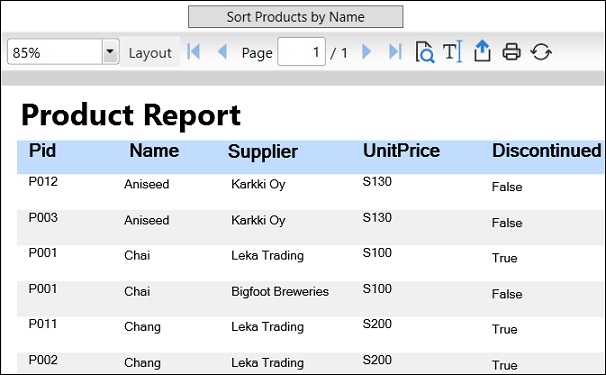
Suppose you want to view the list of products with their names in ascending order. In this case, the list should be sorted by **Name** column. Perform the following steps to illustrate how to sort the names in the list of products in alphabetical order.
1. In XAML view, add a **Button** and a **FlexViewer** control.
2. Set the **Name** property of the **FlexViewer** control to **flexsortViewer.** Also, set the **Name** of Button control to btnsort and **Content** to **Sort Products by Name,** as shown in the following code snippet****:
```csharp
```
3. Create a data table with the name GetMyDataTable and add the code to load and render the report as shown in DataTable object as DataSource section of the [Data Binding](/componentone/docs/reporting/online-flexreport/databinding#datatable) topic.
4. Add the following code in the **Click** event of the btnsort control for sorting the data in the report. In the code, an object of **SortDefnition** class is created with the name **sd** to sort the report using the field [**Name**\] in ascending order. The object sd is added to the **SortDefinitions** collection of flexReport.DataSource using the **Add** method. Finally, the **Render** method is called to refresh the report.
```csharp
Boolean asc = true;
if (asc == true)
{
SortDefinition sd = new SortDefinition("[Name]", SortDirection.Ascending);
flexReport.DataSource.SortDefinitions.Add(sd);
asc = false;
flexReport.Render();
}
```
5. Run the application to view the report in the **flexsortViewer** control.
6. Click the **Sort Products by Name** button to view sorting in the report.