# Quick Start
Develop powerful and lightweight web applications using ASP.NET MVC controls. Learn more about the ComponentOne MVC controls in ASP.NET MVC documentation.
## Content
The quick start guides you through the steps of adding the Accordion control to your MVC web application and customize the accordion. In the following example, we have used the [ShowIcons](/componentone/api/mvc/online-mvc/dotnet-framework-api/C1.Web.Mvc/C1.Web.Mvc.Accordion.ShowIcons.html) and [IsAnimated](/componentone/api/mvc/online-mvc/dotnet-framework-api/C1.Web.Mvc/C1.Web.Mvc.Accordion.IsAnimated.html) properties of the [Accordion](/componentone/api/mvc/online-mvc/dotnet-framework-api/C1.Web.Mvc/C1.Web.Mvc.Accordion.html) class to customize the Accordion control. The **ShowIcons** property shows collapsed/expanded icons in the pane headers and the **IsAnimated** property determines whether collapsing or expanding panes should be animated. You can also use other properties of the Accordion class, such as [AutoSwitch](/componentone/api/mvc/online-mvc/dotnet-framework-api/C1.Web.Mvc/C1.Web.Mvc.Accordion.AutoSwitch.html), [AllowCollapseAll](/componentone/api/mvc/online-mvc/dotnet-framework-api/C1.Web.Mvc/C1.Web.Mvc.Accordion.AllowCollapseAll.html), [AllowExpandMany](/componentone/api/mvc/online-mvc/dotnet-framework-api/C1.Web.Mvc/C1.Web.Mvc.Accordion.AllowExpandMany.html), etc., for further customization of the Accordion control.
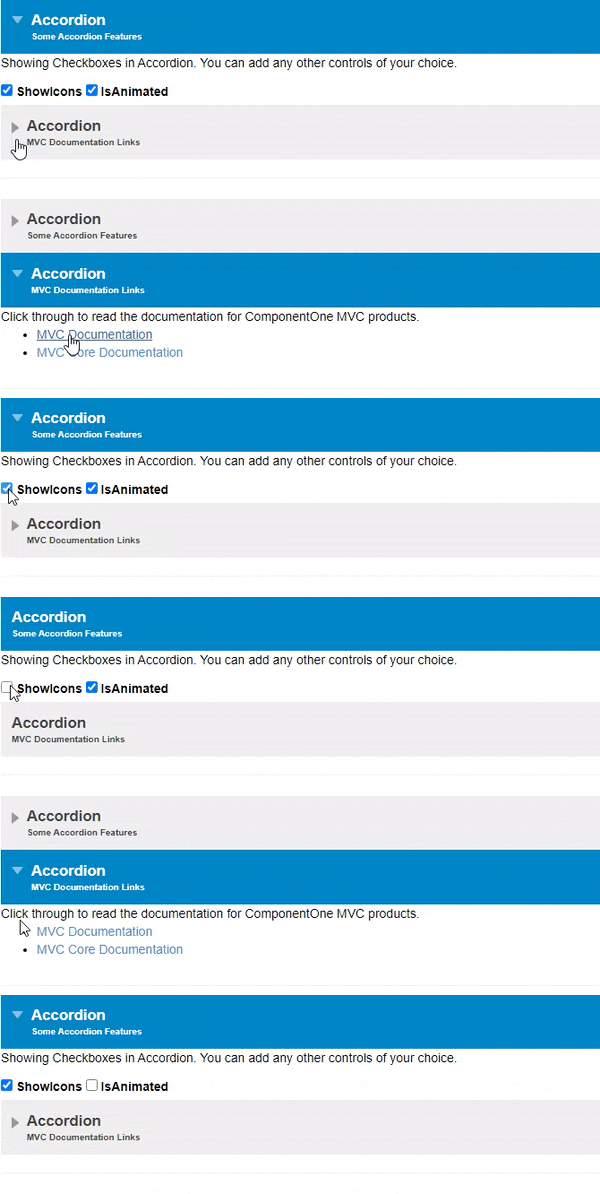
To accomplish this, follow these steps:
## Create an MVC Application
Create a new MVC application using the ComponentOne or VisualStudio templates. For more information about creating an MVC application, see [Configuring your MVC Application](/componentone/docs/mvc/online-mvc/CreatingaNewProject) topic.
## Add Accordion
To add the Accordion control to your application, add **C1.Web.MVC** reference and follow these steps:
### **Add a new Controller**
1. In the **Solution Explorer**, right click the folder **Controllers.**
2. From the context menu, select **Add | Controller**. The **Add Scaffold** dialog appears.
3. In the **Add Scaffold** dialog, follow these steps:
1. Select the **MVC 5 Controller - Empty** template.
2. Set name of the controller (for example: `AccordionController`).
3. Click **Add**.
### **Add a View for the Controller**
1. From the **Solution Explorer**, expand the folder **Controllers** and double click the AccordionController`.`
2. Place the cursor inside the method `Index()`.
3. Right click and select **Add View**. The **Add View** dialog appears.
4. In the **Add View** dialog, verify that the View name is **Index** and View engine is **Razor (CSHTML).**
5. Click **Add** to add a view for the controller. Copy the following code and paste it inside **Index.cshtml**.
```razor
Accordion
Some Accordion Features
Showing Checkboxes in Accordion. You can add any other controls of your choice.
Accordion
MVC Documentation Links
Click through to read the documentation for ComponentOne MVC products.
@Html.C1().Accordion("#accordion")
@section Scripts{
}
```
## Build and Run the Project
1. Click **Build | Build Solution** to build the project.
2. Press **F5** to run the project.
> type=note
> Append the folder name and view name to the generated URL (for example: http://localhost:1234/**Accordion/Index**) in the address bar of the browser to see the view.