# Quick Start
Develop powerful and lightweight web applications using ASP.NET MVC controls. Learn more about the ComponentOne MVC controls in ASP.NET MVC documentation.
## Content
The quick start guides you through the steps of adding C1PdfDocument in your MVC web application and adding data to it. Complete the following steps to see how the data appears in the generated PDF after data binding:
### Create an MVC Application
Create a new MVC application using the ComponentOne or VisualStudio templates. For more information about creating an MVC application, see [Configuring your MVC Application](/componentone/docs/mvc/online-mvc/CreatingaNewProject) topic.
### Configure the Data Source for Application
> type=note
> The example uses **C1NWind** database. The **C1NWind.mdf** file is available on your system at the following location:
>
> _Documents\\ComponentOne Samples\\ASP.NET MVC\\MVC\\MvcExplorer\\App\_Data_
1. Add **C1NWind.mdf** file to the `AppData` folder in the Solution Explorer.
2. In the Solution Explorer, right-click `Models|Add New Item|Data`, and select **ADO.NET Entity Data Model**.
3. Name the model as **C1NWind**, and click **Add**.
4. In the Entity Data Model Wizard, select **EF Designer from database**, click **Next**. **C1NWind.mdf** database is added to the data connection dropdown.
5. Click **Next** to choose Entity Framework version, and click **Next**.
6. In the **Choose Your Database Objects and Settings**, select `Products` table and click **Finish**.
If you can see **C1NWind.edmx** added to your project under the **Models** folder, you have successfully configured the data source for your application.
### Add C1PdfDocument
Complete the following steps to initialize a FlexGrid control.
**Add a new Controller**
1. In the **Solution Explorer**, right click the folder **Controllers.**
2. From the context menu, select **Add | Controller**. The **Add Scaffold** dialog appears.
3. Complete the following steps in the **Add Scaffold** dialog:
1. Select **MVC 5 Controller - Empty** template.
2. Set name of the controller (for example: `PDFController`).
3. Click **Add**.
4. Include the MVC references as shown below.
```csharp
using .Models;
```
5. Generate a PDF using CreatePdf method as shown in the following code:
```csharp
private readonly C1NWindEntities _dataBase = new C1NWindEntities();
private C1PdfDocument _c1Pdf;
public ActionResult CreatePdf()
{
try
{
InitialPdfDocument();
var stream = new MemoryStream();
_c1Pdf.Save(stream);
stream.Position = 0;
return File(stream, "application/pdf");
}
catch (Exception ex)
{
return Content(ex.Message);
}
}
```
6. Add pages to the PDF for each product category using the following code.
```csharp
private readonly Font _fontBody = new Font("Tahoma", 10);
private readonly Font _fontTitle = new Font("Tahoma", 15, FontStyle.Bold);
private readonly Font _fontHeader = new Font("Tahoma", 11, FontStyle.Bold);
private StringFormat _sfRight;
private StringFormat _sfRightCenter;
public void InitialPdfDocument()
{
_c1Pdf = new C1PdfDocument();
//create StringFormat for right-aligned fields
_sfRight = new StringFormat();
_sfRight.Alignment = StringAlignment.Far;
_sfRightCenter = new StringFormat();
_sfRightCenter.Alignment = StringAlignment.Far;
_sfRightCenter.LineAlignment = StringAlignment.Center;
//initialize pdf generator
_c1Pdf.Clear();
//get page rectangle, discount margins
RectangleF rcPage = _c1Pdf.PageRectangle;
rcPage.Inflate(-72, -92);
//loop through selected categories
int page = 0;
List categories = _dataBase.Categories.ToList();
foreach (Category category in categories)
{
//add page break, update page counter
if (page > 0) _c1Pdf.NewPage();
page++;
//get current category name
string catName = category.CategoryName;
//add title to page
_c1Pdf.DrawString(catName, _fontTitle, Brushes.Blue, rcPage);
//add outline entry
_c1Pdf.AddBookmark(catName, 0, 0);
//build row template
RectangleF[] rcRows = new RectangleF[6];
for (int i = 0; i < rcRows.Length; i++)
{
rcRows[i] = RectangleF.Empty;
rcRows[i].Location = new PointF(rcPage.X, rcPage.Y + _fontHeader.SizeInPoints + 10);
rcRows[i].Size = new SizeF(0, _fontBody.SizeInPoints + 3);
}
rcRows[0].Width = 110; // Product Name
rcRows[1].Width = 60; // Unit Price
rcRows[2].Width = 80; // Qty/Unit
rcRows[3].Width = 60; // Stock Units
rcRows[4].Width = 60; // Stock Value
rcRows[5].Width = 60; // Reorder
for (int i = 1; i < rcRows.Length; i++)
rcRows[i].X = rcRows[i - 1].X + rcRows[i - 1].Width + 8;
//add column headers
_c1Pdf.FillRectangle(Brushes.DarkGray, RectangleF.Union(rcRows[0], rcRows[5]));
_c1Pdf.DrawString("Product Name", _fontHeader, Brushes.White, rcRows[0]);
_c1Pdf.DrawString("Unit Price", _fontHeader, Brushes.White, rcRows[1], _sfRight);
_c1Pdf.DrawString("Qty/Unit", _fontHeader, Brushes.White, rcRows[2]);
_c1Pdf.DrawString("Stock Units", _fontHeader, Brushes.White, rcRows[3], _sfRight);
_c1Pdf.DrawString("Stock Value", _fontHeader, Brushes.White, rcRows[4], _sfRight);
_c1Pdf.DrawString("Reorder", _fontHeader, Brushes.White, rcRows[5]);
//loop through products in this category
List products = _dataBase.Products.Where(pro => pro.CategoryID == category.CategoryID).ToList();
foreach (Product product in products)
{
//move on to next row
for (int i = 0; i < rcRows.Length; i++)
rcRows[i].Y += rcRows[i].Height;
_c1Pdf.DrawString(product.ProductName, _fontBody, Brushes.Black, rcRows[0]);
_c1Pdf.DrawString(string.Format("{0:c}", product.UnitPrice), _fontBody, Brushes.Black, rcRows[1], _sfRight);
_c1Pdf.DrawString(string.Format("{0}", product.QuantityPerUnit), _fontBody, Brushes.Black, rcRows[2]);
_c1Pdf.DrawString(string.Format("{0}", product.UnitsInStock), _fontBody, Brushes.Black, rcRows[3], _sfRight);
_c1Pdf.DrawString(string.Format("{0:c}", product.UnitPrice * product.UnitsInStock), _fontBody, Brushes.Black, rcRows[4], _sfRight);
_c1Pdf.DrawString(string.Format("{0}", product.ReorderLevel), _fontBody, Brushes.Black, rcRows[5], _sfRight);
}
}
}
```
**Add a View for the controller**:
1. From the **Solution Explorer**, expand the folder **Controllers** and double click the controller (for example: `ExcelController`) to open it.
2. Place the cursor inside the method `Index()`.
3. Right click and select **Add View**. The **Add View** dialog appears.
4. In the **Add View** dialog, verify that the View name is **Index** and View engine is **Razor (CSHTML).**
5. Click **Add**. A view is added for the controller.
6. In the Solution Explorer, double click `Index.cshtml` to open it.
7. Replace the default code in the **Views\\Index.cshtml** file with the following code to display a message about the PDF being generated.
```csharp
@{
Layout = null;
}
@Html.ActionLink("GenerateExcel", "GenerateExcel")
```
### Build and Run the Project
1. Click **Build | Build Solution** to build the project.
2. Press **F5** to run the project.
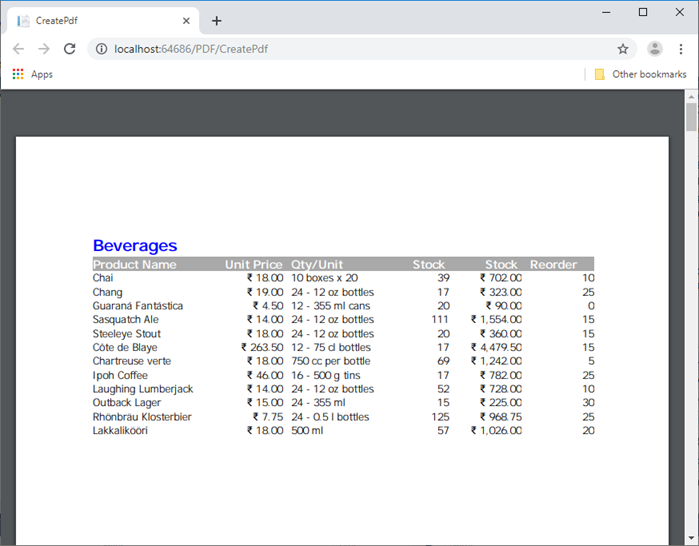
This creates a PDF with NorthWind product information wherein each product category is placed on a separate page and added to an outline structure with bookmarks.