# Styling Records, Groups, Cells
Develop powerful and lightweight web applications using ASP.NET MVC controls. Learn more about the ComponentOne MVC controls in ASP.NET MVC documentation.
## Content
The MultiRow control allows you to create your own custom CSS files which are then added to your application. In most of the applications, you would want to show where each record and group starts or ends. The MultiRow control enables this by adding CSS class names to cell elements in the first and last row/column of each group. The class names are **wj-record-start, wj-record-end, wj-group-start, and wj-group-end**. You can use these built-in class names in CSS rules to customize the appearance of the record and group delimiters.
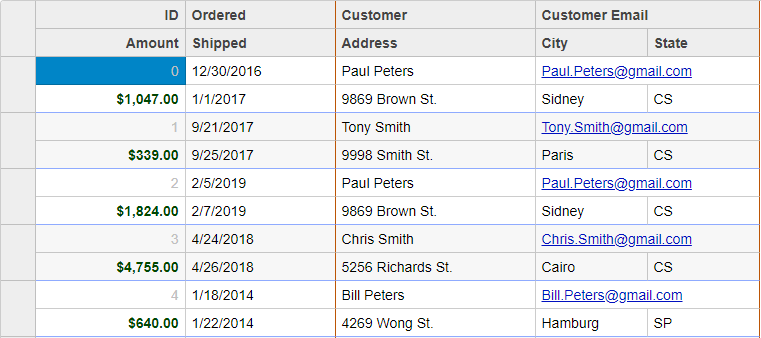
The example below shows how you can use these class names in CSS rules to customize the appearance of the record and group delimiters. It also shows how you can use the standard **CssClass** property to customize the appearance of specific cells within groups.
The following image shows how the MultiRow appears after using the CSS class names and CssClass property. This example uses the sample created in the [Quick Start](/componentone/docs/mvc/online-mvc/workwithcontrols/MultiRow/QuickStartAddDataMultiRow) topic.
### Add CustomMultiRow.css
Create a new ASP.NET MVC application. Once you have created the application, a **Content** folder is created in the Solution Explorer after adding the view to the application. To add a custom style sheet in your application, follow these steps:
1. In the Solution Explorer, right-click the **Content** folder.
2. From the context menu, select **Add | Style Sheet**. The **Specify Name for Item** dialog appears.
3. Set name of the style sheet (for example: `CustomMultiRow.css)`
4. Click **OK** to add CustomMultiRow.css style sheet in your application.
5. Replace the default code of **CustomMultiRow.css** file with the code given below.
```css
/* custom styling for a MultiRow */
.multirow-css .wj-cell.wj-record-end:not(.wj-header) {
border-bottom-color: #8fabff; /* blue lines between records */
}
.multirow-css .wj-cell.wj-group-end {
border-right-color: #bc5505; /* brown lines between groups */
}
.multirow-css .wj-cell.id {
color: #c0c0c0;
}
.multirow-css .wj-cell.amount {
color: #014701;
font-weight: bold;
}
.multirow-css .wj-cell.email {
color: #0010c0;
text-decoration: underline;
}
@font-face {
font-family: 'Fira';
src: url("../fonts/fira/FiraSans-Regular.ttf");
font-weight: normal;
font-style: normal;
}
@font-face {
font-family: 'Fira';
src: url("../fonts/fira/FiraSans-Bold.ttf");
font-weight: bold;
font-style: normal;
}
.custom-multi-row .wj-cell {
font-family: Fira;
}
```
**Styling.cshtml**
```razor
@model IEnumerable
@using MultiRow.Models
@section Styles{
}
@(Html.C1().MultiRow()
.Bind(bl => bl.Bind(Model))
.Id("stylingMultiRow")
.CssClass("multirow multirow-css")
.LayoutDefinition(ld =>
{
ld.Add().Header("Order").Colspan(2).Cells(cells =>
{
cells.Add(cell => cell.Binding("Id").Header("ID").CssClass("id").Width("150"))
.Add(cell => cell.Binding("Date").Header("Ordered").Width("150"))
.Add(cell => cell.Binding("Amount").Header("Amount").Format("c").CssClass("amount"))
.Add(cell => cell.Binding("ShippedDate").Header("Shipped"));
});
ld.Add().Header("Customer").Colspan(3).Cells(cells =>
{
cells.Add(cell => cell.Binding("Customer.Name").Name("CustomerName").Header("Customer").Width("200"))
.Add(cell => cell.Binding("Customer.Email").Name("CustomerEmail").Header("Customer Email").CssClass("email").Colspan(2))
.Add(cell => cell.Binding("Customer.Address").Name("CustomerAddress").Header("Address"))
.Add(cell => cell.Binding("Customer.City").Name("CustomerCity").Header("City"))
.Add(cell => cell.Binding("Customer.State").Name("CustomerState").Header("State"));
});
}))
```