# Date Validation
Develop powerful and lightweight web applications using ASP.NET MVC controls. Learn more about the ComponentOne MVC controls in ASP.NET MVC documentation.
## Content
ComponentOne MVC Edition's Calendar control has a built-in validator, **ItemValidator** that lets you control the type of data or the value that users can select from the calendar control. All you need to do is create a validation function, which is assigned to ItemValidator to allow or restrict the selection of dates by the user.
In this example, ItemValidator function is created so that a user can select a weekday, but not Saturdays and Sundays in the calendar control. This kind of validation is useful while planning your work sprints, workout days or diet plan.
The following image shows how the **Calendar** control appears after applying ItemValidator to it.
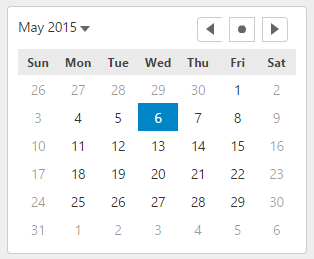
The following code example demonstrates how to add ItemValidator in the Calendar control:
#### In Code
**Add a new Controller**:
1. In the **Solution Explorer**, right click the folder **Controllers.**
2. From the context menu, select **Add \| Controller**. The **Add Scaffold** dialog appears.
3. Complete the following steps in the **Add Scaffold** dialog:
1. Select **MVC 5 Controller - Empty** template.
2. Set name of the controller (for example: `Default1Controller`).
3. Click **Add**.
4. A new controller is added to the application.
**Calendar.cshtml**
```razor
@{
var today = DateTime.Now.Date;
var minDate = new DateTime(today.Year, 1, 1);
var maxDate = new DateTime(today.Year, 12, 31);
}
@(Html.C1().Calendar().Value(today).Min(minDate).Max(maxDate).Width(300)
.ItemValidator("itemValidator"))
```